Replenishment Order
Select Mode: Shelf Purchase Order / Stock Adjustment Order
Order Method: Replenishment Order
Replenishment ordering is used to maintain the inventory levels based on parts sold, to replace inventory that falls below the quantity kept on the shelf.
Note: The store-level 'TRACK DAY FILL' setting must be checked to create replenishment orders. When enabled, each time a part is sold or returned, the 'FILL AMOUNT' field on the Part Entry screen is updated.
At the time of order creation, the quantities from the 'FILL AMOUNT' field are ordered and when the order is finalized, the 'FILL AMOUNT' field is reset to zero.
When 'Replenishment Order' is selected, the screen focus is on the 'Criteria' tab. Optionally select or edit the Line Codes purchased under the Supplier and/or set up the filters used to narrow the parts that will be considered for the order.
Optionally click the 'Options' tab to enable/disable the predefined conditions that further refine and filter the parts that will be considered for the order.
Available Default/Override (left-side) filters are:
- 'Fill Policy'
- 'Delivery Days'
- 'PO Part Cost Level'
- 'Use Buy Qty Rule'
- 'Min Cost Threshold'
- 'Min Units Threshold'
- 'Min Packs Threshold'
- 'Min Weight Threshold'
- 'Min Volume Threshold'
- 'Cost Exchange Rate'
- 'Include Core in Min Cost'
- 'Create Order Below Min'
- 'Multistore PO Type'
- 'PO + or – Percent'
Additional (right-side) filters are:
Optionally click the 'Stores' tab and select the stores for a multi-store order.
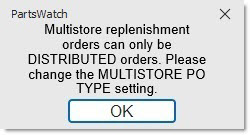
Note: Multi-store Replenishment Orders can only be created as 'Distributed'. If 'Consolidated' is selected from the 'Multistore PO Type', when the 'Print', 'Preview', or 'Order' button is clicked, the system opens a notification prompt.
When ready, optionally click the 'Preview' or 'Print' button to output a report with all parts that will be on the order, or click the 'Order' button to generate the order.
The system checks the system-level 'DISCARD EDITED REPLENISHMENT QTY' setting to determine whether or not to save or discard any quantities that are edited on the Purchase Order detail screen after the order is created.