Customer Back Order Report
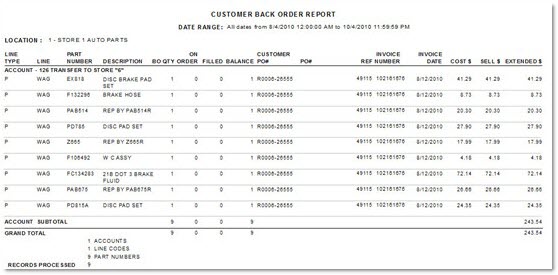
The Customer Back Order Report screen is used to generate the 'Customer Back Order Report' that tracks all sales that were not completed due to insufficient quantity and saved as a back order for the customer. Record a Back Order by entering a quantity in the 'Back Order (BO)' field located in the Invoice Point of Sale screen. The report tracks back orders that are recorded and processed from both the Invoice Point of Sale screen (Point-of-Sale) and Catalog screen.

Menu Path: Reports, Inventory, Customer Back Order, Customer Back Order Report screen
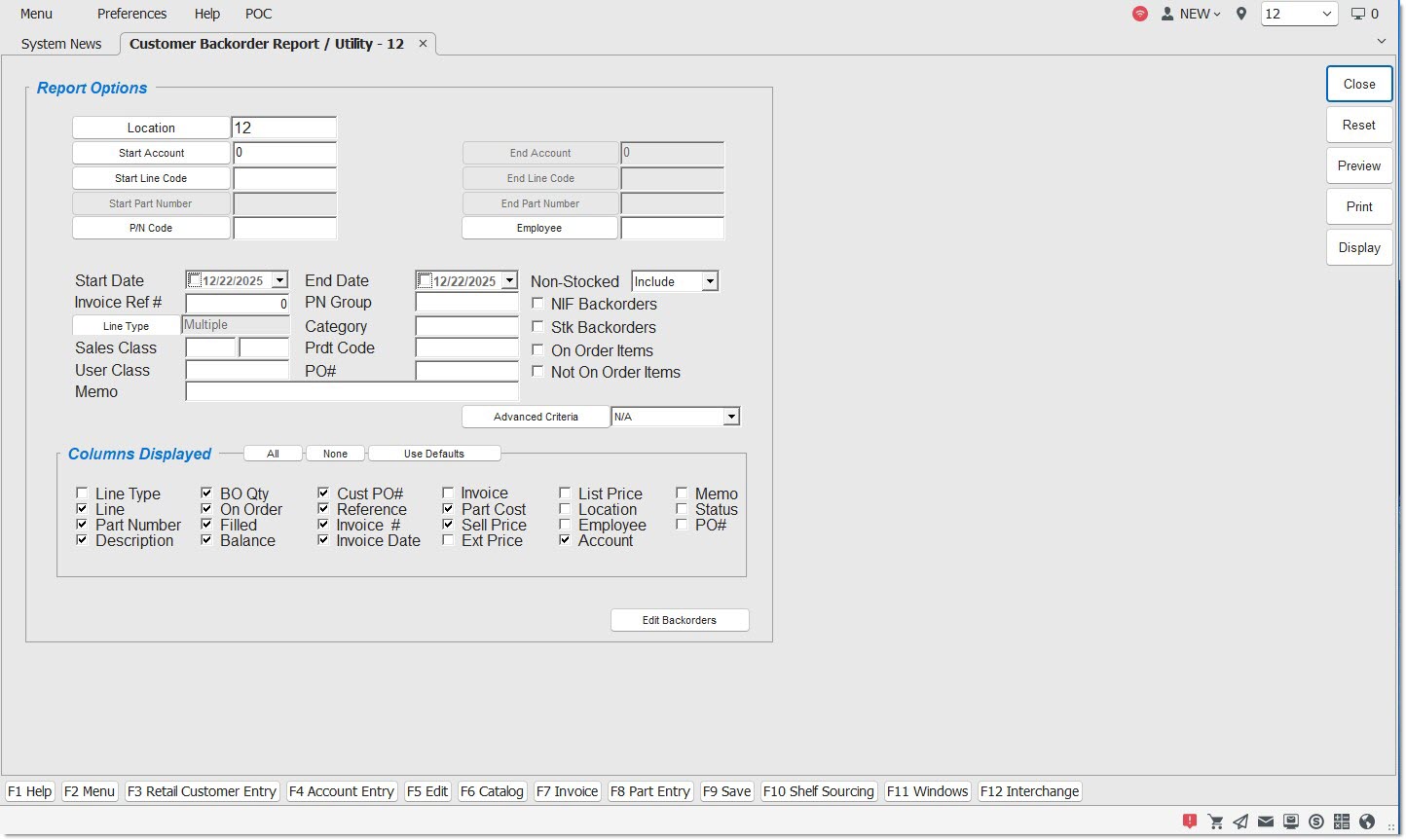
Location
Filters by the selected store location. Click the button to display the 'Browse Locations' window to select location.
Start Account
Specifies the beginning account number to report data by a range of accounts. Leave blank to report all accounts. Click the button to display the 'Find Account' window to search for a specific account.
End Account
Specifies the ending account number to report data by a range of accounts. Leave blank to report all accounts. Click the button to display the 'Find Account' window to search for a specific account.
Start Line Code
Specifies the beginning line code to report data by a range of line codes. Leave blank to report all line codes. Click the button to display the 'Browse Line Codes' window to search for a specific line code.
End Line Code
Specifies the ending line code to report data by a range of line codes. Leave blank to indicate all line codes. Click the button to display the 'Browse Line Codes' window to search for a specific line code.
Start Part Number
Specifies the beginning part number to report data by a range of line codes. Leave blank to indicate all part numbers. Click the button to display the 'Find Part' window to search for a specific part number. The field is only available when the 'Start Line Code' and 'End Line Code' fields are the same value.
When the 'Customer Lookup Stripped Match' checkbox is checked in the System General Setup screen, only letters and numbers are searched; spaces, special characters and punctuation are "stripped-out" of the search and ignored.
End Part Number
Specifies the ending part number to select the range of line codes. Leave blank to indicate all part numbers. Click the button to display the 'Find Part' window to search for a specific part number. The field is only available when the 'Start Line Code' and 'End Line Code' fields are the same value.
When the 'Customer Lookup Stripped Match' checkbox is checked in the System General Setup screen, only letters and numbers are searched; spaces, special characters and punctuation are "stripped-out" of the search and ignored.
P/N Code
Filters data for a predefined P/N Code per Line Code. Click the button to select a specific P/N Code per Line Code.
Employee
Filters by the Employee ID. Click the button to display the 'Browse Employees' window to search for a specific employee.
Start Date
Filters by the start date to limit the search results. Uncheck to report all dates.
End Date
Filters by the end date to limit the search results. Uncheck to report all dates.
Invoice Ref #
Filters by a single invoice reference number. Leave blank to report on all invoices.
Line Type
Filters by a line type, as set in the 'Type' field in the Line Code Entry screen.
Click the button to display the 'Line Types' pop-up used to select specific line type(s).
Options are:
-
'Freight'
-
'Gift Cards'
-
'Labor'
-
'Parts'
Include any 'Line Type' by checking the checkbox(es). Check the checkbox in the header to report all line types. Uncheck the checkbox in the header to deselect all line types.
-
When all are checked, ALL displays in the 'Line Type' field.
-
When more than one but less than all types are checked, 'Multiple' displays in the 'Line Type' field.
-
When only a single type is checked, that Line Type displays in the 'Line Type' field.
Note: Reports both gift cards and merchandise cards when 'Gift Cards' is selected.
Sales Class
Filters by a Sales Class code. Leave blank to report all Sales Class Codes.
User Class
Filters by the User Class Code. Leave blank to report on all User Class Codes.
Memo
Filters by an invoice note. Only the invoices with the entered 'Memo' will be reported.
PN Group
Filters by the Part Number Group Code.
Category
Filters by a specific Category. Leave blank to report all Categories.
Prdt Code
Filters by the Product Code.
PO #
Filters by PO # on items back ordered from a selected PO #.
Non-Stocked
Determines whether non-stocked parts are reported.
Options are:
-
'Include' - Reports sales and inventory values for non-stocked parts and stocked parts.
-
'Exclude' - Does not report sales and inventory values for non-stocked parts.
-
'Only' - Only reports sales and inventory values for non-stocked parts.
NIF Back Orders
Filters parts that are on customer back order that were NIF parts when put on back order, when checked. Note: NIF parts are normally added to the part table when sold, but will still be reported using the 'NIF Back Orders' flag if they were NIF parts at the time they were back ordered.
Stk Back Orders
Reports only stocked parts that are on customer back order, when checked.
On Order Items
Reports only customer back ordered parts that are on a purchase order, when checked.
Not On Order Items
Reports only customer back ordered parts that are not yet on a purchase order, when checked.
Advanced Criteria
Displays the 'Inventory Report Overrides' window used to set override defaults for the inventory report, when clicked.
Columns Displayed
Check a specific checkbox(es) to display only the information needed or click one of the following buttons.
- 'All' - Selects all of the listed items. Click 'Display' for the results of the search.
- 'None' - Deselects all of the checked items. Click 'Display' for the results of the search.
- 'Use Defaults' - Resets the default fields.
Back Order Edit / Clear Screen
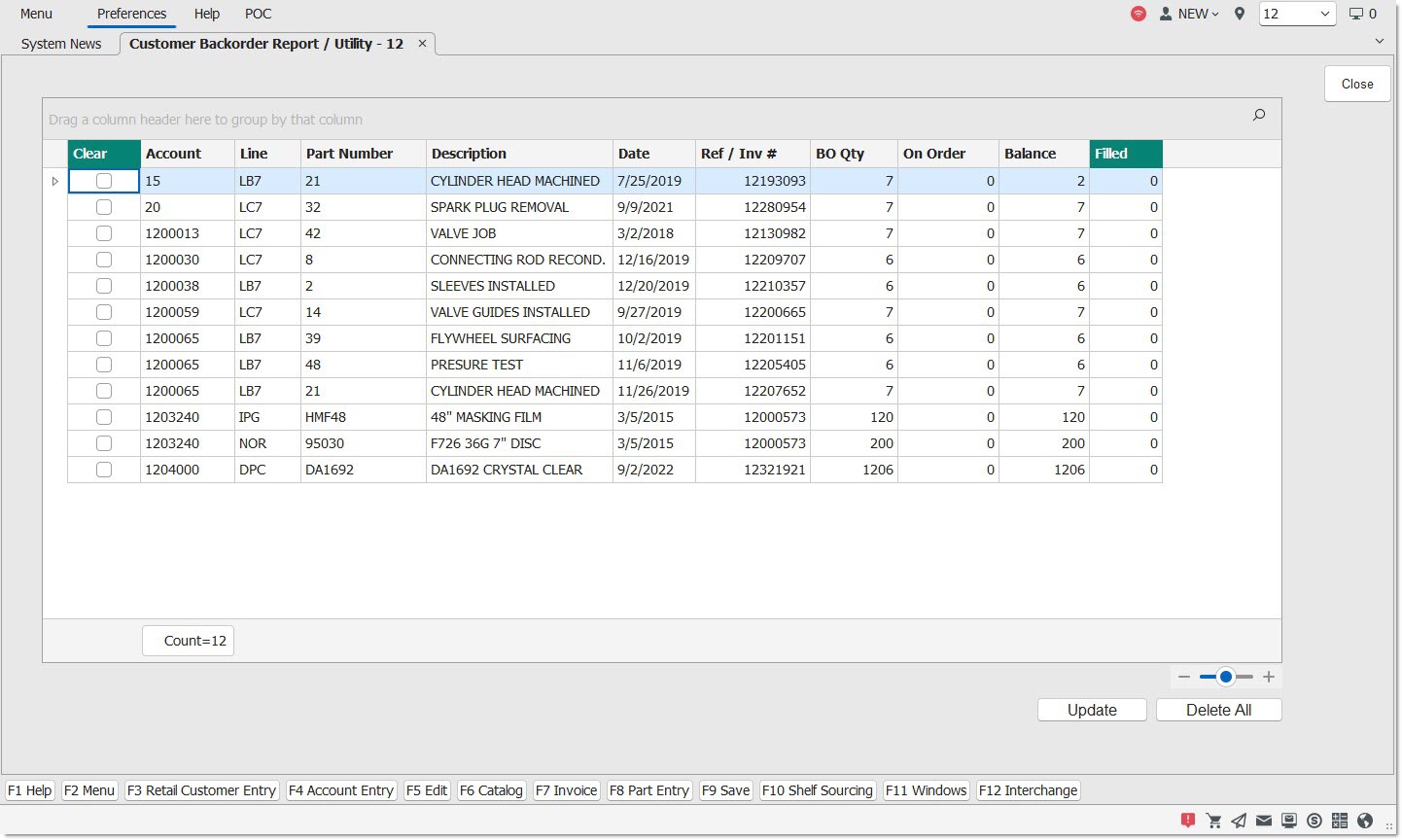
Number of Records
Indicates the number of back order records displayed in the grid.
Clear
Selects a row to be deleted. When the row is selected, a 'Y' displays for that row. When 'Update' is clicked, and the row is marked with a 'Y', the row is deleted. Rows without a 'Y' are not deleted.
Account
Indicates the Account Number or Account Code based on the value of the 'Use Account Code' flag in the A/R and Close Options screen, 'Store Settings' tab.
Part Number
Indicates the part number.
Description
Indicates the part description.
Date
Indicates the date the part was put on customer back order.
Ref/Inv #
Indicates the reference if the ticket has not been printed as an invoice or invoice number if the ticket has been printed as an invoice.
BO Qty
Indicates the quantity that has been put on back order.
On Order
Indicates the customer back order quantity that is on a purchase order but has not yet been received.
Balance
Indicates the 'BO Qty' less the 'Filled' quantity.
Filled
Indicates the quantity filled amount.
The field is editable to allow the editing of the value if a quantity becomes available from a source other than a purchase order (for example, another customer returns the part). After entering an amount, press 'Enter' and then click 'Update' to commit the changes. The system prompts to commit the changes. 'Yes' updates the back order file with the edited value. 'No' returns to the Back Order Edit/Clear screen without resetting the screen and without updating the back order file. Changes cannot be undone.
When a customer back order exists, field is automatically updated when a PO is received with the customer back ordered part and a Pick is auto-created.
Customer back orders manually updated as filled using the 'Edit BO' functionality is not reflected in the 'Line Sales and Purchases Report'.
When a customer backorder is filled for any single customer, the application creates any number of new sales orders based on the number of different ship-to addresses saved for that customer when all parts were backordered.
For example, if there were 10 different original customer sales orders that contained backordered parts for a customer, and those 10 sales orders contained 3 different ship-to addresses for that customer, when all of the parts are ready to be filled, only 3 new sales orders are created.
When a customer backorder is filled for any single customer, and the new sales orders are created by the application, the application uses the ship-to address that was saved on the original sales order, not the default ship-to address for that customer.
Back
Returns to the Customer Back Order Report screen.
Update
Save changes made to any of the rows on the screen.
Delete All
Permanently deletes/clears all rows, with and without a 'Y'. The delete cannot be undone.
Back Order Display Results Frame
Click the 'Display' button in the Customer Back Order Report screen to displays the 'Back Order Display Results' screen. The results of the search initiated by selecting the appropriate items in the 'Columns Displayed' section display.
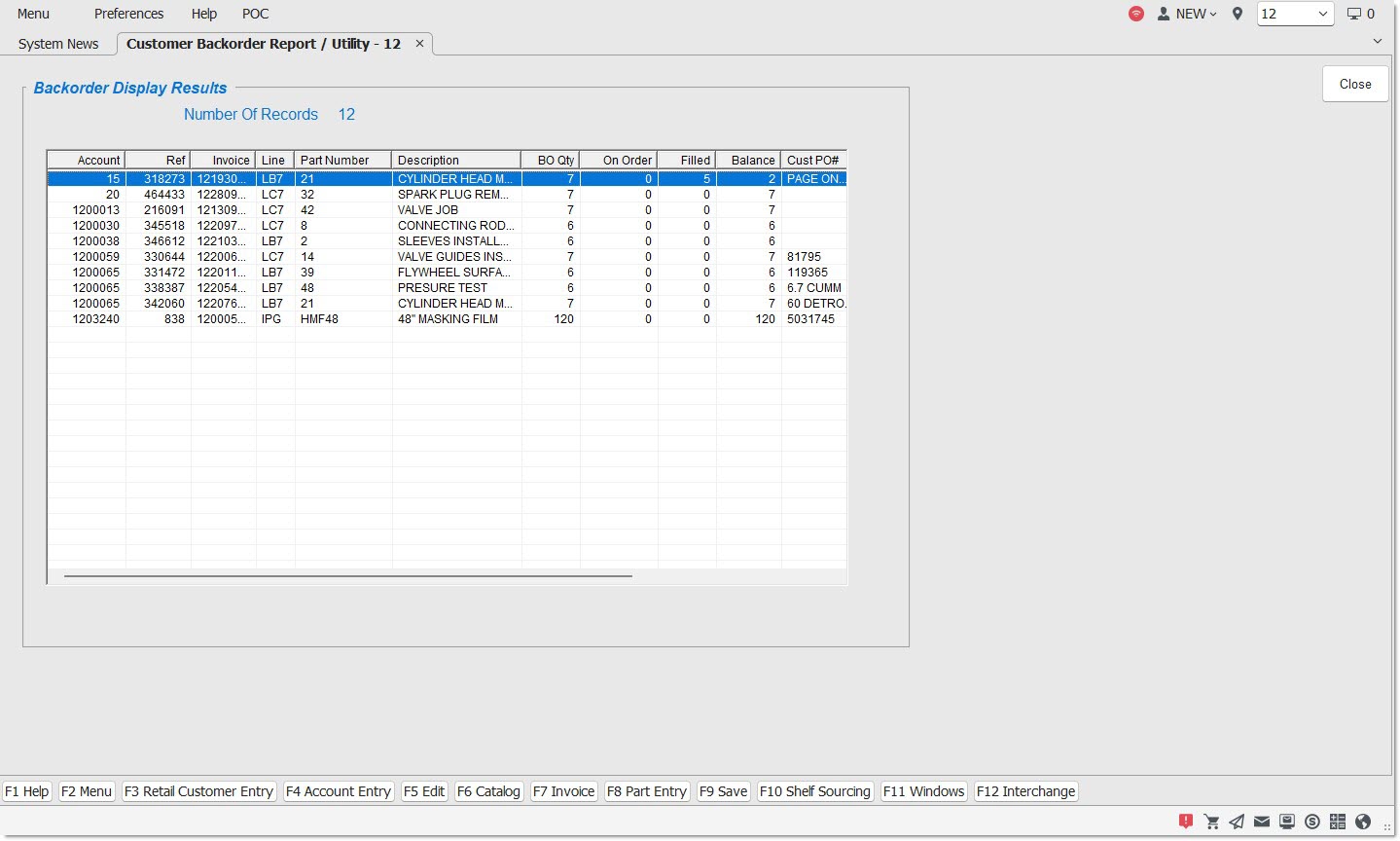
Account
Indicates the Account Number or Account Code based on the value of the 'Use Account Code' flag in the A/R and Close Options screen, 'Store Settings' tab.
Ref
Indicates the reference number.
Invoice
Indicates the invoice number.
Part Number
Indicates the part number.
Description
Indicates the part description.
The 'Description' fields support up to 255 characters.
BO Qty
Indicates the quantity of customer back orders.
On Order
Indicates the on order quantity.
Filled
Indicates the filled quantity.
Balance
Indicates the outstanding balance of back order items.
Cust PO#
Indicates the customer purchase order number entered at Point-of-Sale.
The Customer PO # is reported if the field is updated prior to the Process or Record of the customer back order. If the customer back order is recorded before the Customer PO # is entered on the invoice, the Customer PO # is not tracked or reported.
Invoice Date
Indicates the date of the invoice.
Sell Price
Indicates the sell price of the part.
Back
Returns to the Customer Back Order Report screen.
Right-Click Menu
Right-click on a part row in the 'Back Order Edit / Clear' grid and/or 'Back Order Display Results' grid to display two menu options.
-
'PO' - Displays the Purchase Order screen with the applicable PO displayed. Note: Selection is grayed out if a PO has not been created for the part row.
-
'General Part Info' - Displays the Part Entry screen with the highlighted part displayed.
Customer Back Order Report
The following is an example of the 'Customer Back Order Report':