Gift Card Maintenance
The Gift Card Maintenance screen is used to:
-
Query the remaining balance on a gift or merchandise card.
-
Print a receipt with the amount available on a gift or merchandise card.
-
Cash out a gift or merchandise card that has a remaining balance equal to or less than the 'Gift Card Cash Out Threshold' amount.
-
Refund the full value of a gift or merchandise card that has a remaining balance greater than the 'Allow Gift Card Refund' amount.
When the 'Require Electronic Funds Transfer' checkbox in the Tender Setup screen is unchecked, the Gift Card Maintenance screen functionality is unavailable. The Balance Inquiry function prompts that an EFT device is needed to complete the operation. Without the Balance Inquiry function, the 'Print', 'Cash Out', and 'Refund' buttons are disabled.
Menu Path: Invoicing, Gift Card Maintenance, Gift Card Maintenance screen
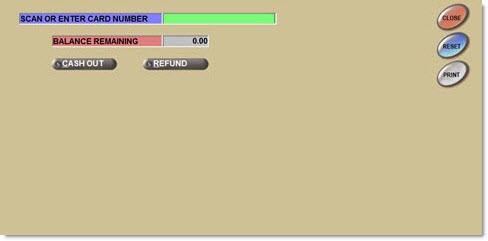
Scan or Enter Card Number
Used to manually enter the gift card number, scan the bar code on the back of the gift card or swipe the card in the PIN Pad. A request is then sent to the service provider for the card balance.
Balance Remaining
Displays the card balance returned from the service provider after the card number is entered, bar code is scanned or card is swiped. No receipt prints.
Cash Out
Used to cash out a gift or merchandise card that has a remaining balance equal to or less than the value in the 'Gift Card Cash Out Threshold'.
An invoice is created in the background when 'Cash Out' is clicked.
Available only when the balance displays in the Balance Remaining field and User Security permissions allow.
When a gift or merchandise card has a remaining balance equal to or less than the 'Gift Card Cash Out Threshold' amount configured, and User Security permissions allow, it is possible to cash out the card and return the cash to the customer. The full amount of gift and merchandise cards can be returned for cash when the 'Allow Gift Card Refund' checkbox is checked and User Security permissions allow.
Procedure to Cash Out a Gift/Merchandise Card
In addition to having the proper User Security permissions to cash out a gift card or merchandise card, the physical card must be presented, and the card must be verified by the service provider.
To cash out a gift/merchandise card, follow the steps below:
-
From the menu, select Invoicing, Gift Card Maintenance. The Gift Card Maintenance screen displays.
-
Manually enter the gift card number in the 'Scan or Enter Card Number' field, or scan the bar code on the back of the gift card or swipe the card in the PIN Pad to populate the field. The balance is verified without further input and displays in the 'Balance Remaining' field. When the balance remaining on a gift card is equal to or below the value in the 'Gift Card Cash Out Threshold' field, the 'Cash Out' button is available and the gift card can be cashed out. When the 'Cash Out' button is clicked, the following prompt displays asking to continue.
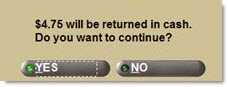
-
Click 'Yes'. The 'Counterman Identification' pop-up displays. If the 'Seller Change' field in the Store Invoice Options screen, 'Standard' tab, is set to 'Force' or 'Optional' the system forces entry of the three (3) character 'POS ID'. If set to 'No', the logged in employee is tracked for the 'Cash Out'. Override Security may be configured to force a manager override when an attempt is made to cash out a gift or merchandise card. If the card has a higher balance than the value configured in the 'Cashing Out Gift Card' task, the following prompt displays.
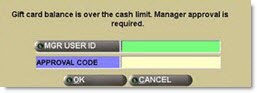
-
If the manager enters his approval code and clicks 'Ok', the 'Find Customer' window displays to identify the customer.
-
Click 'Ok' to select the customer. The system sends a request to the service provider to cash out the balance on the gift or merchandise card. The service provider brings the card balance to 0.00 and deactivates the card. The cash drawer opens. The system creates an invoice for the customer with the cash out amount as a background job; an invoice does not print. The user refunds the amount to the customer. A cash out receipt shows that the card was deactivated. The cash drawer is reduced by the amount returned to the customer. Note: Cashing out gift and merchandise cards do not affect stock, therefore, are not tracked to the Parts Ledger Report. Display/print a copy of the 'Cash Out' invoice via the 'Invoice Image' button on the Invoice Point of Sale screen.
Refund
Used to refund the full amount of a gift or merchandise card, when the 'Allow Gift Card Refund' checkbox must be checked.
Available only when the balance displays in the 'Balance Remaining' field and User Security permissions allow.
In addition to having the proper User Security permissions to refund a gift card or merchandise card, the 'Allow Gift Card Refunds' field must be checked in the Store Invoice Options screen, 'Extended' tab, the physical card must be presented and the card must be verified by the service provider.
Procedure to Refund a Gift/Merchandise Card
To refund a gift/merchandise card, follow the steps below:
-
From the menu, select Invoicing, Gift Card Maintenance. The Gift Card Maintenance screen displays.
-
Manually enter the gift card number in the 'Scan or Enter Card Number' field, or scan the bar code on the back of the gift card or swipe the card in the PIN Pad to populate the field. The balance is verified and displays in the 'Balance Remaining' field. The 'Allow Gift Card Refund' field must be checked for the 'Refund' button to be available.
-
Click 'Refund'. When the 'Refund' button is clicked, a prompt displays asking if the user wishes to continue.
-
Click 'Yes'. The 'Counterman Identification' pop-up displays. If the 'Seller Change' field in the Store Invoice Options screen, 'Standard' tab, is set to 'Force' or 'Optional' the system forces entry of the three (3) character 'POS ID'. If set to 'No', the logged in employee is tracked for the 'Refund'. Override Security may be configured to force a manager override when a user attempts to cash out a gift or merchandise card. If the card has a higher balance than the value configured in the 'Refund Gift Card' task, the following prompt displays.
-
If the manager enters his approval code, the 'Find Customer' window displays to identify the customer.
-
Click 'Ok' to select the customer. The system sends a request to the service provider to refund the balance on the gift or merchandise card. The service provider brings the card balance to 0.00 and deactivates the card. The cash drawer opens. The system creates an invoice for the customer with the refund amount as a background job; an invoice does not print. The user refunds the amount to the customer. A refund receipt shows that the card was deactivated. The logged-in employee's cash drawer is reduced by the amount returned to the customer. Display/print a copy of the 'Refund' invoice via the 'Invoice Image' button on the Invoice Point of Sale screen.
Gift and Merchandise Card Overview
A gift card is a restricted monetary equivalent that is issued by retailers or banks to be used as an alternative to a non-monetary gift that enables the cardholder to purchase goods or services up to the value of the card. The card is identified by a specific account number. Gift cards can be reloaded, which allows the cardholder to add funds to the cards and continue using it.
A merchandise card is a form of gift card used as store credit. However, unlike gift cards, merchandise cards cannot be purchased as new cards. A gift card is distinguished from a merchandise card from the data in the magnetic strip on the back of the card.
Gift card and merchandise card functionality enables selling gifts cards and issuing merchandise cards to customers for refunds at Point-of-Sale. Gift cards and merchandise cards can, in turn, be redeemed as tender. Cards are validated by a software interface when Electronic Funds Transfer (EFT) is configured, enabled and available for the store. Amounts remaining on gift and merchandise cards print on gift and merchandise receipts for the cardholder.
The following screens are used in the setup of the Gift card and Merchandise Card functionality:
User Security Setup

Override Security Setup
Tender Setup
Line Code Entry
Store Invoice Options
Part Entry
Gift Card Maintenance
Additional Screens
The following screens are used to optionally report gift card and merchandise card activity:
Override Reports
Invoice Journal Reports
Day / Cash Close
Additional Reports
Additional Information:
Mode 2
Connectivity Down
When connectivity is down so gift card and merchandise card activation by the service provider is not available during the pre-approval process when selling a new gift card or reloading a gift or merchandise card from a sale, a prompt displays stating that the card validation failed.
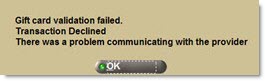
Click 'Ok' and the system prompts for voice activation.
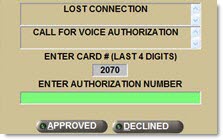
Enter the authorization number in the 'Enter Authorization Number' field and click 'Approved' to continue. If voice activation fails or is declined, click 'Declined'. The sale or refund amount is not loaded onto the gift or merchandise card.
Reasons for voice activation failures include, but are not limited to:
- Phones are down.
- Card number is not valid.
- Card is already over the max load amount.
Gift Card Receipts
Sell and Reload Gift Cards
Selling and reloading gift cards use an identical process. Each gift card has an account number associated with it, the same way a credit card does. The gift card account number bar code allows the system to retrieve the gift card account number without swiping the card at the PIN Pad. This is necessary on new sales because the magnetic strip on the back of the gift card is obscured by the packaging.
Each gift card must be added to an invoice separately. When more than one card is added, a prompt displays stating "Gift cards must be handled one at a time only. Reducing sell quantity to 1".
Procedure to Sell / Reload a Gift Card
To sell a gift card, follow the steps below:
-
From the Menu, select Invoicing, Invoicing Screen. The Invoice Point of Sale screen displays.
-
Enter the Account Number, Business/Last Name, or Phone Number in the 'Customer Lookup' field to select the customer. Or, click the 'Customer Lookup' button to search for the customer Business/Last Name, First Name, City, State or Zip. If the system requires a Seller ID and Password each time an invoice is started, then a prompt displays.
-
Enter the 'POS ID', if applicable.
-
Enter a gift card Line Code in the 'Line' field. Or, click the 'Line' button to display the 'Browse Line Codes' window to search for a line code and then double-click to select the line.
-
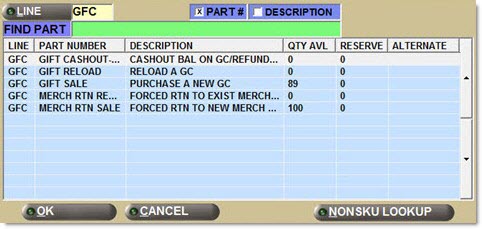
Enter a gift card sale or reload part number in the 'PN/SKU/UPC' field. The 'Description' field populates with the part description. Or, click 'PN/SKU/UPC' to display the 'Find Part' window to display the part numbers. Double-click to select one. Note: When the Line Code with the 'Type' of 'Gift Cards' is entered, only gift card part numbers display in the 'Find Part' window. Note: Gift cards cannot be sold as NIF parts.
-
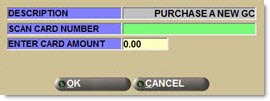
Enter the sell quantity in the 'Sell' field. Press 'Enter' to sell the part. The 'Loading Gift Card' pop-up displays.
-
The 'Description' field displays the Part Number 'Description 1' that identifies the type of sale for information purposes only.
-
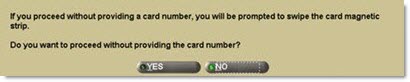
Scan the card number bar code or manually enter the gift card number in the 'Scan Card Number' field. Note: If a card number is not entered or scanned, the following pop-up displays when the 'Ok' button is clicked. Click 'Yes' and swipe the card in the PIN Pad to proceed. Click 'No' and the pop-up closes. Enter or scan the card number to proceed.
-
Enter the amount to be loaded on the card in the 'Enter Card Amount' field. Note: The 'Enter Card Amount' field is the only place a gift card price can be entered or edited. Pricing cannot be edited from the sell line in the Invoice Point of Sale screen for parts with the Line 'Type' of 'Gift Cards'.
-
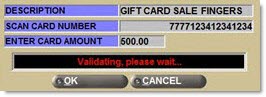
Press 'Enter' or click 'Ok'. A call to the service provider is initiated to pre-validate the card. Note: The pre-validation does not load or enable the card but merely indicates whether or not the card is acceptable. The following pop-up displays. Note: Click 'Cancel' at any point to remove the gift card line and part number from the sell line and reset the Invoice Point of Sale screen to allow entry of another part. The service provider returns an approval or rejection indicating whether or not the card can be loaded and enabled. If the card pre-approves successfully, the pop-up closes and the gift card is added to the invoice body grid. If the card is not pre-approved, a prompt displays with the reason.
-
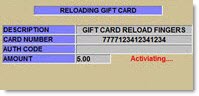
Click 'Pay Now' to tender the invoice. When the full amount of the invoice is tendered so that the invoice is finalized, a request is sent to the service provider to activate the gift card. A message indicates that the card is being activated.
-
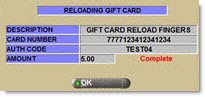
The message displays that activation is complete.
-
Click 'Ok'. The pop-up closes. The Invoice Point of Sale screen is reset for the next invoice. The finalized invoice prints. Gift Card receipt prints. If, at the time of finalization, a balance equal to or less than the value in the 'Gift Card Cash Out Threshold' field in the Store Invoice Options screen remains on the gift or merchandise card that was used for payment, the system prompts to optionally cash out the card.

-
Note: If OK is not clicked, the prompt automatically closes and the Invoice Point of Sale screen is reset.
-
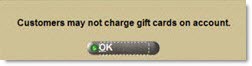
Note: Commercial customers may not put invoices with gift cards on account. If the 'On Acct' button is clicked at Point-of-Sale, the following prompt displays.
Invalid Gift Card Prompts
Reasons a gift card may be invalid when entered on the 'Loading Gift Card' pop-up include:
The card being sold was already activated.
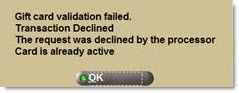
The gift card account number has already been pre-approved and added to the invoice body grid.

The gift card number is invalid.
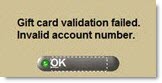
A card that already has an amount on it is being reloaded, and the final loaded balance exceeds the 'Maximum Load Amount'.
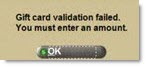
The 'Ok' button is clicked on the 'Loading Gift Card' pop-up without entering an amount in the 'Enter Card Amount' field.
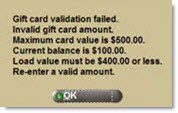
An amount less than the 'Minimum Load Amount' or greater than the 'Maximum Load Amount' or an increment not equal to the 'Minimum Denomination' is entered on the 'Loading Gift Card' pop-up.
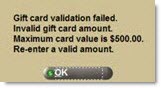
An amount above the 'Maximum Load Amount' is entered.
An amount that is not divisible by the 'Minimum Denomination' allowed is entered.
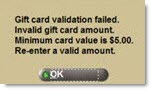
Electronic Fund Transfer (EFT) Unavailable
When Electronic Funds Transfer (EFT) is not available to the store so that the 'Require Electronic Funds Transfer' checkbox in the Tender Setup screen is unchecked, limited gift card functionality is available.
During a sale, when the 'Loading Gift Card' pop-up displays:
-
Enter the amount.
-
Enter a card number of any unique numeric value between 1 and 99999999999999999999. Unique card number validation occurs when adding more than one card to the invoice.
-
No pre-authorization occurs.
-
During finalization, no forced returns are processed.
-
Post finalization, no activation is attempted.
Tender Gift/Merchandise Card Refunds on Returns
To tender a gift/merchandise card refund, follow the steps below:
-
From the Menu, select Invoicing, Invoicing Screen. The Invoice Point of Sale screen displays.
-
Enter the Account Number, Business/Last Name or Phone Number in the 'Customer Lookup' field to select the customer. Or, click the 'Customer Lookup' button to search for the customer Business/Last Name, First Name, City, State or Zip. If the system requires a Counterman Identification password each time an invoice is started, then a prompt displays.
-
Enter the 'POS ID', if applicable.
-
Follow the existing returns process.
-
Click 'PAY NOW' to tender the invoice. A request is sent to the service provider to validate the gift card. A prompt display stating that one or more of the cards will be validated.

-
Click 'Ok'. The 'Loading Gift Card' pop-up displays.
-
Select 'Activate' to add the refund amount on a new card or 'Reload' to add the refund amount on an existing card.
-
Scan or enter the gift card number in the 'Scan Card Number' field. Note: If the account number is not scanned or entered, the following pop-up displays. Click 'Yes' and swipe the card in the PIN Pad to reload and activate the card. Click 'No' and enter or scan the card number to reload and activate the card.

-
Click 'Ok'. A request is sent to the service provider to activate the gift card and merchandise card. A prompt displays showing the progress as the card is loaded. If the total refund amount forced on a gift or merchandise card exceeds the maximum amount configured on the Line Code Entry screen for the line code owning the gift or merchandise card part number, then the forced refund amount is split across several gift or merchandise cards to ensure no card is loaded with a value greater than the maximum load amount allowed. If the invoice does not have a zero balance (amount due or amount owed), the Tender screen displays to allow the user to complete tender for the additional items on the invoice. If, at the time of finalization, a balance equal to or less than the value in the 'Gift Card Cash out Threshold' field in the Store Invoice Options screen remains on the gift or merchandise card that was used for payment, the system prompts to optionally cash out the card.

-
Note: If 'Ok' is not clicked, the prompt automatically closes and the Invoice Point of Sale screen is reset.
-
The finalized invoice prints. A gift card receipt prints for each gift card and merchandise card loaded.
Forced Returns on Gift and Merchandise Cards
All merchandise card activations and reloads are initiated by the application and not by the customer. Merchandise cards are not sold as new cards the way gift cards can be sold and are only issued on refunds. Merchandise cards are issued as a refund to retail customers only; not to commercial customers. Customers cannot purchase additional amounts to load on merchandise cards. Customer-owned merchandise cards can only be reloaded as a result of additional product returns and can only be loaded/reloaded with a value equal to or less than the maximum load amount specified in the 'Maximum Load Amount' field in the Line Code Entry screen. When the refund amount is less than the 'Minimum Load Amount' for a merchandise card, cash is returned regardless.
Returns that are put on merchandise cards at tender are tracked based on the value in the 'Merch Card Rtn P/N' and 'Merch Card Reload P/N' fields in the Store Invoice Options screen, 'Returns' tab. Since merchandise cards cannot be sold like gift cards, should a line or part number be manually entered or selected on the invoice sell line that is set up as 'Merch Card Rtn P/N' or 'Merch Card Reload P/N', a prompt displays stating, "Merchandise cards cannot be issued this way".
Before the system issues refunds, it checks the setup of the following fields in the Store Invoice Options screen, 'Returns' tab, to determine whether or not refunds are automatically forced on a merchandise card.
Force Returns on Merchandise Card:
-
'Without Receipt/History'
-
'Purchased Over # Days'
-
'Purch W/ Check Less Than # Days'
-
'Purchased With Merch Card'
When the return passes each of the above setups, the system then checks the setup of the:
-
'Return On Gift Card if Purch W/ Gift Card'
If the original sale was tendered with a gift card and the 'Return On Gift Card if Purch W/ Gift Card' field is checked, then the refund amount is automatically loaded on a gift card, instead of a merchandise card. If unchecked, any tender type can be used for the refund.
On a return where the original transaction had multiple tenders, possibly including gift cards or merchandise cards, the refund amount is issued to each of the tender types up to the maximum amount of the tender.
When a customer makes multiple returns, and some the returns have receipts and some do not, cash is returned for the receipted items and the amount of the non-receipted items go on a merchandise card at tender.
For returns when a refund would normally be forced on a merchandise or gift card, and a sale and a return are on the same invoice and:
-
the invoice balance is positive, the return amount is not forced on a merchandise card. The customer pays the amount due (net of the sale and return). For example, if a $20.00 sale and $3.00 return are invoiced, the customer pays $17.00.
-
the invoice balance is negative, the net amount is added to a merchandise card. For example, if a $3.00 sale and a $20.00 return are invoiced, the customer is refunded $17.00 on a merchandise card.
If cancelling from the 'Invoice Tender' window, cancelling out of the pre-authorization pop-up, or if pre-authorization fails, all forced refund gift and merchandise cards on the invoice are removed when returning to the Invoice Point of Sale screen. An 'Override' button is available on the pre-authorization pop-up when refunds are forced on a gift or merchandise card.
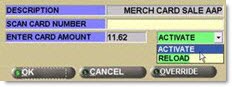
If the refund should not be added to a gift or merchandise card, click the 'Override' button (rather than the 'Cancel' button). The 'Voiding a Forced Refund Invoice Item' manager approval security pop-up displays.
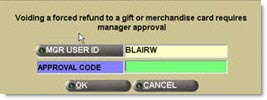
If approved, refund a form of tender other than a gift or merchandise card.
Procedure to Process Return on a Merchandise Card
To process a return item without a receipt, follow the steps below:
-
From the Menu, select Invoicing, Invoicing Screen. The Invoice Point of Sale screen displays.
-
Enter the Account Number, Business/Last Name or Phone Number in the 'Customer Lookup' field to select the customer. Or, click the 'Customer Lookup' button to search for the customer Business/Last Name, First Name, City, State or Zip. If the system requires Counterman Identification each time an invoice is started, then a prompt displays.
-
Enter the 'POS ID', if applicable.
-
Add return to sales order.
-
Click 'Pay Now'. If any of the return requirements are not met (the customer does not have the purchase receipt and the sale is not found in the customer's purchase history, the item was purchased over the designated number of days, the item was purchased with a check less than the designated number of days or the sale item was tendered with a merchandise card), the System forces the return amount on a merchandise card. A prompt displays stating, "1 merchandise Card(s) have been added to the sales order for a refund of returned merchandise. The card(s) will now be validated".
-
Click 'Ok'. The 'Loading Gift Card' window displays.
-
Scan the card number and determine whether to activate a new card or reload an existing card.
-
Click 'Ok'. The Merchandise card is added to the sales order with the refund amount.
-
Complete tender. A request is sent to the service provider to activate the merchandise card. A prompt displays stating that merchandise card is being activated. The finalized invoice prints. Merchandise card receipt prints.
Procedure to Void a Forced Return on Merchandise Card
To void a forced return on a merchandise card, follow the steps below:
-
From the Menu, select Invoicing, Invoicing Screen. The Invoice Point of Sale screen displays.
-
Enter the Account Number, Business/Last Name or Phone Number in the 'Customer Lookup' field to select the customer. Or, click the 'Customer Lookup' button to search for the customer Business/Last Name, First Name, City, State or Zip. If the system requires a Counterman Identification each time an invoice is started, then a prompt displays.
-
Enter the 'POS ID', if applicable.
-
Add return to sales order.
-
Click 'Pay Now'. A prompt displays stating, "1 merchandise Card(s) have been added to the sales order for a refund of returned merchandise. The card(s) will now be validated".
-
Click 'Ok'. The 'Loading Gift Card' window displays.
-
Click 'Cancel' and the system prompts "Unable to validate gift card, number UNKNOWN." Click 'Ok'. The Invoice Point of Sale screen redisplays. All forced Merchandise and/or Gift Cards are removed.
-
Click 'Override' to approve another form of tender. (This requires manager approval.)