Tender Window
The Tender process supports the processing of cash, checks, Travelers Checks, gift cards, and coupons. Any of these payment types may be allowed or disallowed via the Tender Setup screen.
.png) Receive on Account (ROA) - 6 minutesReceive on Account (ROA) - 6 minutes
Receive on Account (ROA) - 6 minutesReceive on Account (ROA) - 6 minutes
ChargeItPro Credit Card Integration - 17 minutesChargeItPro Credit Card Integration - 17 minutes
Deposit
A deposit is a partial payment (down payment) made on an invoice, except a COD invoice that has already been printed as a COD. All forms of tender can be used to make a deposit.
When the 'Deposit' button is clicked on the Invoice Point of Sale screen to display the 'Tender' window, the 'Allow On Deposit' flag in the Tender Setup screen, determines if coupons can be tendered on deposits and deposit refunds. When 'Allow On Deposit' is checked, the coupon buttons show. When unchecked, the coupon buttons do not show.
Deposit transactions display on the Invoice Journal.
Deposit tickets can be cancelled. Override Security can be set up to be required for this action. Use the 'Cancel Order' button in the Invoice screen to cancel a deposit ticket. When a deposit that had coupons applied is canceled, and the coupon requires a bar code, enter a predetermined generic number so the transaction can be completed. The 'Allow On Deposit' flag in the Tender Setup screen, determines if coupons can be tendered when canceling a deposit. 'Deposit Void' prints on the receipt or invoice to indicate that the deposit amount was refunded.
Allowing coupons on cancellations or returns avoids having to give a customer cash back for the amount of coupons originally tendered. However, if business rules are in place to allow cash back in certain instances, then cash would be tendered, but the system does not verify for validity.
Receive on Account (ROA)
Receive on Account is the process that allows an Accounts Receivable customer to make a payment on their account over the counter.
From the Invoice screen , click the 'ROA' button with or without a customer in focus. With a customer in focus, the 'Payments Received on Account' window displays with the customer information. Without a customer in focus, the 'Payments Received on Account' window displays without any customer information. The customer lookup for Accounts Receivable customers can be performed the same here as from the Invoice Point of Sale screen.
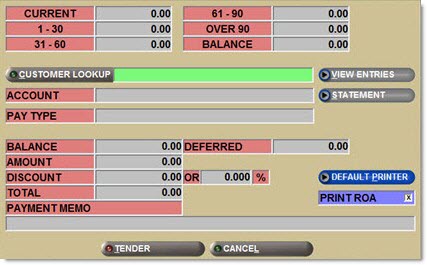

Statement Button
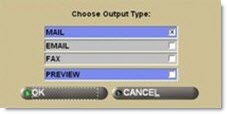
When an account is selected and the 'Statement' button is clicked, the 'Send Statement Options' window displays to select the output type. The window populates based on the account settings. For instance, if the selected account setting has mail selected, the 'Mail' output type defaults to checked. An e-mail generated statement must be in a Portable Document Format (PDF). When the PDF software is not installed, a message displays stating, "Account xxxxxxxx – Email Error. PDF Creator Printer not found. Please install PDFCreator", and the statement is not generated.
ROA Tender
The 'ROA Tender' window enables entry of the customer's payment on their account. Select a commercial customer. Click the 'ROA' button. The 'Payments Received on Account' window displays. Enter a payment amount. Click the 'Tender' button. The 'ROA Tender' window displays to continue the tender process.
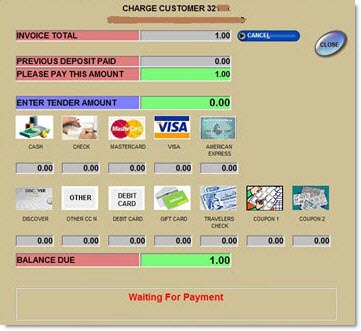
Invoice Total
Indicates the total due on the invoice.
Previous Deposit Paid
Displays the amount of a deposit that was previously made on the account.
Please Pay This Amount
Indicates the amount due by the customer.
Displays the rounded amount the customer should pay if paying in cash when the 'Round Change To' field in the Tender Setup screen is set to the value of '.05'. Although the amount shown applies to cash tender only, the amount displays for all types of tender, not just cash.
Pennies are still an acceptable form of tender; however, pennies will not be given to the customer as change.
Example: If the ROA amount is $10.04 and $10.05 is entered in the 'Enter Tender Amount' field, the system allows the rounded amount and the Change Due will be $0.00 instead of $0.01.
If the ROA amount is $10.04, the 'Suggested Cash Tender' displays the rounded amount of $10.05 and the option to tender $10.04 is available if the customer pays $10.04 exactly or $10.05 to round to the nearest nickel without giving penny change.
Regardless, the ROA payment remains the customer payment 'Amount' entered in the 'ROA Tender' window.
Enter Tender Amount
Indicates the amount of tender received from the customer being paid toward the purchase.
Click the appropriate tender type. A pop-up window displays the tender type and amount being credited toward the invoice.
Tender types are:
-
'Cash'
-
'Check'
-
'MasterCard'
-
'VISA'
-
'Debit Card'
-
'American Express'
-
'Discover'
-
'Gift Card'
-
'Travelers Check'
-
'Coupon 1'
-
'Coupon 2'
Balance Due
Indicates the balance remaining on the invoice.
Cancel
Cancels the transaction.
On Account
Displays in the 'Invoice Tender' window when the account is a main account with a 'Pay Type' of 'OI - Standard', 'OI - Statement Pay', or 'Balance Forward'.
Invoice Tender
The 'Invoice Tender' window enables entry of the customer's payment on his invoice at the time of the sale. After selling the part(s), click the 'Invoice' button in the Invoice Point of Sale screen. For a cash account, the 'Invoice Tender' window immediately displays. For a charge account, click the 'Pay Now' button after clicking 'Invoice' to display the 'Invoice Tender' window.
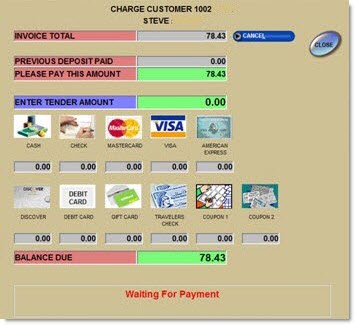
Invoice Total
Indicates the total due on the invoice.
Previous Deposit Paid
Displays the amount of a deposit that was previously made on the account.
Please Pay This Amount
Indicates the amount due by the customer.
Displays the rounded amount the customer should pay if paying in cash when the 'Round Change To' field in the Tender Setup screen is set to the value of '.05'. Although the amount shown applies to cash tender only, the amount displays for all types of tender, not just cash.
Pennies are still an acceptable form of tender; however, pennies will not be given to the customer as change.
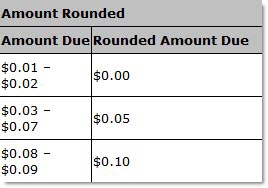
Example: If the ROA amount is $10.04 and $10.05 is entered in the 'Enter Tender Amount' field, the system allows the rounded amount and the Change Due will be $0.00 instead of $0.01.
If the ROA amount is $10.04, the 'Suggested Cash Tender' displays the rounded amount of $10.05 and the option to tender $10.04 is available if the customer pays $10.04 exactly or $10.05 to round to the nearest nickel without giving penny change.
Regardless, the ROA payment remains the customer payment 'Amount' entered in the 'ROA Tender' window.
Enter Tender Amount
Indicates the amount of tender received from the customer being paid toward the purchase.
Click the appropriate tender type. A pop-up window displays the tender type and amount being credited toward the invoice.
Tender types are:
-
'Cash'
-
'Check'
-
'MasterCard'
-
'VISA'
-
'Debit Card'
-
'American Express'
-
'Discover'
-
'Gift Card'
-
'Travelers Check'
-
'Coupon 1'
-
'Coupon 2'
Balance Due
Indicates the balance remaining on the invoice.
Indicates the amount that a COD invoice payment is short and will not be collected. Requires Manager Override.
Note: 'Short' is only used for small shortages. Attempts are made to collect larger shortages rather than record them as shortages.
Enter other forms of tender first, and if there is a shortage, enter the tendered amount in 'Enter Tender Amount', and click 'Short' and enter the amount of the shortage.
The 'Enter Short Amount on COD' security control in the Override Security screen, under 'General Popup', 'Manager Approval Popup', controls the required manager override to enter a 'Short' amount.
Amount is tracked to the 'COD Short' bucket in the Day / Cash Close screen.
Available for unpaid COD invoices only; does not display when doing Edit Tender on a previously paid COD.
If a 'COD Short' amount was entered mistakenly, click 'Cancel' on the Manager Override prompt to return the short amount to its original amount and increase the 'Balance Due' accordingly.
Currency Exchange
Displays the 'Balance Due<foreign currency>' and 'Rate' fields below the 'Balance Due USD' field when clicked. Click again to hide the currency exchange fields. Displays when taking original tender of non-COD invoice and performing Edit Tender on a paid or unpaid COD.
Cancel
Cancels the transaction.
On Account
Displays in the 'Invoice Tender' window when the account is a main account with a 'Pay Type' of 'OI - Standard', 'OI - Statement Pay', or 'Balance Forward'.
Payments update to the account as Unapplied Credits for Open Item accounts and are applied to the oldest balance for Balance Forward accounts.
Change and Refund Amount Rounding
While pennies can still be collected as tender, "rounding" enables making change at tender without using pennies. Rounding of change for sales and/or refunds can result from a payment made by Cash. Check, Travelers Check, Credit Card or gift card may result in penny rounding if over tendering is allowed (i.e., the 'Maximum Override Amount' flag is checked in the Tender Setup screen and the customer overpays, resulting in change due.) Also, Deposit Void (customer had made a deposit on an invoice and then decides to cancel the order) and an 'Undo' (a paid invoice is opened through Invoice Image and is undone using the 'Undo' button).
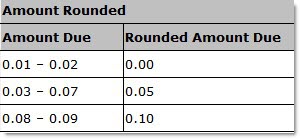
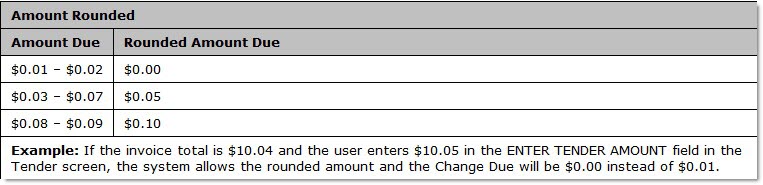
When the 'Round Change To' field in the Tender Setup screen is set to .05, penny rounding at tender to nickel divisible values is enabled. The system automatically rounds change or refunds to the customer that are not divisible by a nickel. When mixed, or multiple, forms of tender are used (for example, a combination of credit card and cash), the system only rounds when the balance of the invoice is being paid in cash.
The amount is rounded, as follows:
The following prompt displays when the 'Auto Fill Amount' checkbox is checked in the Tender Setup screen and the 'Enter Tender Amount' field is automatically populated by the system using the 'Suggested Cash Tender' field or any time the system rounds the amount of the change.
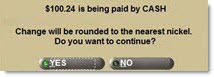
Click 'No' and the Tender window redisplays without accepting the amount. Enter a different tender amount or chose a different tender type.
Click 'Yes' and the 'Change Due' pop-up displays.
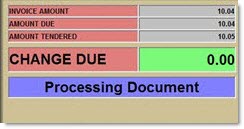
The 'Change Due' field displays the rounded amount of change, if any. The system accepts the amount entered and returns any change due as a nickel divisible amount when an amount is entered in the 'Enter Tender Amount' field that rounds evenly to a nickel or an amount that causes change due to round evenly to a nickel and the 'Cash' icon is clicked. For example:
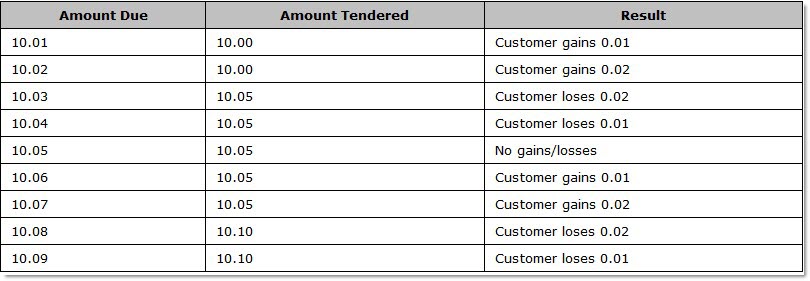
Change due is always returned in the home currency and not in foreign currency. So, if the customer pays with foreign currency, the system applies the exchange rate, calculates the home currency value and applies that to the invoice. Then, change due (or refund due) is calculated. The same rounding rules used for sales invoices apply to refund invoices.
Deposit Invoices
When a part is sourced for the customer and 'Finish' is clicked, or a part is entered on a ticket and 'Deposit' is clicked, the system only rounds the amount when the balance of the invoice is being paid by cash and change returned is not divisible by a nickel.
Residual Reporting
The 'Invoice Journal Summary Report', 'Invoice Journal Tender Report', and 'Cash Drawer Summary Report' reflect a net total of the residual amount from change rounding at 'Invoice Tender' for reporting purposes in the 'Cash Rounding' field.
Note: The "residual" amount is the difference between the invoice total and the amount tendered.
For example, when the 'Round Change To' field in the Tender Setup screen is set to '.05':
-
For an invoice totaling $11.44, the system rounds the value to $11.45. The residual value of $0.01 is tracked.
-
For a return invoice totaling $11.44, the system rounds the value to $11.45. The residual value of $-0.01 is tracked.
Check
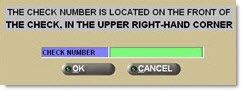
When 'Check' is clicked, the 'Enter Check Number' pop-up displays so the check number can be entered.
Coupon
Coupon amounts are considered tender and are deducted from the after-tax total on invoices. Taxes are applied and paid on the full amount if an item, prior to any coupon amounts applied.
To utilize a coupon, either:
-
Enter the coupon amount in the 'Enter Tender Amount' field and then click the appropriate coupon button.
-
Click the appropriate coupon button and manually enter coupon information in the coupon pop-up.
When 'Coupon 1' is selected, the 'Enter Coupon 1' pop-up displays.
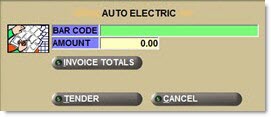
When 'Coupon 2' is selected, the 'Enter Coupon 2' pop-up displays.
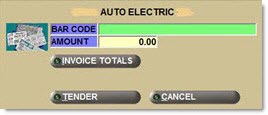
Coupon data is journaled within the application during tender of invoices and ROAs and is reported by an external process independent of the application.
Credit Card
When a credit card icon is clicked in the Tender window, a pop-up displays:
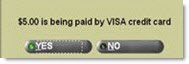
Click 'Yes' and the PIN Pad prompts to swipe the card. The system sends the credit card information to the service provider.
When the 'Yes' button is clicked, and the customer is a commercial customer with stored tokens for the card type selected, the 'Credit Card Information' pop-up displays:
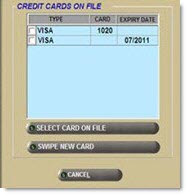
Note: This pop-up does not display for retail customers, and commercial customers with no stored tokens (credit cards on file).
Credit Card / Debit Card Processing Transaction
Multiple forms of payments, such as cash, credit cards, debit cards, as well as multiple payments from the same form of payment, can be applied a single transaction (purchases and refunds). When a customer uses a credit/debit card (for purchase or refund) that had been previously stored in the 'Credit Card Information' window, PartsWatch sends a token and the service provider processes the transaction using the credit card associated with that token. The card does not need to be swiped and there is no PIN Pad interaction.
On a purchase where multiple credit/debit cards are used and the first card is processed successfully and a second card is declined or times out, the application returns to the tender screen to allow them to enter a second payment again. The first payment is accepted and not refunded or reversed.
Whether a card on file was selected or a new card was swiped, the following status messages display as the credit card transaction is processed: "Retrieving card information from user" and "Retrieving transaction authorization". The 'Transaction Approved' message displays when the card processed successfully. Click 'Ok', or allow the window to automatically close after two seconds. The credit card receipt prints. If the full amount of the invoice has not been satisfied, the Tender window displays to allow entery of the next form of tender. If the full amount of the invoice has been satisfied, the slip invoice or full invoice prints.
If the card swiped does not match the card type selected in the Tender window, a message displays stating, "Incorrect Card Used". Click 'Ok' to return to the Tender window to make another selection.
Refunds
A refund of a credit/debit card can be initiated by creating a return invoice. This can be done manually or by using 'Undo'. The credit card must be presented (and swiped) to process a refund as an 'Undo' unless using a stored token (credit card on file).
'Undo' is allowed on invoices:
-
Tendered using a credit card or stored token. During an UNDO when an existing card is being used, the stored token can be selected when prompted for tender by the system. A card does not need to be presented.
-
Processed with a single or multiple forms of payment, including credit and debit cards. (Multiple forms of payment are allowed on the 'Undo' itself also.)
Reasons for a refund include:
-
A customer returns items.
-
A customer realizes after a sale is fully tendered that the wrong credit/debit card was used and wishes to use a different card. Another invoice will be created as a return against it and then a new invoice is created charging the proper credit/debit card.
-
PartsWatch does not force a refund against the same credit/debit card that was used to process the sale. This rule also applies to invoices with mixed forms of payment that require a refund.
To initiate a refund once the credit card has been processed, click 'Cancel' in the Tender window. If the card was swiped, the customer must re-swipe the card. If a token was used, the token must be re-selected. A refund credit card receipt is sent back and printed for each card. The amount for that card returns to its previous amount and the 'Balance Due' amount in the Tender window is increased by the returned amount. Transactions cannot be cancelled while the card is processing. Refund data is recorded to the Invoice Journal.
The 'Transaction Declined' message displays when a transaction is declined. Click 'Ok' and returns to the Tender window with the declined amount returned to the balance on the screen.
The customer can cancel a credit/debit card transaction during processing by clicking or pressing the 'Cancel' button on the PIN Pad. (If 'Cancel' is clicked on the Tender window after a credit/debit card transaction has been authorized, a refund (and not a reversal or void) is created for the amount authorized.) A cancellation receipt prints.
Debit Cards
Multiple debit cards can be used as tender, each one tracking the masked cardholder's debit card number (last four digits) to the Invoice Journal when the invoice is finalized. A debit card receipt prints for each debit card that processes successfully.
The following status messages display as the debit card transaction is processed: "Retrieving card information from user" and "Retrieving transaction authorization". The 'Transaction Approved' message displays when the card processed successfully. Click 'Ok', or allow the window to automatically close. The credit card receipt prints. If the full amount of the invoice has not been satisfied, the Tender screen displays to allow the user to enter the next form of tender. When the full amount of the invoice is tendered, the invoice prints.
To initiate a refund on an invoice that is not fully tendered, click 'Cancel' in the Tender window. The card must be re-swiped. A refund debit card receipt is printed. The amount of the card is returned to its previous amount and the 'Balance Due' increases accordingly.
The 'Transaction Declined' message displays when a transaction is declined. Click 'Ok' and returns to the Tender window with the declined amount returned to the balance on the window.
Procedure to Tender with Single Credit Card/Debit Card
To tender using a single credit card/debit card, follow the steps below:
-
From the Menu, select Invoicing, Invoicing Screen. The Invoice Point of Sale screen displays.
-
Create an invoice.
-
Click 'Pay Now'. The 'Invoice Tender' window displays.
-
Click on a credit card or 'Debit Card' button. A verification pop-up displays with 'Yes' and 'No' buttons.
-
Click 'Yes'. A Card Read Inquiry Request is sent. The PIN Pad prompts the customer, as needed, to swipe or dip his card, enter PIN #, and so on. The credit card is processed and an approval is returned, if applicable. The application sends a Financial Transaction Request for the amount of the credit card amount. Communication with the bank approves the transaction. The application receives an approval, prints the invoice and receipt. The Processing Complete message displays. The application creates invoice and invoice is paid in full. The tender is recorded to the cash drawer and other reports.
-
Click 'Ok'.
-
Give the printed invoice and receipt to the customer.
Procedure to Tender with Mixed Forms of Payment (Cash/Credit Card/Debit Card/Coupon)
To tender using mixed forms of payment, follow the steps below:
-
From the Menu, select Invoicing, Invoicing Screen. The Invoice Point of Sale screen displays.
-
Create an invoice.
-
Click 'Pay Now'. The 'Invoice Tender' window displays.
-
Enter a partial payment in the 'Enter Tender Amount' field and click on 'Cash', 'MFG Coupon', 'Store Coupon', credit card or 'Debit Card' button. A verification pop-up displays confirming the partial payment and 'Yes' and 'No' buttons.
-
Click 'Yes'. The register opens/cash is tendered. Displays the 'Invoice Tender' window with a balance.
-
Enter the remaining balance amount in the 'Enter Tender Amount' field (or next form of payment) and click on a credit card or 'Debit Card' button. A verification pop-up displays confirming the payment and 'Yes' and 'No' buttons.
-
Click 'yes'. A Card Read Inquiry Request is sent. The PIN Pad prompts the customer, as needed, to swipe or dip his card, enter PIN #, and so on. The credit card is processed and an approval is returned, if applicable. The application sends a Financial Transaction Request for the amount of the credit card amount. Communication with the bank approves the transaction. The application receives an approval, prints the invoice and receipt. The Processing Complete message displays.
-
Click 'Ok'.
-
Give the printed invoice and receipt to the customer.
Credit and Debit Card Receipts
A receipt prints each time credit and debit card information is returned for credit and debit card acceptance and decline. The system uses the Point-of-Sale printer configured in the 'Printer Assignment' window, if available. When no Point-of-Sale printer is configured, the system attempts to print to the Windows system printer configured in the 'Printer Assignment' window.
Two copies of the receipt print, one for the merchant and one for the customer for both sale and refund transactions.
Edit Tender
When an invoice is finalized and has a positive net value and has not yet been included in the end of day process, it is possible to edit the form of payment via Invoice Image in the Invoice Point of Sale screen. However, if the customer's 'Pay Type' was changed between the time the invoice was finalized and when opened from Invoice Image, the form of payment cannot be edited. The security proc, 'Allow POS Payment Change', in the User Security Setup screen determines permission.
When the 'Enable COD' flag in the Store Invoice Options screen, 'Extended' tab, is checked, it is possible to edit tender on an unpaid COD ('COD-Unpd'), regardless of the day the COD was printed. When the 'Allow Edit Tender on Non-CODs' checkbox is unchecked, tender cannot be edited again once the status is 'COD-Paid'. When the 'Allow Edit Tender on Non-CODs' checkbox is checked, tender can be edited more than once on a COD invoice but only if the edit and re-edit are done the same day the COD ticket was created.
The ability to change the payment tender is not available in Mode 2. Currency Exchange is not available for payment edit.
Procedure to Edit Payment on a Finalized Invoice
To edit the payment on a finalized invoice, follow the steps below:
-
Locate the finalized invoice from the Invoice Point of Sale screen.
-
Click 'Edit Tender'. The 'Counterman ID' window displays for completion. The 'Invoice Tender' window displays. The statement "Waiting for Payment Change" displays rather than "Waiting for Payment".
-
Enter the amount that was paid in the each of the applicable tender amount fields. Note: The payment edit amount must equal the original payment amount. The system allows a tender payment type to be edited to another tender payment type, including mixed tender, as long as the original payment amount is satisfied. If a tender, such as cash or check, results in an over-balance, return the change to the customer so that the total balance of the newly tendered amount equals the original amount. A window displays stating "<amount> has been paid by <tender amount>".
-
To accept the amount, click 'Yes' or 'No'. When full tender is met, the 'Processing Document' prompt displays. Click 'Ok' to print the invoice. The 'Processing Complete' prompt displays. Click 'Ok' to close and return to Invoice Point of Sale screen.
On Acct Button
The ''On Acct'' button enables changing the payment type from the original tender type to 'On Account'.
When the main account has a 'Pay Type' of 'OI - Standard', 'OI - Statement Pay', or 'Balance Forward', the 'On Acct' button displays on the 'Invoice Tender' window. Click 'On Acct' to change the payment type from the original tender type to 'On Acct'. When the invoice is changed to 'On Acct' from another tender type (cash, check, credit card, debit card, traveler's check), the system checks the customer's credit limit. When the customer is not past due or over the credit limit, the tender type is changed. If the customer is over the credit limit, the 'Stop Over Cr Limit' flag/Override Security determines whether the form of payment can be changed to 'On Acct'. The system considers the account over the credit limit if the current account balance is over the credit limit or if the invoice being edited brings the account balance over the credit limit. When override security is set up, and the account is over the credit limit, a prompt displays stating, "Account Balance <total due> Credit Limit <credit limit>. This account has exceeded the credit limit. Manager approval required for charge invoice." The system also checks the customer's payment status. If the customer is past due, the 'No Inv Past' flag/Override Security determines whether the form of payment can be changed to 'On Acct'. If the account is past due, and override security is set up, a prompt displays stating, "Account is Past Due. Manager approval required for charge invoice."
Once changed to 'On Acct', the invoice cannot be changed back to another tender type. If tender is collected for an invoice with the payment type that was changed to 'On Acct', an ROA with the tendered amount must be made to make payment on the invoice.
The 'On Acct' method does not allow mixed pay types. The 'On Acct' button is unavailable when any of the (cash) tender types are selected. As well, when 'On Acct' is selected, the (cash) tender types are unavailable.
If the original invoice tender type is changed to 'On Acct', the amount is removed from the cash drawer if still open or from the Day / Cash Close screen if the cash drawer is closed. The cash drawer record reflects the edited payment type, not the original payment type. The system does not save the original payment type information. The edited transaction is tracked to the employee who finalized the invoice, not to the employee who edited the pay type. When the original payment type was 'Cash' and was edited to reflect 'On Acct', the transaction is removed from the Day / Cash Close screen and added to the customer's current Account Receivable in the Post Entries screen. The monthly sales totals are adjusted from 'Cash' to 'On Account'.
A new invoice prints to replace the original invoice. The invoice number of the new invoice displays the same as the original invoice when printed on the invoice, invoice image or statement, or automatically e-mailed or faxed. However, when reported in the Invoice Journal Report, the invoice number is reported with a dash and sequential number. For example, when the invoice number 12345 is edited, it displays as 12345 -1 (or the next sequential number if the invoice was previously edited).
Signature Capture
It is possible that signature capture is set up, and part of the Tender process. Click here to find out more about signature capture.
Invoice Process
Tender is a large part of the invoice process. Click here to navigate to the Tender section of the Invoice process.