Forecasts Tab
Click the 'Forecasts' tab on the Store General Setup screen to view and change setups related to inventory forecasting.
The screen provides several separate tabs for setup:
- Store General Setup - 'Store Information' Tab
- Store General Setup - 'Deferred Core' Tab
- Store General Setup - 'Report GPM %' Tab
- Store General Setup - 'G/L Export' Tab
- Store General Setup - 'SORO' Tab
- Store General Setup - 'IWS' Tab
- Store General Setup - 'Shelf Sourcing' Tab
- Store General Setup - 'Email' Tab
- Store General Setup - 'Price Change' Tab
- Store General Setup - 'Cash Drawer' Tab
- Store General Setup - 'Time Clock' Tab
- Store General Setup - 'Consignments' Tab
Menu Path: Controls, Store, General Setup, Store General Setup screen, 'Forecasts' tab
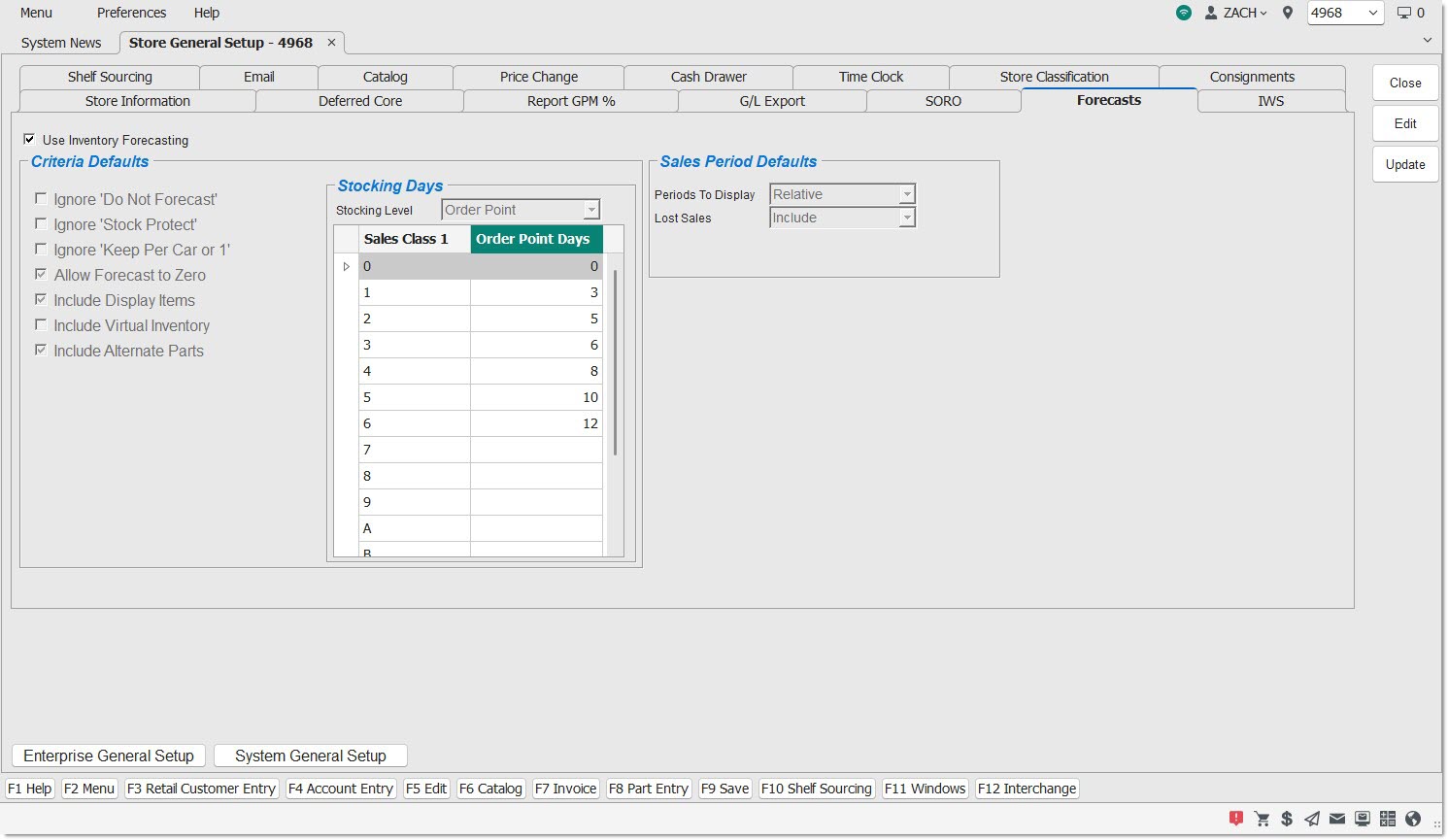
Use Inventory Forecasting
Checkbox that determines whether or not all forecasting functionality is enabled for the location.
-
Checked – All forecasting functionality is enabled for this location, including the ability to open the Forecasting Dashboard, the ability to open the Create Forecasts screen, and the ability to schedule a forecast profile in the Timed Order Queue screen.
-
Unchecked – All forecasting functionality is not enabled for the location.
Criteria Defaults
This section contains setups that provide defaults which display on the Create Forecast screen, 'Criteria' tab when creating a new forecast.
Ignore 'Do Not Forecast'
Provides the default for the 'Ignore 'Do Not Forecast'' setup on the Create Forecast screen, 'Criteria' tab.
-
When unchecked (default), the forecasting routine will ignore part items where the 'Do Not Forecast' flag is checked (on the Order / Cost screen).
-
When checked, the forecasting routine will include items where the 'Do Not Forecast' flag is checked.
Ignore 'Stock Protect'
Provides the default for the 'Ignore 'Stock Protect'' setup on the Create Forecast screen, 'Criteria' tab.
-
When unchecked (default), the forecasting routine will include items in the forecast where the 'Stock Protect' flag is checked (on the Part Entry, Order / Cost, or Part Pricing screens), but will maintain the stocking level by copying the current stocking level value to the forecasted value (and not calculate a suggested new stocking level value based on sales history and other criteria).
-
When checked, the forecasting routine will ignore the 'Stock Protect' flag, and perform forecast stocking level calculations.
-
Important Note: The suggested stocking level value can be edited in an open forecast, regardless if the 'Override Stock Protect' setting is checked or unchecked. However, the 'Stock Protect' flag setting on the Part Entry, Order / Cost, or Part Pricing screens, will not be altered when a forecast is edited.
Ignore 'Keep Per Car or 1'
Provides the default for the 'Ignore 'Keep Per Car or 1'' setup on the Create Forecast screen, 'Criteria' tab.
-
When unchecked (default) (and the 'Keep Per Car Or 1' checkbox is checked on the Order / Cost screen), and if sales history supports a suggested stocking level less than the 'Per Car' value, the forecasting routine will always suggest a stocking level value equal to the 'Per Car' value (on the Part Entry or Order / Cost screen). Important Note: If the 'Per Car' value is zero, the forecasting routine will set the suggested stocking level to a value of 1 (and not zero), unless other forecast criteria are defined.
-
When checked (and the 'Keep Per Car Or 1' checkbox is checked on the Order / Cost screen), the forecasting routine will ignore the 'Keep Per Car Or 1' setting, and instead calculate a suggested stocking value based upon sales history and other criteria. This may result in a suggested stocking level value different than the 'Per Car' value on the Part Entry or Order / Cost screens.
Allow Forecast to Zero
Provides the default for the 'Allow Forecast to Zero' setup on the Create Forecast screen, 'Criteria' tab.
-
When unchecked, the forecasting routine will always suggest a minimum forecast stocking level of 1, (unless the stocking days for 'Sales Class 1' is zero).
-
When checked (default), the forecasting routine will not prevent a forecast stocking level suggestion of zero (for Min, Max, or Order Point).
-
Important Note: When the forecasting routine detects that there is no sales history, or that the sales history is small enough such that a forecast stocking level suggestion of zero would result, the program will always still suggest a forecast stocking level of 1, unless the 'Allow Forecast To Zero' setting is checked.
Include Display Items
Provides the default for the 'Include Display Items' setup on the Create Forecast screen, 'Criteria' tab.
-
When unchecked, the forecasting routine will exclude items where the value of the 'Display Label Qty' is greater than zero (on the Order / Cost or Part Pricing screens).
-
When checked (default), the forecasting routine will include items for the forecast regardless of the 'Display Label Qty' value (on the Order / Cost or Part Pricing screens).
Include Virtual Inventory
Provides the default for the 'Include Virtual Inventory' setup on the Create Forecast screen, 'Criteria' tab.
-
When unchecked (default), the forecasting routine will only check for parts that match the Line, P/N Code and Sales Class criteria in the location(s) inventory (parts table) running the forecast, and include those items in the forecast.
-
Important Note: The location's inventory will include both stocked parts (those with a Min, Max, or Order Point non-zero value) as well as non-stocked parts (that have a Min, Max, or Order Point zero value but were sold or purchased and can have a Quantity Available greater than or now equal to zero).
-
When checked, the forecasting routine will check for parts that match the Line, P/N Code and Sales Class criteria in both the location(s) inventory (parts table) as well as the location's virtual inventory (non-SKU table), and include those items in the forecast.
Include Alternate Parts
Provides the default for the 'Include Alternate Parts' setup on the Create Forecast screen, 'Criteria' tab.
-
When unchecked (default), any part(s) set up as alternates for parts included in the forecast, at the time the forecasting routine is started, will not be displayed on the Forecast Detail screen.
-
When checked, any part(s) set up as alternates (on the Part Association screen) for parts included in the forecast, at the time the forecasting routine is started, will be logged.
Stocking Days
Stocking Level
The default stocking level ('Min', 'Max', or 'Order Point') in the 'Stocking Level' drop-down will be found on the System Purchasing Setup screen's 'Stocking Level' field. If the control screen contains 'Min / Max' or 'Min / Order Point' only the 'Max' or 'Order Point' value will be used because forecasts can only be produced for one stocking level.
Sales Class 1
Populated with all sales classes found on the Pop Codes / Order Protect screen. Note: 'Sales Class 1' values can be single character letters, single digit numbers, and rarely a special character.
Days
(Min, Max, or Order Point) displays based on the stocking level chosen/ The field allows numeric values between 0 and 999, and null (blank). The default for all Sales Class 1 values is null.
Sales Period Defaults
This section contains setups that provide defaults which display on the Create Forecast screen, 'Sales Period' tab when creating a new forecast.
Periods To Display
Provides the default for the 'Periods To Display' setup on the Create Forecast screen, 'Sales Periods' tab.
Drop-down that contains six options and determines how many monthly sales periods are displayed in the grid below the drop-down on the 'Sales Period' tab. Options are:
- 'Actual'
- 'Relative'
- 'Rolling 6'
- 'Rolling 12'
- 'Rolling 24'
- 'Rolling 36'
Lost Sales
Provides the default for the 'Lost Sales' setup on the Create Forecast screen, 'Sales Periods' tab.
Options are:
- 'Include' - When selected, the forecasting routine will include part item's lost sales history units (in addition to sales history units) to calculate a suggested stocking level.
- 'Exclude' - When selected, the forecasting routine will exclude lost sales history units (and only use sales history units) to calculate a suggested stocking level.