IWS Tab
Click the 'IWS' tab at the top of the STORE GENERAL SETUP screen to display a page with In Warehouse Store (IWS) setups.
The screen provides several separate tabs for setup:
- Store General Setup - 'Store Information' Tab
- Store General Setup - 'Deferred Core' Tab
- Store General Setup - 'Report GPM %' Tab
- Store General Setup - 'G/L Export' Tab
- Store General Setup - 'SORO' Tab
- Store General Setup - 'IWS' Tab
- Store General Setup - 'Shelf Sourcing' Tab
- Store General Setup - 'Email' Tab
- Store General Setup - 'Price Change' Tab
- Store General Setup - 'Cash Drawer' Tab
- Store General Setup - 'Time Clock' Tab
- Store General Setup - 'Consignments' Tab
Menu Path: Controls, Store, Store Info, STORE GENERAL SETUP screen, 'IWS' tab
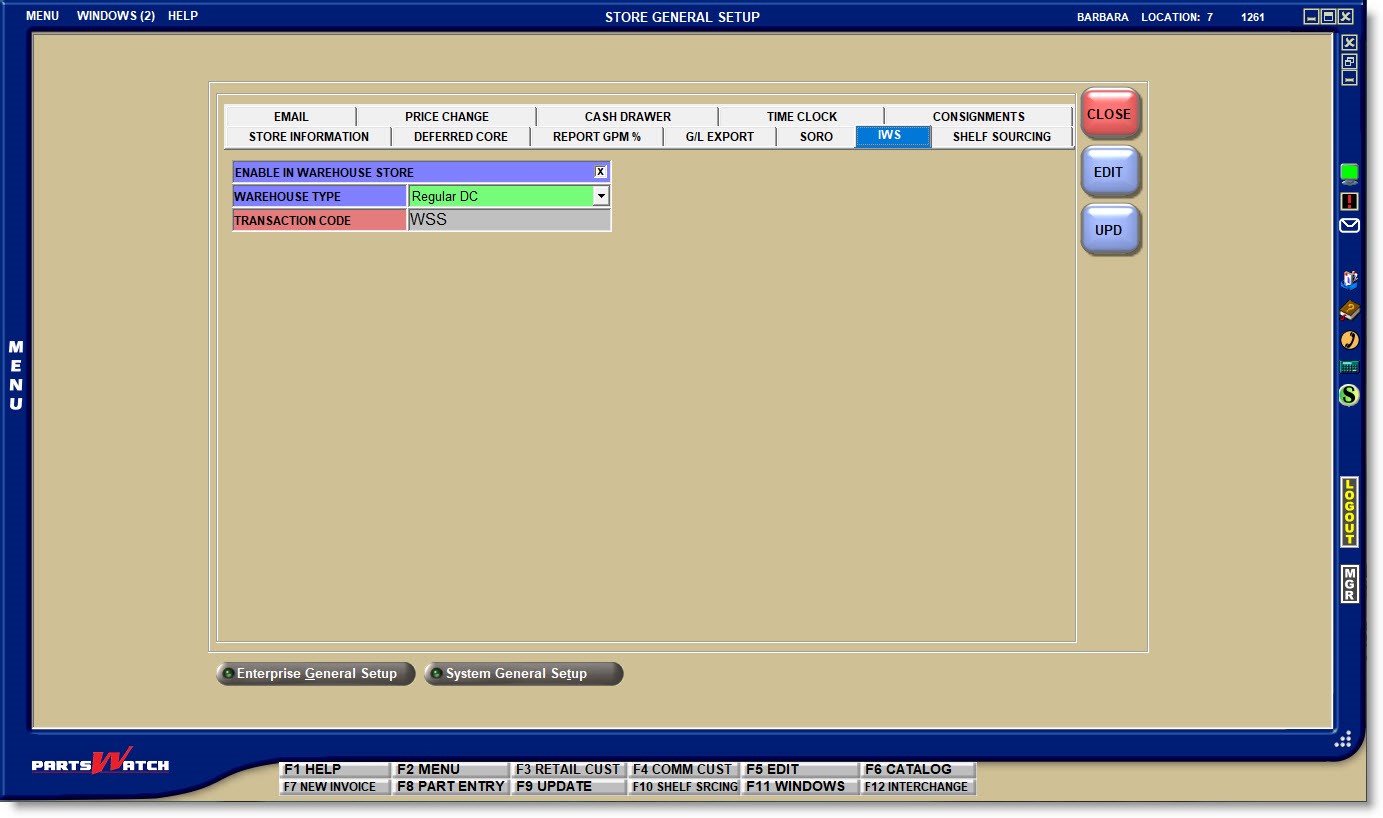
ENABLE IN WAREHOUSE STORE
Determines whether or not In Warehouse Store (IWS) functionality is available to the store.
- Checked - IWS functionality is available. If checked, the 'WAREHOUSE TYPE' field is enabled.
- Unchecked - IWS functionality is not available.
Click the drop-down field and select the warehouse system used in the store and that controls communication parameters.
- 'Paperless DC'
- 'Regular DC' (default)
Displays the warehouse transmission code based on the 'WAREHOUSE TYPE' selected for information only.
The ability to sell from either the store or the warehouse is controlled by a "hidden" In Warehouse Store (IWS) application switch.
If the functionality is enabled, all standard Point-of-Sale business and process rules are the same as a regular store except a 'WS' modifier is available for warehouse sales.
- The 'S' (SELL) modifier is used for sales where the part is taken from the store.
- The 'W' (WS WAREHOUSE SALE) modifier is used for sales where the part is taken from the warehouse.
Point-of-Sale, the MOD field defaults to 'WS' to sell from the warehouse, however, it can be changed at the time of the sale.
The store's QOH determines the behavior at Point-of-Sale:
-
If the store's QOH is equal to or less than zero, then the 'WS' modifier is used and the part is tracked as a warehouse sale. The store's QOH is not affected.
-
If the store's QOH is greater than zero, the 'INSUFFICIENT QUANTITY - SOURCING' window opens with 'WAREHOUSE SALE' and 'SELL FROM STORE' buttons to determine where to sell the part.
-
If the store's QOH is sufficient for the sale, the cursor focus is on the 'SELL FROM STORE' button, so pressing the 'Enter' key sells the part from the store.
-
If the store's QOH is not sufficient for the sale, the cursor focus is on the 'WAREHOUSE SALE' button, so pressing the 'Enter' key sells the part from the warehouse.
-
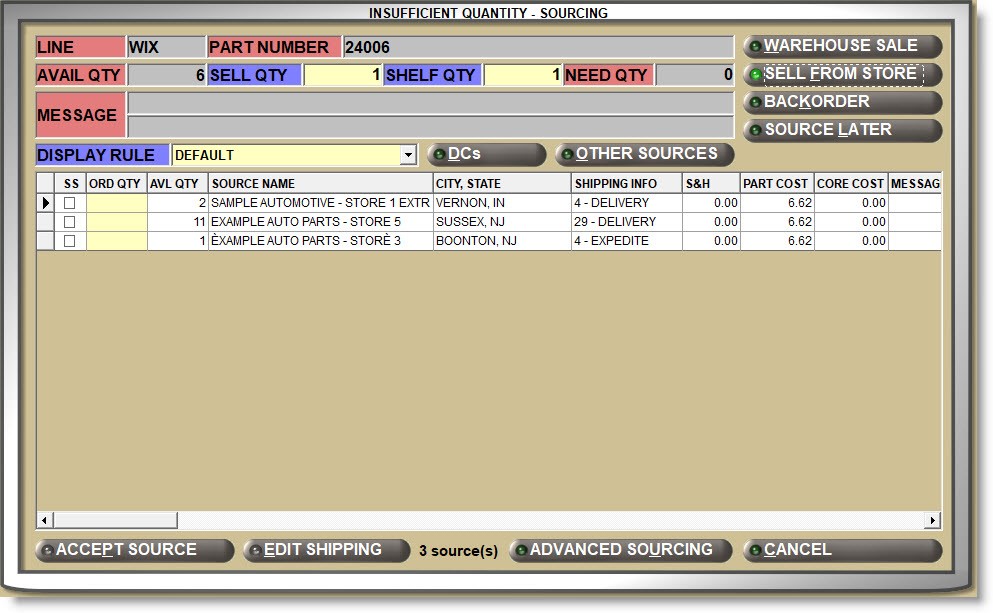
The 'SELL FROM STORE' button will confirm the sell/oversell of a store sale. The pop-up will close, a store sale will be in the invoice body and the cursor will be ready to accept the next part.
Regardless of the value of the Line Code 'AUTO OVERSELL' setting, if the store QOH is less than the sell quantity, clicking the 'SELL FROM STORE' button will sell the quantity of the amount entered and the store QOH will go negative.
All other 'INSUFFICIENT QUANTITY - SOURCING' window and ADVANCED SOURCING functionality is available.
Splitting the quantity sold requires two steps, first, sell the store quantity followed by the sale of the warehouse quantity.
If the STORE INVOICE OPTIONS setting 'FORCE BUYOUT ON W/I PARTS' flag is checked for an IWS store, the part is sold from the warehouse using the 'WS' default modifier.
The 'LAST SOLD DATE' and part histories are updated in the part table for WS sales. The 'RESERVE QTY' and 'QTY AVAILABLE' are not updated. All warehouse sales are treated as "BUYOUTS".
IWS sales only can be reported from the LISA TRANSACTIONS REPORT by selecting 'WS' only from the 'INVOICE MODIFIER' filter on the report screen.