G/L Export Tab
The 'G/L EXPORT' tab on the STORE GENERAL SETUP screen is used to enable G/L export settings, per store, in order to export sales totals to an accounting package such as QuickBooks.
The screen provides several separate tabs for setup:
- Store General Setup - 'Store Information' Tab
- Store General Setup - 'Deferred Core' Tab
- Store General Setup - 'Report GPM %' Tab
- Store General Setup - 'G/L Export' Tab
- Store General Setup - 'SORO' Tab
- Store General Setup - 'IWS' Tab
- Store General Setup - 'Shelf Sourcing' Tab
- Store General Setup - 'Email' Tab
- Store General Setup - 'Price Change' Tab
- Store General Setup - 'Cash Drawer' Tab
- Store General Setup - 'Time Clock' Tab
- Store General Setup - 'Consignments' Tab
Menu Path: Controls, Store, General Setup, STORE GENERAL SETUP screen, 'G/L EXPORT' tab
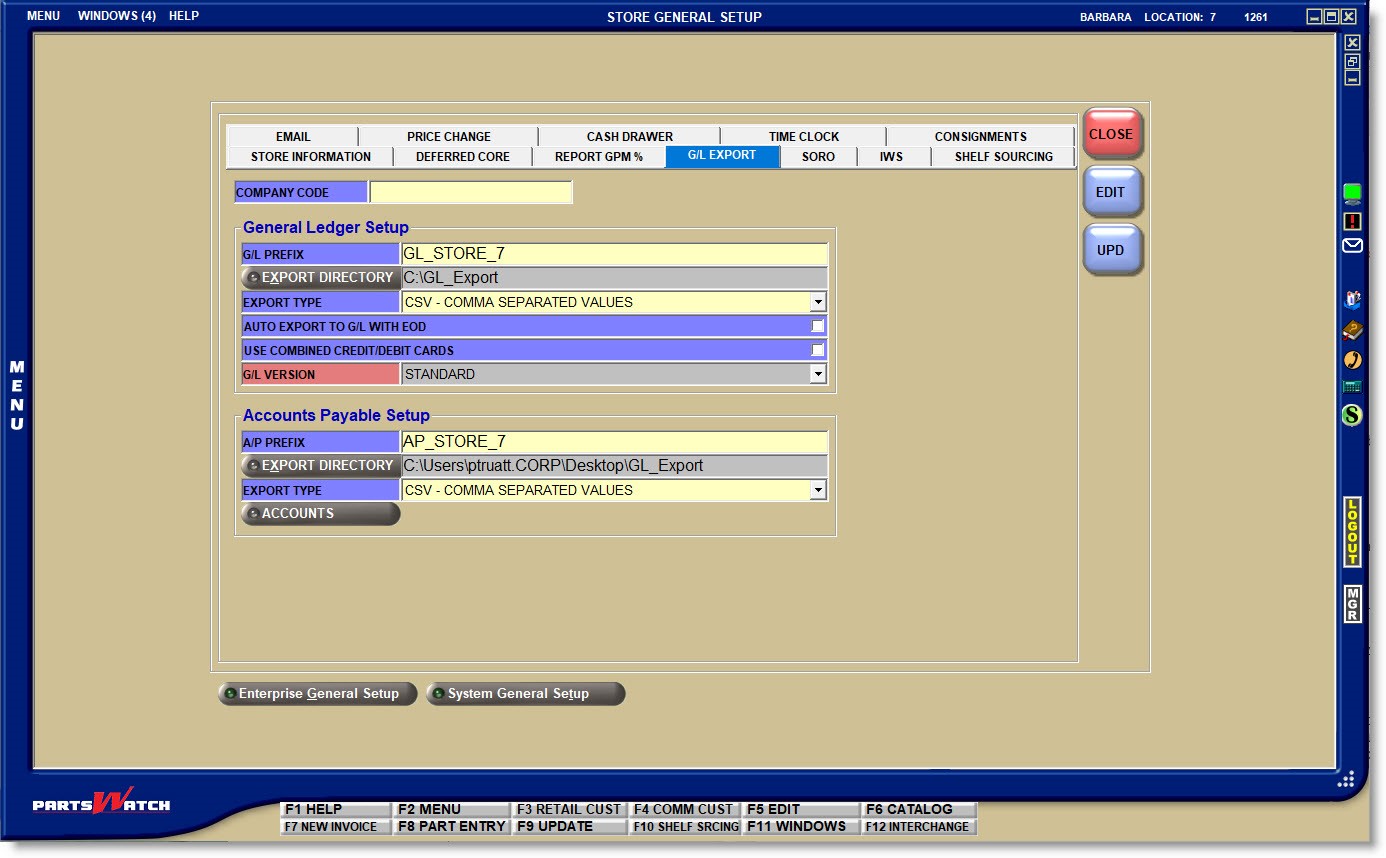
COMPANY CODE
Used by QuickBooks for multi-store companies:
Enter the store number per store that will be sent in the export file to identify the store the exported totals are for. Leave blank and the location is not identified in the export for single stores or for multi-stores when single totals are exported for all stores.
Note: The 'COMPANY CODE' is output in the 'CLASS' field in the QuickBooks .iif file.
General Ledger Setup
Enter up to 50 alphanumeric and special characters used by the export program as the name of the file that is exported. For example: 'Store1234' or 'GLExport2013'.
Each time a file is exported from PartsWatch, the file name will begin with the value entered here.
The remainder of the file name consists of the close date and time, separated by underscores. The time format is in military 24-hour time regardless of the time format used to display the close time.
For example, if the GL PREFIX is 'GL_STORE_7' and the file is exported on 05/25/2023 at 2:38:24 pm, the file name will be 'GL_Store_7_2023_05_25_14_38_24'.
The following special characters are not allowed in the 'G/L PREFIX':

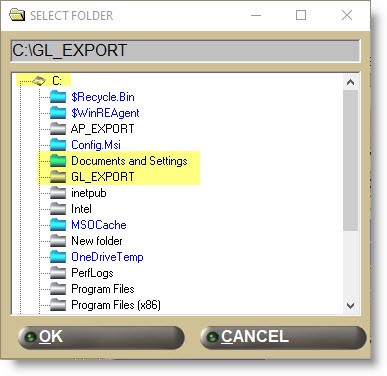
Click the button and a window opens to select the directory the G/L file will be exported to. The field displays the selected directory and cannot be edited.
Click the small down arrow to the right of the field and select the export file format:
- 'IIF – QUICKBOOKS FORMAT' (default) - "Intuit Interchange Format" files are ASCII text, TSV (Tab-Separated Value) files that QuickBooks uses to import transactions.
- 'CSV – COMMA SEPARATED VALUES' - "Comma-separated values" files can be opened in programs such as Microsoft Excel or OpenOffice Calc.
AUTO EXPORT TO G/L WITH EOD
Determines whether or not the G/L file is exported with the end-of-day process.
- Checked - The G/L file will be automatically exported when the day is manually closed from the DAY/CASH CLOSE screen.
- Unchecked - The G/L file must be manually exported from the G/L EXPORT screen after the end-of-day close.
Note: The G/L export is only automatically initiated by the system when the end-of-day close is run manually. If the DAILY QUEUE is enabled to run automatically, the G/L export will not be automatically initiated regardless of whether the 'AUTO EXPORT TO G/L WITH EOD' field is checked or not. Either way, this allows the end-of-day process to be one step instead of two and provides the ability to manually review the totals before the processes are completed.
USE COMBINED CREDIT/DEBIT CARDS
Determines whether totals are exported for each individual credit card type, or a total of all credit cards regardless of the 'CARD BUTTONS' Tender Setup used at Point-of-Sale.
- Checked - All credit/debit card transactions are summed in one total.
- Unchecked - A separate total is exported for each credit/debit card type.
The field defaults to 'STANDARD' and is disabled for all stores using the PartsWatch G/L Extract functionality. The field will be set by PartsWatch Support for stores using a 'CUSTOM' export.
Accounts Payable Setup
Enter up to 50 alphanumeric and special characters used by the export program as the name of the file that is exported. For example: 'Store1234' or 'APExport2023'.
Each time a file is exported from PartsWatch, the file name will begin with the value entered here.
The remainder of the file name consists of the close date and time, separated by underscores. The time format is in military 24-hour time regardless of the time format used to display the close time.
For example, if the AP PREFIX is 'AP_STORE_7' and the file is exported on 05/25/2023 at 2:38:24 pm, the file name will be 'AP_Store_7_2023_05_25_14_38_24'.
The following special characters are not allowed in the 'A/P PREFIX':
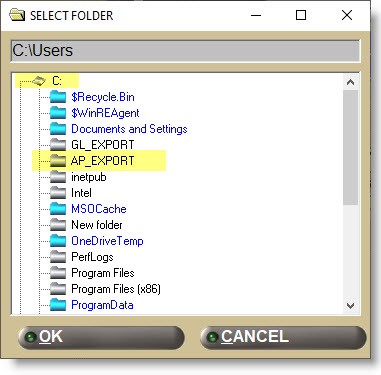
Click the button and a window opens to select the directory the A/P file will be exported to. The field displays the selected directory and cannot be edited.
Click the drop-down and select the type of file to be exported:
- 'IIF – QUICKBOOKS FORMAT' (default) - "Intuit Interchange Format" files are ASCII text, TSV (Tab-Separated Value) files that QuickBooks uses to import transactions.
- 'CSV – COMMA SEPARATED VALUES' - "Comma-separated values" files can be opened in programs such as Microsoft Excel or OpenOffice Calc.
ACCOUNTS
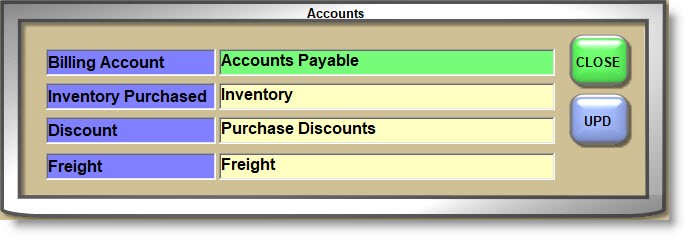
Click the button to open the 'Accounts' window used to enter field names sent in the Accounts Payable export file and necessary for QuickBooks import:
- 'Billing Account' - Accounts Payable account name.
- 'Inventory Purchased' - Inventory account name.
- 'Discount' - Discount account name.
- 'Freight' - Freight account name.