Cash Drawer Tab
Setups under the 'CASH DRAWER' tab on the STORE GENERAL SETUP screen are used to set up cash drawer tracking for end-of-day closeouts as well as reporting and must be set up before any cash transactions are created in a store.
The screen provides several separate tabs for setup:
- Store General Setup - 'Store Information' Tab
- Store General Setup - 'Deferred Core' Tab
- Store General Setup - 'Report GPM %' Tab
- Store General Setup - 'G/L Export' Tab
- Store General Setup - 'SORO' Tab
- Store General Setup - 'IWS' Tab
- Store General Setup - 'Shelf Sourcing' Tab
- Store General Setup - 'Email' Tab
- Store General Setup - 'Price Change' Tab
- Store General Setup - 'Cash Drawer' Tab
- Store General Setup - 'Time Clock' Tab
- Store General Setup - 'Consignments' Tab
There are two types of cash drawer tracking, Real and Virtual. The screen opens with the appropriate setups displayed and non-relevant setups hidden per cash drawer type.
Menu Path: Controls, Store, General Setup, STORE GENERAL SETUP screen, 'CASH DRAWER' tab
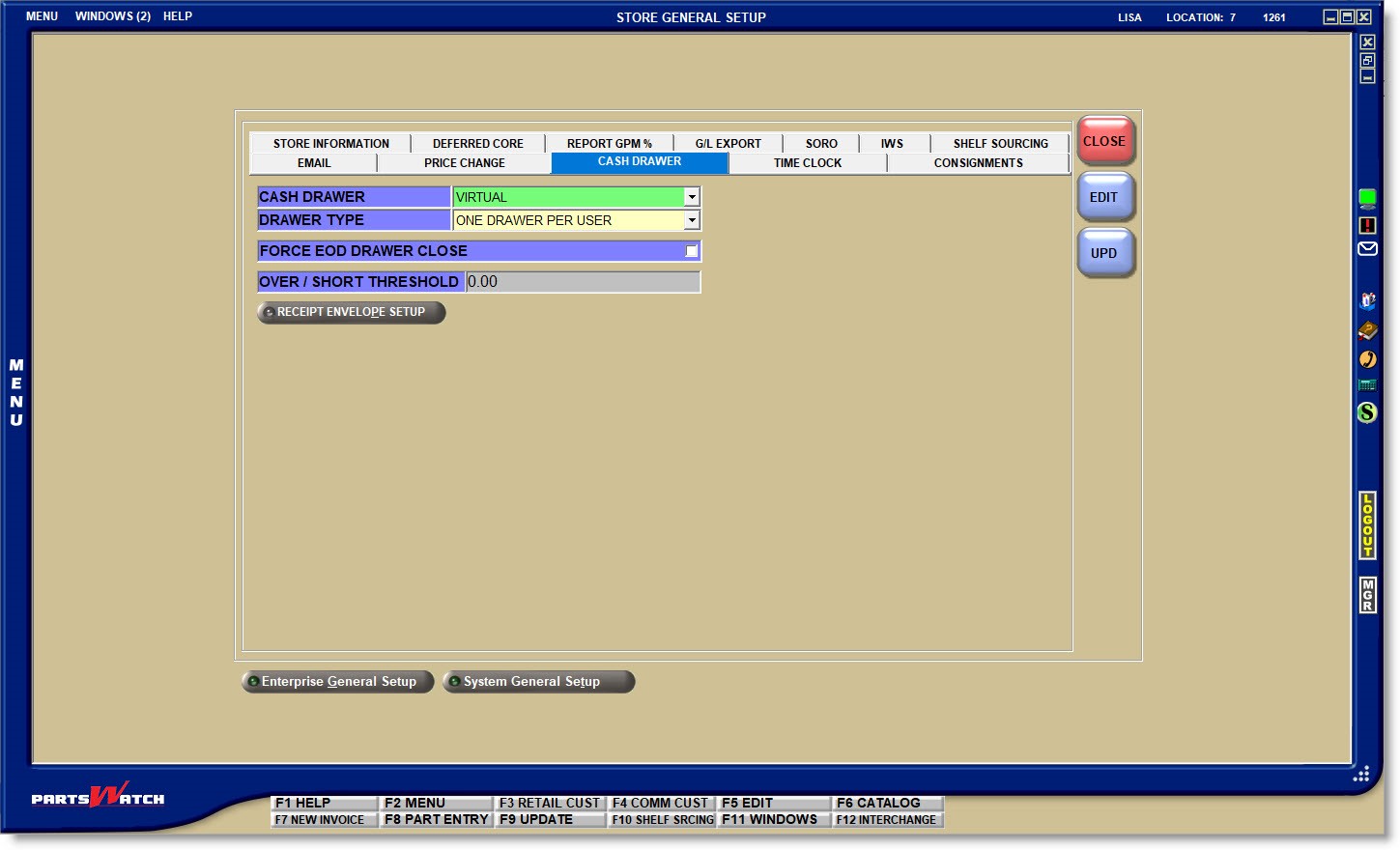
Determines how the store tracks cash drawers:
- 'NONE' - Cash drawers, Drawer Management, and Paid-In and Paid-Out features are not available. Sales are tracked by invoice number on the DAY / CASH CLOSE screen, not by drawer or by seller.
- 'VIRTUAL' - Virtual cash drawers allow sellers to accept tender transactions at any cash drawer whether or not a physical cash drawer is present. The sales made are tracked per seller instead of per drawer.
- 'REAL' - Real cash drawers provide full cash drawer functionality.

Additional setups depend on the 'CASH DRAWER' method selected.
Virtual Drawer Setup
If 'VIRTUAL' is selected under the 'CASH DRAWER' setting, then the 'DRAWER TYPE' must also be selected:
-
'ONE DRAWER PER STORE'
-
A single cash drawer is created, employees are not assigned to the drawer and anyone creating a cash invoice is tracked to the drawer. One drawer displays in the VIRTUAL DRAWER MANAGEMENT SCREEN with all sellers that have created transactions listed, however, a single total displays for all transactions.
-
Transactions can be created and payments collected on all Point-of-Sale terminals and the drawer is shared so that all cash transactions are automatically tracked in the same drawer. Drawers are not assigned and the system adds each seller to the drawer when a cash transaction is created, whether an invoice or a paid-in or paid-out transaction. All sellers are removed from the drawer when it is closed.
-
-
'ONE DRAWER PER USER'
-
Drawers are not assigned and each seller that creates cash transactions is tracked as a "drawer". Any seller can create transactions on any terminal, and the cash collected is tracked to the "seller" instead of the drawer. The seller is responsible for storing the cash in the correct physical drawer. When a seller creates a cash transaction, their "drawer" displays in the VIRTUAL DRAWER MANAGEMENT SCREEN with the 'EMPLOYEE CODE' as the drawer "number". When closed, the "drawer" no longer displays in the DRAWER MANAGEMENT screen.
-
-
'MANUALLY ASSIGN DRAWERS'
-
A drawer is created for each terminal with a cash drawer and displays on the VIRTUAL DRAWER MANAGEMENT SCREEN. Any number of drawers can be created, however, once made, they cannot be renamed or deleted.
-
Sellers are assigned to the drawers at the start of each day or shift and are able to create cash tickets on all terminals. The cash collected is tracked to the drawer the seller is assigned to regardless of what terminal it was created on. Each drawer is closed once regardless of how many sellers are assigned to it. Sellers must then be reassigned to the applicable drawer at the start of each day or shift.
-
Determines whether or not drawers must be closed before an end-of-day can be run for both 'VIRTUAL' and 'REAL' drawers.
- Checked - Drawers must be closed before the day can be run. If one or more drawers are open when the 'CLOSE/PRINT EOD' button is clicked to close the day, a message displays stating:
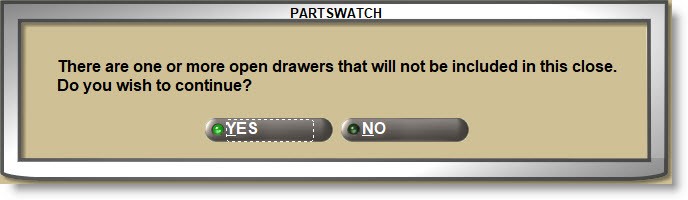
Answer 'NO' and the close cannot run.
Answer 'YES' to continue and a prompt opens to continue.
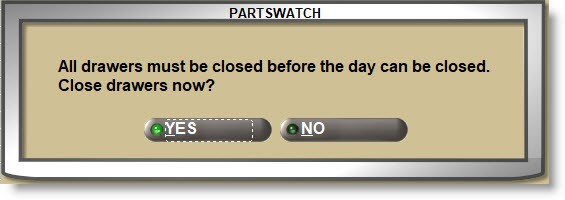
Answer 'YES' and the 'ENTER PASSWORD' prompt opens and entering a valid application login and password opens the VIRTUAL DRAWER MANAGEMENT SCREEN to close the drawers. Once the drawers are all closed, return to the DAY / CASH CLOSE screen to close the day.
Answer 'NO' and the end-of-day close cannot run. - Unchecked - If one or more drawers are open when the 'CLOSE/PRINT EOD' button is clicked to close the day, the same message displays.
Answer 'YES' and the close continues.
Answer 'NO' and the close does not run.
Real Drawer Setup
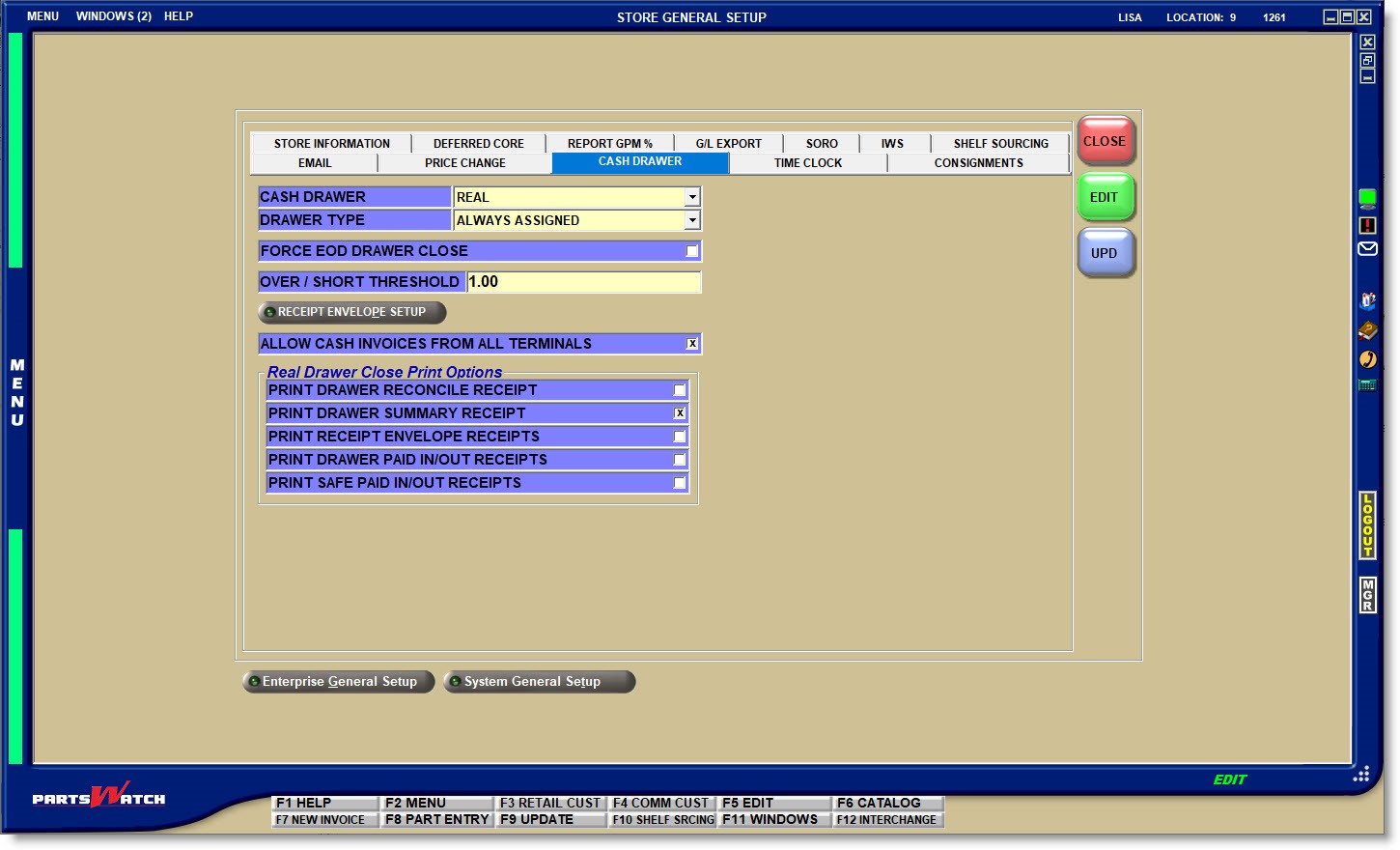
The following setups are for 'REAL' cash drawer tracking:
Select a 'DRAWER TYPE'.
- 'ALWAYS ASSIGNED' - Once a seller is assigned to a drawer, the seller remains with that drawer until unassigned or until the drawer is deleted and is not removed from the drawer when the drawer is closed. The seller is able to load a drawer into a terminal to open their next "shift" without the manager or assistant manager having to again assign them. Should the manager or assistant manager not want to leave a seller assigned, they are able to un-assign the seller and then assign them again as needed.
- 'MANAGER REASSIGNS' -When a drawer is closed, the assigned seller(s) will no longer be assigned to the drawer and new sellers must be assigned before the next day or shift begins.
This follows the same functionality for Virtual Drawer Setup - 'FORCE EOD DRAWER CLOSE'.
Enter the amount a drawer can be over or short during the DRAWER RECONCILIATION process without being prompted to recount.
The field allows entry of dollar amounts up to '9999.99' and defaults to '1.00' (dollar). The field does not allow entry of negative numbers. The value of '0.00' indicates that no threshold is available so the user-entered amount must be equal to the system-tracked amount or an over/short condition will exist.
RECEIPT ENVELOPE SETUP
Click the 'RECEIPT ENVELOPE SETUP' button to open a window for setup:
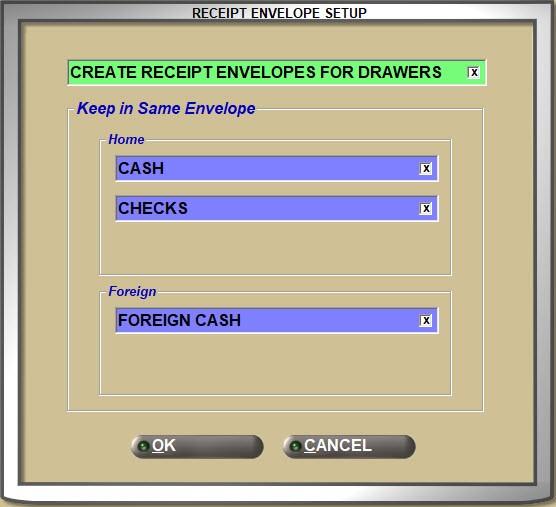
CREATE RECEIPT ENVELOPES FOR DRAWERS
- Checked - When the 'CLOSE DRAWER' button is clicked, the system will automatically create receipt envelopes for the amount of tender, without user intervention. Each tender value put in a separate envelope will be assigned the next sequential Receipt Envelope number and the Receipt Envelope receipt will print the amount included in that envelope only.
- Unchecked - Receipt envelopes are not used.
- 'Home' - Check each tender type ('CASH', 'CHECKS', 'TRAVELERS CHECKS') that will be combined in the same receipt envelope for home currency.
- 'Foreign' - Check each tender type ('FOREIGN CASH', 'FOREIGN TRAVELERS CHECKS') that will be combined in the same receipt envelope for foreign currency if the store accepts the foreign currency.
If any of the settings in the 'Home' or 'Foreign' sections are unchecked, they are disabled and receipt envelopes will not be created when the drawers are closed.
Note: Home and foreign currency do not go in the same envelope.
ALLOW CASH INVOICES FROM ALL TERMINALS
Determines whether sellers are able to create cash transactions from all terminals or only to create cash transactions in their assigned terminal drawer.
- Checked - All sellers working in Point-of-Sale are able to create cash as well as On Account invoices from any terminal. The transactions are tracked to the seller creating the invoice and the terminal the invoice was created on regardless of which employee is assigned to the drawer or logged on to the terminal and entered the Drawer #.
- Unchecked - Sellers are only able to create cash as well as On Account invoices from the terminal they are assigned to.
Real Drawer Close Print Options
Check each setting to print a receipt of that process. Uncheck a setting if a printed receipt is not needed.
PRINT DRAWER RECONCILE RECEIPT
Controls whether or not a drawer reconcile receipt prints during drawer reconciliation.
PRINT DRAWER SUMMARY RECEIPT
Controls whether or not a Drawer Summary Receipt prints during drawer reconciliation.
PRINT RECEIPT ENVELOPE RECEIPTS
Controls whether or not a Receipt Envelope Receipt prints during drawer reconciliation.
PRINT DRAWER PAID IN/OUT RECEIPTS
Controls whether or not Paid In To Drawer / Paid Out From Drawer receipts print when Paid In / Paid Out transactions are created.
PRINT SAFE PAID IN/OUT RECEIPTS
Controls whether or not Paid In To Safe / Paid Out From Safe Receipts print.
Note: The 'PAID IN/PAID OUT RECEIPT FONT SIZE' setting controls the size of receipts and can be set to print from an 8-size to 20-size font depending on whether receipts print to a slip or a regular printer.