Shelf Sourcing Tab
Click the 'SHELF SOURCING' tab at the top of the STORE GENERAL SETUP screen to display a page with Shelf Sourcing setups.
The screen provides several separate tabs for setup:
- Store General Setup - 'Store Information' Tab
- Store General Setup - 'Deferred Core' Tab
- Store General Setup - 'Report GPM %' Tab
- Store General Setup - 'G/L Export' Tab
- Store General Setup - 'SORO' Tab
- Store General Setup - 'IWS' Tab
- Store General Setup - 'Shelf Sourcing' Tab
- Store General Setup - 'Email' Tab
- Store General Setup - 'Price Change' Tab
- Store General Setup - 'Cash Drawer' Tab
- Store General Setup - 'Time Clock' Tab
- Store General Setup - 'Consignments' Tab
Menu Path: Controls, Store, Store Info, STORE GENERAL SETUP screen, 'SHELF SOURCING' tab
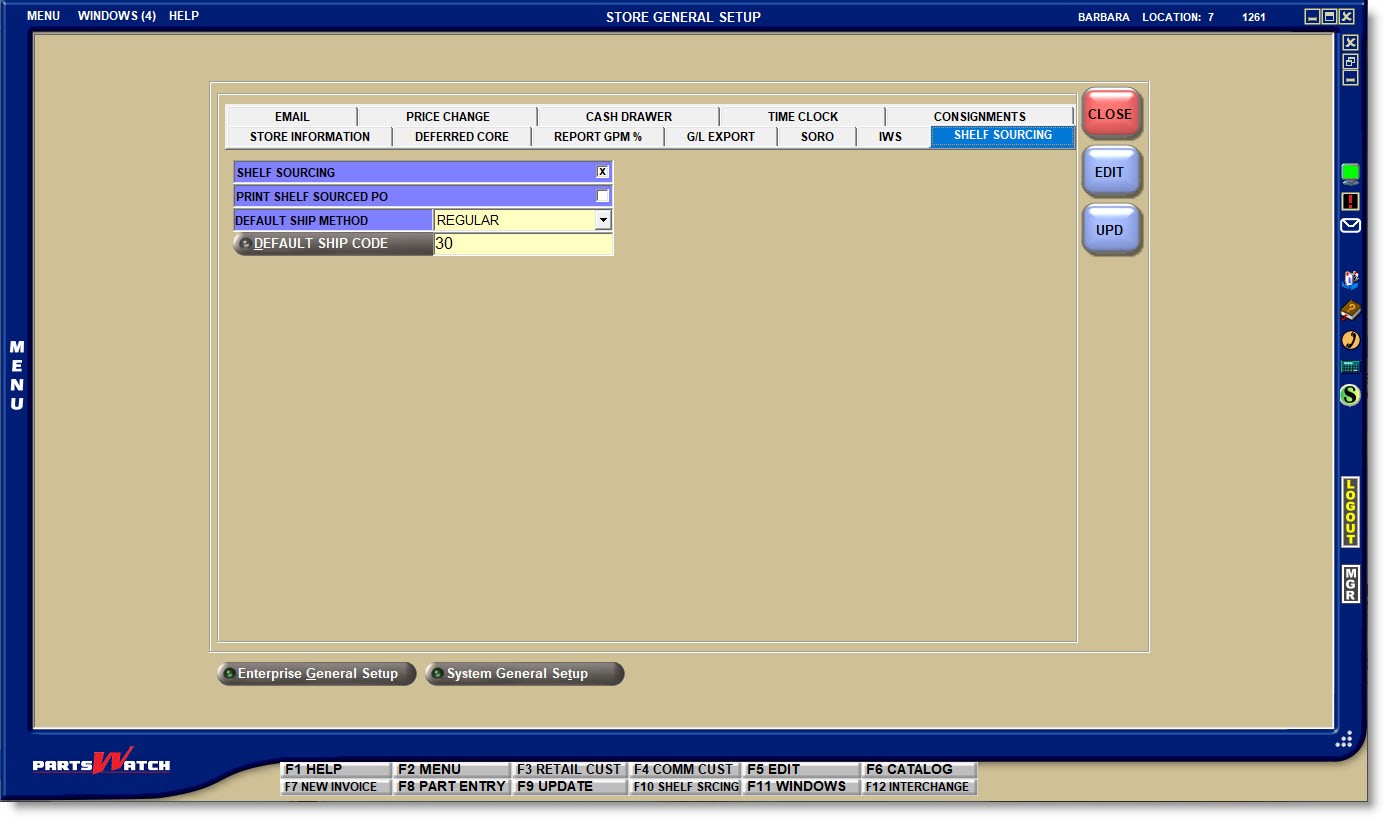
SHELF SOURCING
Determines whether or not the store uses the Shelf Sourcing functionality.
- Checked - Shelf Sourcing is enabled.
- Unchecked - Shelf Sourcing functionality is not enabled.
PRINT SHELF SOURCED PO
Determines whether or not to print the shelf-sourced purchase order to the default printer when the 'PLACE ORDER' button is clicked after creating an order on the SHELF SOURCING screen.
- Checked - The purchase order is printed.
- Unchecked - A purchase order is not printed.
Click the drop-down field and select the default Shipping Method for Shelf Sourced orders that are set up for the store from the STORE SOURCE SETUP screen:
- 'DELIVERY'
- 'EXPEDITE'
- 'NEXT TRUCK'
- 'REGULAR'
- 'WILL CALL'
The 'DEFAULT SHIP METHOD' entered here is only used when the source selected in Shelf Sourcing does not have a 'SHIP METHOD' in the STORE SOURCE SETUP screen.
The Ship Method can be changed in the 'EDIT SHIPPING' window when User Security permissions allow.
DEFAULT SHIP CODE
Click the 'DEFAULT SHIP CODE' button to open the 'BROWSE SHIPPER #S' window to select a shipper # set up in the STORE SOURCE SETUP screen.
The Ship Code can be changed in the 'EDIT SHIPPING' window on the SHELF SOURCING screen when User Security permissions allow.
The 'DEFAULT SHIP CODE' entered here is only used when the source selected in Shelf Sourcing does not have a 'SHIPPER #' set up in the STORE SOURCE SETUP screen.
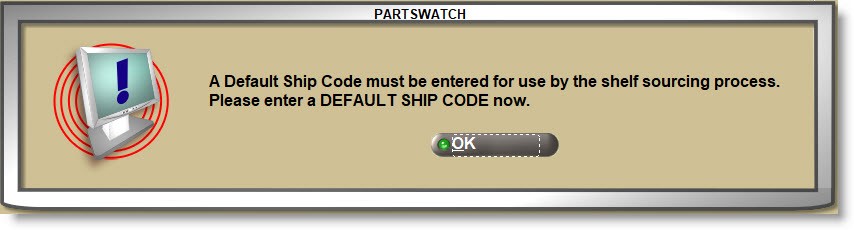
If a 'DEFAULT SHIP CODE' is not selected before the 'UPD' button is clicked, a prompt opens notifying that one must be selected.
Shelf Sourced Purchase Order Cost
Drop-down that determines where the application pulls the cost of the parts from when creating a shelf-sourced purchase order. Options are:
-
'PO Part Cost' – When set to 'PO Part Cost', all source's sell prices and core sell prices are not displayed in the sources grid on the Shelf Sourcing screen.
-
'Sourcing Cost' – when the drop-down is set to 'Sourcing Cost', a source's sell price and core sell price may still not be displayed in the sources grid (on the Shelf Sourcing screen), per other settings configured on the Supplier Order Setup screen for that source.