Rebate Setup
The rebate program is used to provide an additional reduction in cost of an item when selling to a qualified commercial customer. The store is able to be more aggressive in the pricing of that item to that customer and still maintain a reasonable margin.
Menu Path: Customers, Accounts, Acct Pricing, Rebate Setup, REBATE SETUP screen
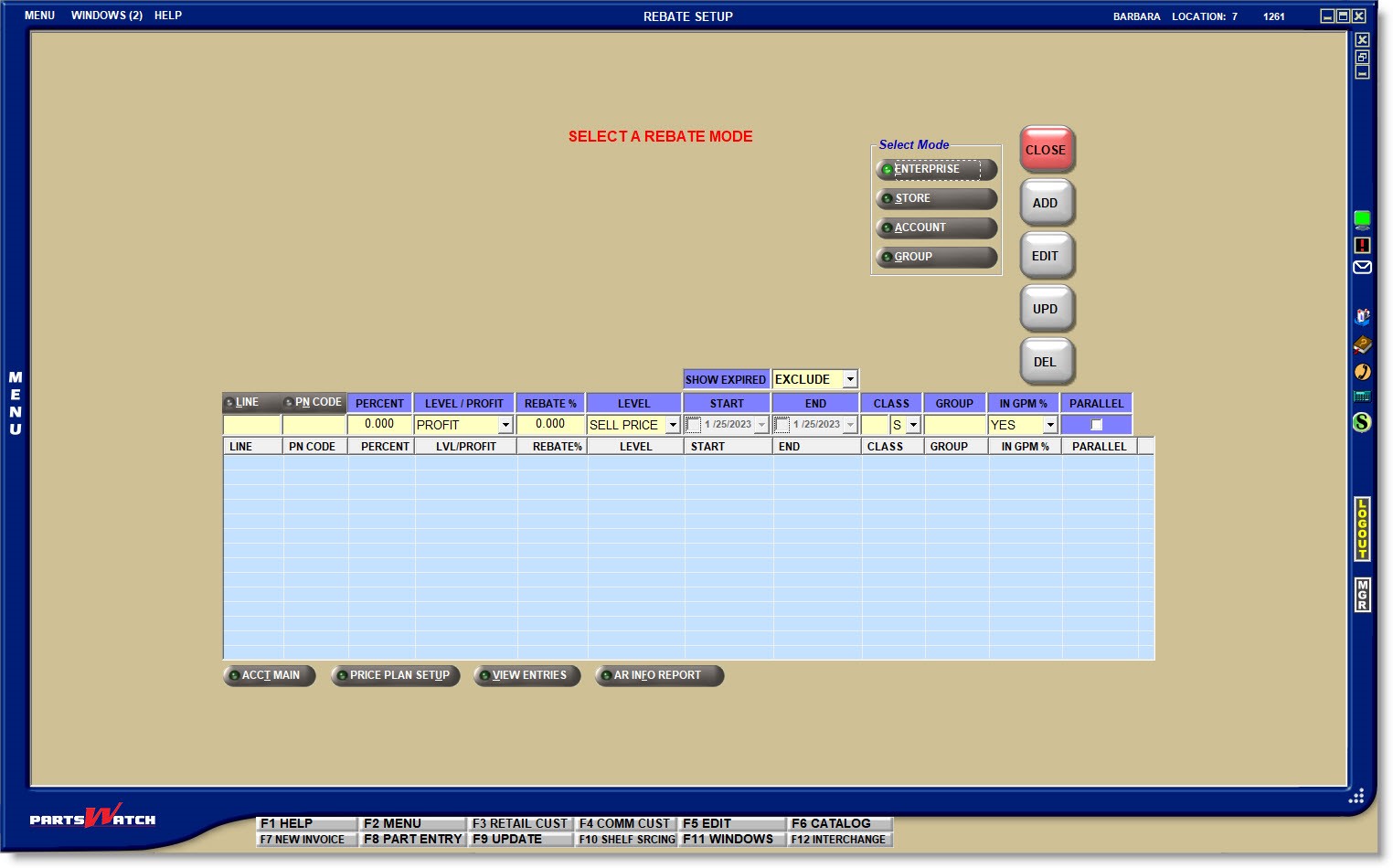
Note: A Mode must be selected before clicking the 'EDIT' button. Then, the 'EDIT' button must be enabled when adding or editing rebate setups. The 'UPD' button must be clicked to save any changes. If the screen is closed without updating, the system prompts to save the changes.

Accelerator keys are 'F5' to edit and 'F9' to update.
Select a Rebate Mode
When the screen opens, a "Mode" must be selected to continue. Click a button in the 'Select Mode' section to select a Mode:
- 'ENTERPRISE' - Setups apply to all accounts in all stores.
- 'STORE' - Setups apply to all accounts in the store.
- 'ACCOUNT' - Setups apply to all accounts assigned to the rebate setup.
- 'GROUP' - Setups apply to all accounts assigned to the selected Group.
Selecting a Mode displays all existing rebate setups in the lower grid.
The Mode hierarchy used to find a setup to apply to a sales transaction at Point-of-Sale is: Enterprise, Store, Account, Group.
Adding Rebate Setups
With a Mode selected, enter the rebate setups in the data entry fields above the grid:
LINE CODE
Enter the Line Code that will be tracked for the rebate.
PN CODE
Optionally, select a P/N Code to narrow the parts affected by the setup. Click the 'PN CODE' button to initiate a search for a specific P/N Code per Line Code.
PERCENT
Enter the percent used with the 'LEVEL/PROFIT' field to determine the Profit Margin Percent or a true Percent (of a price level) that is used by the program to verify eligibility.
Note: A 3-place decimal point is assumed and does not need to be entered. For example, Enter '25' in the 'PERCENT' field and '25.000' will display. A decimal point must be entered for fractions of a percent. For example: '25.375' must be entered with the decimal or the system will display it as '253.000'.
Note: The percent entered is 'OF', not 'OFF', the price level entered in the 'LEVEL/PROFIT' field. For example, if a part must be sold at less than 25 percent below 'LIST', enter 75 percent in the 'PERCENT' field and 'LIST' in the 'LEVEL'/'PROFIT' field.

If the manufacturer requires the sell price:
- At or below a certain profit margin, click the small down arrow to the right of the field and select 'PROFIT' from the top of the drop-down list.
- At or below a percentage of a certain price level, click the small down arrow to the right of the field and select the price level from the drop-down list.
Enter how much of a rebate will be given by the manufacturer. Enter the percent to be used to calculate the rebate. For example, if the rebate is 10 percent OF jobber, enter '10' and select the price that represents jobber in the 'LEVEL' field.
LEVEL
Click the small down arrow to the right of the field and select:
- The price level that will be used to calculate the rebate.
- 'SELL PRICE' from the top of the drop-down list and the system calculates the rebate from the actual customer sell price, including any discounts that were applied to the item.
START / END
Enter the starting and ending dates that the rebate program will be in effect. Leave the 'END' date blank if the rebate does not expire.
CLASS / GROUP Code
Enter a valid 1st and/ or 2nd 'CLASS' code and/or 'GROUP' code to narrow the parts eligible for the rebate.
IN GPM % (gross profit margin percent)
Click the drop-down field and select the value that best determines how the rebates are tracked in the calculation of GPM % for invoicing sales transactions and all sales reports:
- 'YES' (default) – Rebates are included in all GPM % calculations.
- 'NO' – Rebates are not included in any GPM % calculations.
- 'POS' – Rebates are included in invoicing sales GPM % calculations only.
- 'REPORT' – Rebates are included in sales report GPM % calculations only.
The 'PARALLEL' checkbox determines how Point-of-Sale searches for the rebate levels to apply. For the first rebate level found at Point-of-Sale, if the 'PARALLEL' checkbox is unchecked, that rebate will be the only rebate applied. However, if the 'PARALLEL' checkbox is checked for the first rebate found, after it is applied to the sales transaction, Point-of-Sale will search for an optional second rebate; working down the hierarchy of Enterprise, Store, Account, and Group.
- Checked: If the 'PARALLEL' field is checked for the first rebate setup found using the hierarchy method, that setup is applied to the transaction. The system continues to search through the Mode hierarchy for a second setup with the 'PARALLEL' field checked, and if one is found, applies that one also. Only two setups are considered, regardless how many rebate levels are set up.
All setups with the 'PARALLEL' field unchecked are ignored.
One or both rebates found may be applied to the sales transaction if the rebate meets the required sell price threshold in the setup.
The search ends with the lowest rebate level (e.g. 'GROUP') and if the search does not find a second rebate to include, then only the first rebate is applied. - Unchecked: If the 'PARALLEL' field is unchecked for the first rebate setup found using the hierarchy method, that setup is applied to the transaction at Point-of-Sale.
When a sales transaction occurs, the system searches the Enterprise Mode first and if a rebate is found, that setup is applied and no other levels are searched.
If a rebate is not found at the Enterprise level, then the other three levels are searched in hierarchical order (Store, Account, and Group) until one rebate level is found. Once found, no other rebate levels are searched. If a rebate level is not found, a rebate is not applied to the sales transaction.
Click the drop-down field to select whether or not to view expired setups in the grid.
- 'INCLUDE' - Displays all applicable setups regardless of the 'END' date.
- 'EXCLUDE' (Default) - Only displays applicable setups where the 'END' date is blank, greater than, or equal to the current date.
- 'ONLY' - Displays only the applicable setups where the 'END' date is less than the current date.
There are no additional setups needed for the 'ENTERPRISE' mode.
There are no additional setups needed for the 'STORE' mode.
Group Rebate Mode Setup
Click the 'GROUP' Mode button to link rebate setups to rebate groups used by the accounts.
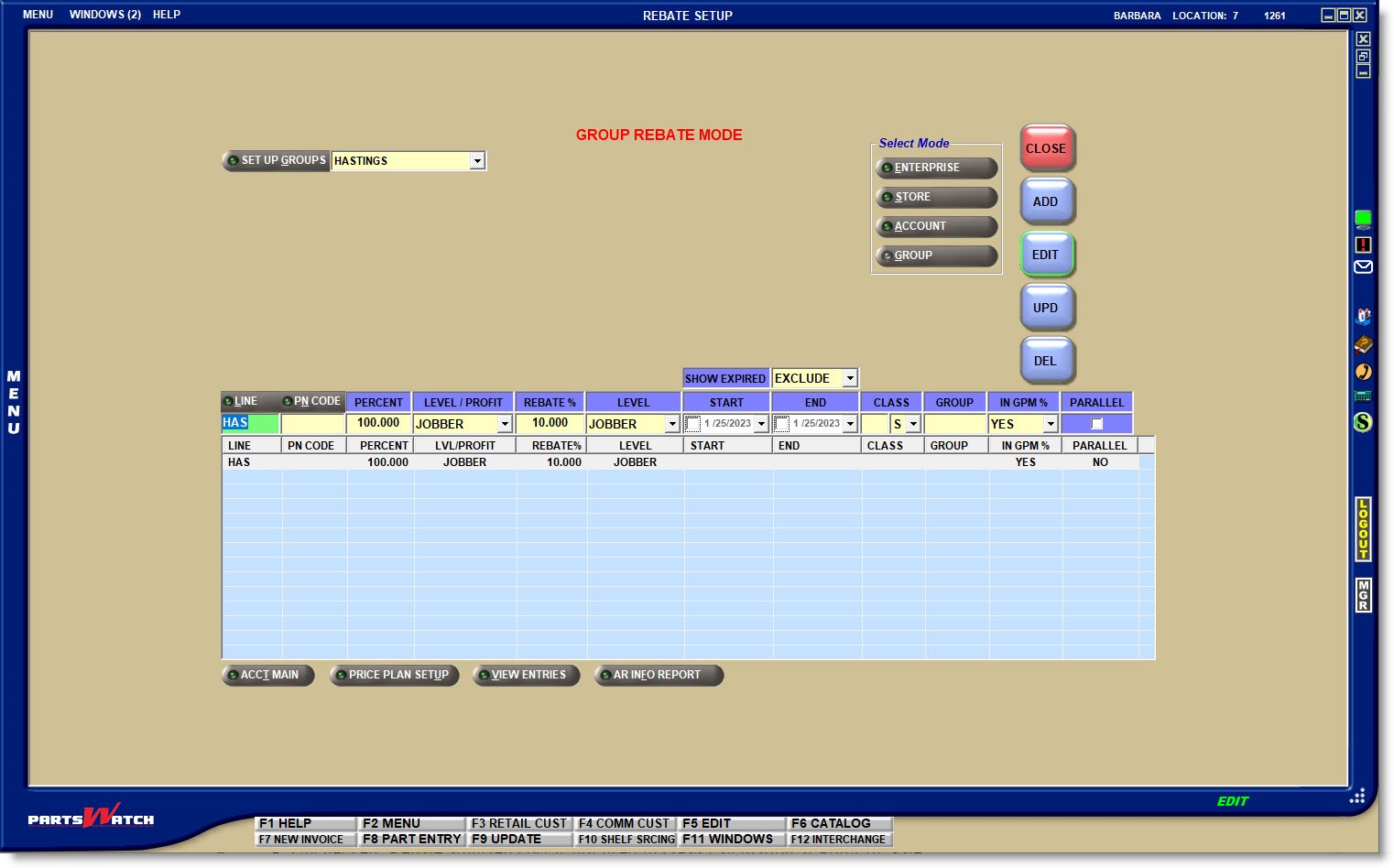
Click the 'SET UP GROUPS' field and select a group from the drop-down list and active rebates currently set up display in the grid for the 'REBATE GROUP' in focus.
Click the 'SET UP GROUPS' button to open the 'REBATE GROUP SETUP' window used to add, edit and delete rebate groups.
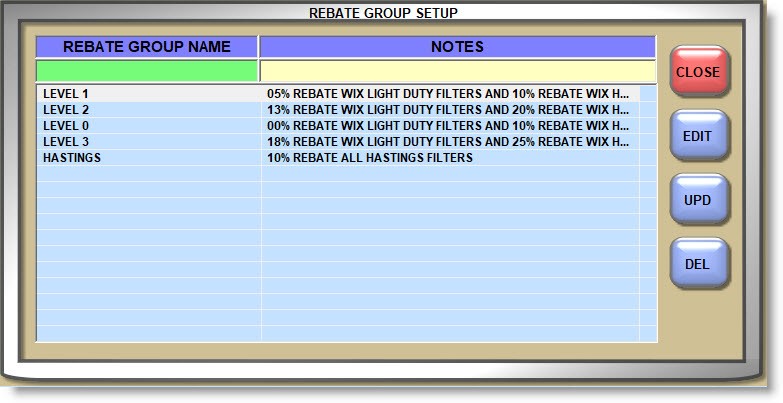
REBATE GROUPs display in the window in alphabetical order by 'REBATE GROUP NAME'. To control the order in which the names sort, optionally use numbers at the start of the name to list the groups numerically. (For example, 1Fleet)
Enter up to 39 alphanumeric and special characters for each 'REBATE GROUP NAME' and up to 119 alphanumeric and special characters for each note in the 'NOTES' field.
All existing setups display in the grid or any new setups added are used by the group displayed in the 'SET UP GROUPS' field.
All setups in the grid are used by the customers assigned to the 'SETUP REBATE GROUP' from the MAIN ACCOUNT ENTRY / PRICE PLAN SETUP screen.
Account Rebate Mode Setup
Click the 'ACCOUNT' mode button to assign accounts to rebate setups.
With the 'EDIT' button enabled, all accounts already assigned display in the screen and the setups display in the grid.
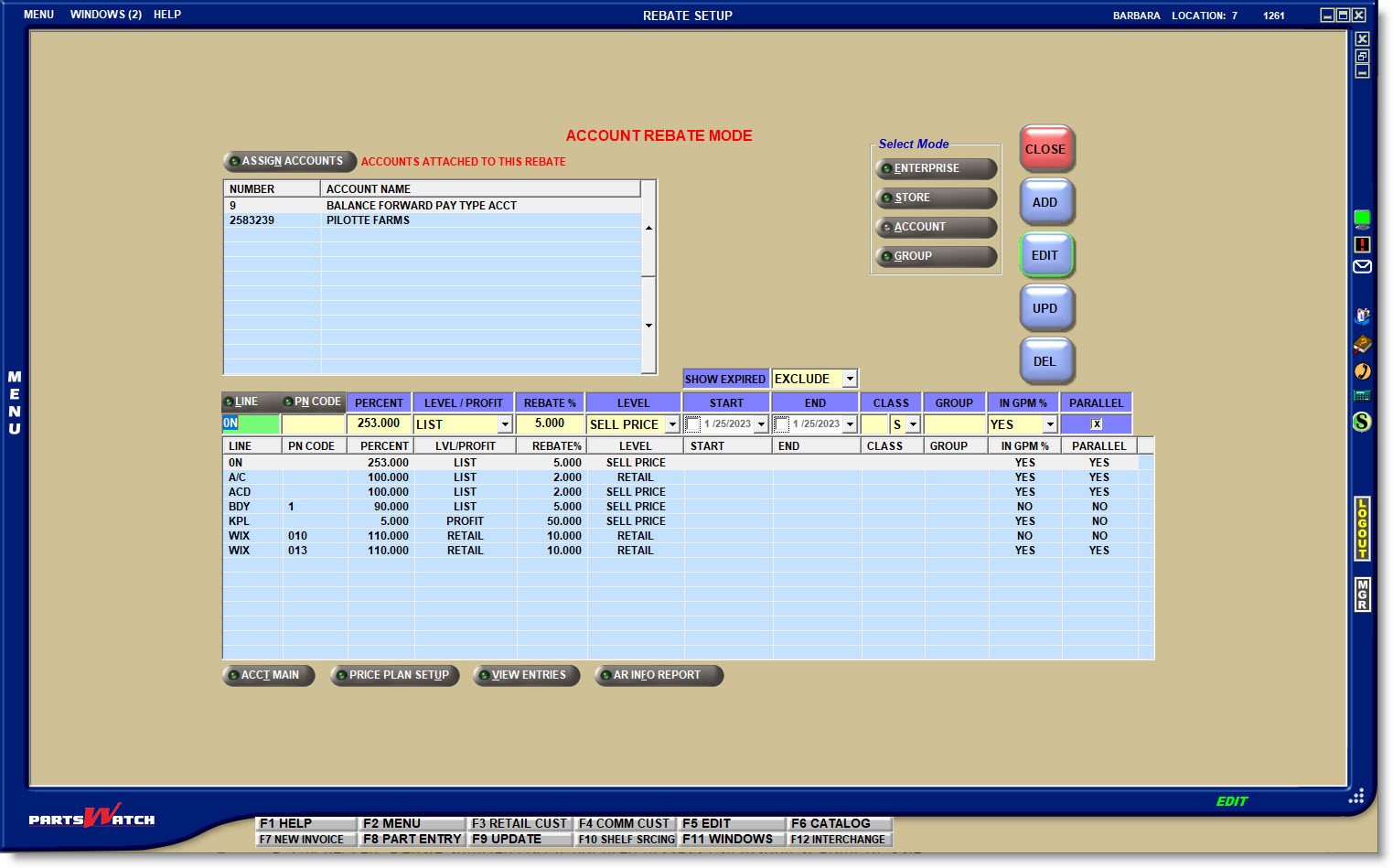
Click the 'ASSIGN ACCOUNTS' button to open the 'SET ACCOUNTS' window used to add and clear accounts using the setups displayed in the grid, or to add setups for those accounts.
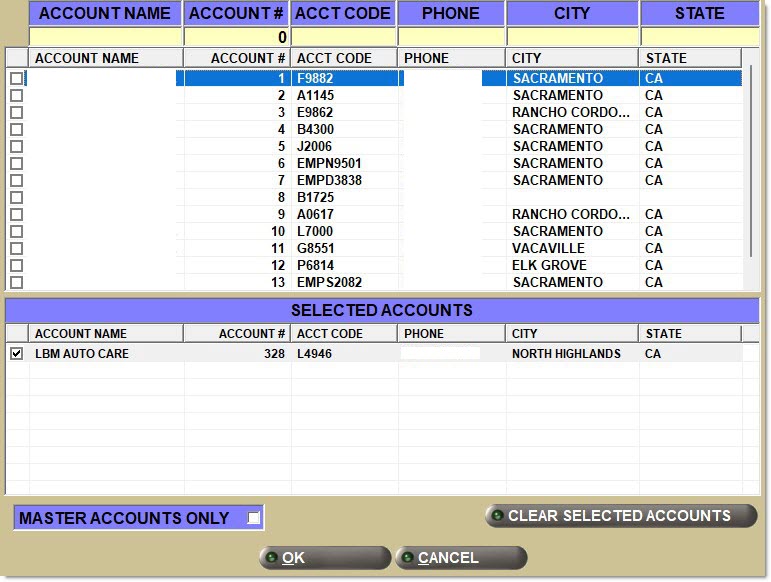
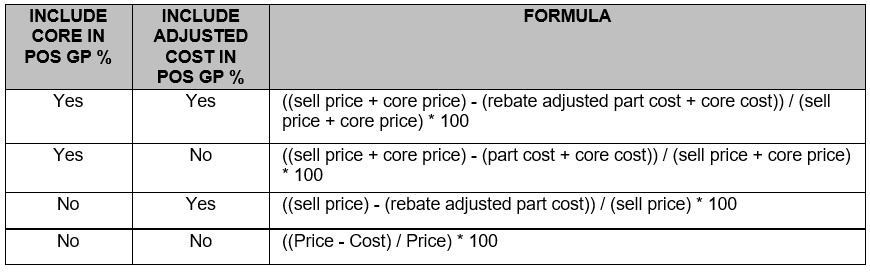
If rebates are tracked and the part is eligible for a rebate, the Adjusted Cost is calculated by taking the 'PART COST' and reducing it by the amount of rebate the store will be receiving. Rebate eligibility criteria and rebate amounts are typically determined by the part supplier and are based on selling the part below a certain price or certain profit. Typically, the more the store sells of a supplier's part, the higher the amount offered as a rebate will be.
The following two settings determine whether or not core and/or rebate adjusted cost are used in the calculation of the 'GP%' field in the INVOICE screen.
- The system level 'INCLUDE REBATE ADJUSTED COST IN POS GP%' setting is used to determine the cost used at Point-of-Sale for sales transactions, and for the 'POS GPM%' column on the LISA TRANSACTIONS REPORT, 'COLUMNS DISPLAYED' output.
- Checked: Uses Rebate Adjusted Current Cost or Average Cost
- Unchecked: Uses Current Cost or Average Cost
- The 'INCLUDE ADJUSTED COST IN GPM %' setting is used to calculate the gross profit margin percent (GPM %) on sales transactions at Point-of-Sale and all sales reports. For example, Invoice Journal, LISA Transactions, Line Sales, Sales Analysis (suite), Account Sales by Line, Sales by Account Group, and D-M-Y Sales (Store, Account, and Line).
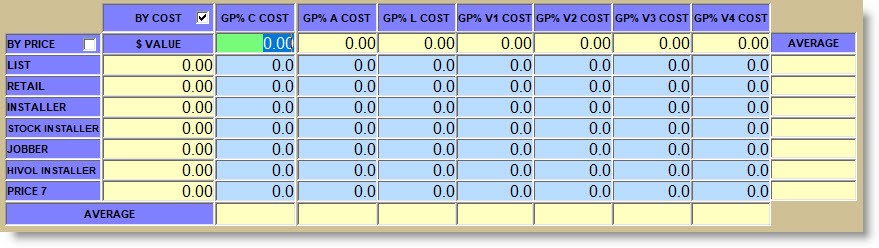
The PART PRICE ENTRY screen can optionally be used to spot-check prices and profit margins to ensure the parts will be eligible for a rebate, or to determine why an expected part is not coming up on the Rebate Report.
The system always uses the first cost column to determine profit eligibility.
Highlight a setup in the grid and click the 'DEL' button. A warning opens stating that rebate reporting will no longer be available for the deleted setup.
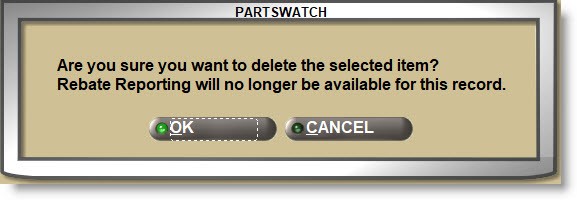
Answer 'OK' to continue.
When deleted in the REBATE SETUP screen, the rebate is deleted for every Group or Account that is linked to the rebate.
If two rebate modes have been included in the “rebate-adjusted” cost for any part, both the primary and secondary rebate amounts are tracked and recorded for subsequent reporting.
Editing the 'EACH' (sell price) or 'GP (%)' fields from the 'PRICE EDIT' window at Point-of-Sale can have an adverse effect on the rebate eligibility of the item.
Click the 'AR INFO REPORT' button on the bottom of the REBATE SETUP screen to open the ACCOUNT INFORMATION REPORTS screen with the 'REBATE SETUPS' selection in the 'Quick Reporting Options' section highlighted, and the 'REBATE MODE' and 'SHOW EXPIRED' values selected for quick reporting.
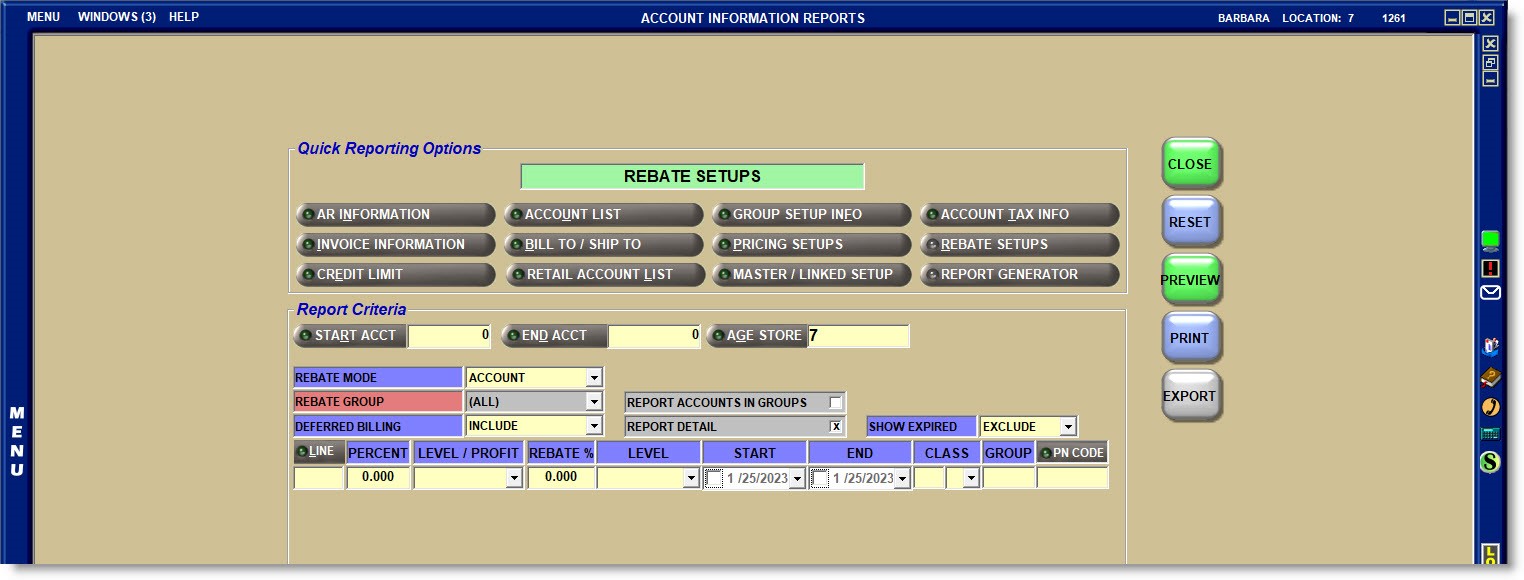
Closing the report screen returns to the REBATE SETUP screen.