Invoicing Kits
Kits Training Packet - 2 pages
Kits Glossary
KIT
A pre-defined list of component parts (within one or multiple lines), sold and priced together, "picked" from the shelf at the time of sale. KIT will be referred to as a standard or traditional kit.
A "KIT part" has no inventory and its primary purpose is to identify and select the list of components "all at once" at the time of sale.
Component
An item within a KIT, and the number of units required for that item in the KIT.
One type of item is a single part number. That part can also be another KIT. For example, one KIT can be inside a second KIT which is inside a third KIT, etc.
Another type of item is a part list. A list of part numbers. An example for an engine KIT is a rod bearing. At setup, several rod bearing part numbers are added to the list for the different sizes required (e.g. STD, .50MM, .75MM). At Point-of-Sale, select the appropriate part number for the size required for the customer.
The third type of item is a part choice. A set of criteria that defines a "family" of part numbers (e.g. all "heater hoses" in the GAT line). Pre-define a default part number and still select any part number within the "family" at Point-of-Sale.
The fourth type of item is a catalog part type, used with ACES, Epicor, and TecAlliance catalog data. Using the ACES catalog, examples for a brake kit are "Disc Brake Rotor" and "Disc Brake Pad". At Point-of-Sale, either the application automatically chooses parts specific to the vehicle selected, or the user can manually select the parts from a list of available parts for that vehicle.
The fifth type of item is KIT Components, where you can copy all of the components from one KIT to another.
BOM "Bill of Materials"
A pre-defined list of component parts, sold and priced together.
However, component parts are not "picked" off the shelf at the time of sale. Instead, component parts are "assembled" into one package during a setup function, during which time the QOH of the BOM part is incremented, and the QOH of all component parts are decremented.
kit
For the remainder of this Help, the term "kit" will refer to both KITs and BOMs, while the term "Kit" or "KIT" will refer to only a standard or traditional KIT.
Invoicing Kits Overview
- It is possible to "test" kits at Point-of-Sale to verify the pricing rules and component part selections. During the "test", it is possible to view kits but not add them to a sales order. Note: The kit part is added to the store's inventory when the 'Test Kit' button is clicked.
- At Point-of-Sale it is also possible to "Activate" kits so that all users in all stores can find, view, and sell kits. It is also possible to "deactivate and reactivate" kits. Note: The system does not allow the viewing or selling "deactivated" kits.
- It is also possible to "package" BOM parts within each store where the physical parts are "picked and assembled". Furthermore, the system allows the "un-packaging" of BOM parts either to stop selling BOMs or to avoid losing sales of BOM component parts running low in QOH for regular sales outside of BOM sales. Note: Optionally print pack slips for inclusion in the package with the parts.
On the Invoice Point of Sale screen:
-
Optionally display a replacement parts pop-up if a part on the sell line is entered that is also a component within one or more BOMs or KITs.
-
View BOM and KIT parts along with alternates, supersedes, and VCOs in the list (grid) displayed below the sell line.
-
Display the 'Find Kits' pop-up by clicking the 'Kits' button on the 'Find Parts' pop-up. Find kits by entering kit, kit component, or kit vehicle attributes on the 'Find Kits' pop-up.
-
Enter a 'Year', 'Make', 'Model', and 'Engine', to select a vehicle, on the 'Select Vehicle' pop-up, without using the CATALOG screen.
-
View the kit price and all kit components, before adding kits to a sales order, on the 'Kit' pop-up. On the 'Kit' pop-up:
-
View the Qty Avail for BOM and KIT parts and all KIT components.
-
View the 'Kit Price', the 'Cost', and the 'GPM%' for the Kit.
-
Click the 'Pricing' button and view the 'Kit Price' compared to 'Reg. Price', the 'Cost', and the 'GPM%' for each kit component.
-
View the 'You Saved' amount that the customer will save by purchasing the kit.
-
Click the 'Pricing' button and view a 'You Saved' amount for each kit component.
-
Change the 'Kit Price' with manager overrides.
-
Enter the 'Qty in Kit' for any kit component (if user-defined at setup).
-
Open a new 'Change Component' pop-up to select or replace kit component parts (if user-defined at setup).
-
Add or delete Kit components (if user-defined at setup).
-
To avoid a lost sale, convert a BOM to a KIT and "pick and assemble" the BOM component parts at Point-of-Sale.
-
Optionally choose to "break up a Kit" and sell parts separately using regular customer pricing for all parts added to the sales order. Note: Taxes and fees will apply for each part, all parts can be "sourced" on the ADVANCED SOURCING screen, and the application does not track a Kit sale.
-
When a kit is added to a sales order:
-
Component parts with insufficient quantity can be "oversold" or "sourced later" using the 'Quick Sourcing' pop-up. Source Kit components parts.
-
Taxes and fees apply to the Kit or BOM part (only); not to the specific kit components.
-
Select a kit part on a sales order and the kit will return to the 'Kit' pop-up. Once on the 'Kit' pop-up, the 'Kit Sell Quantity' or 'Kit Price' can be changed. However, the components cannot be changed. When the 'Kit Price' is changed to a "fixed amount", the 'GPM%' of the part components will now be the same as the kit's 'GPM%' except when the kit's 'Pricing Rule' is "Sum Plan Price".
-
-
Customers can return all of the component parts for both KITs and BOMs. They cannot return the entire KIT or BOM part. Use the defective exchange modifier when customers return defective kit component parts to bypass tendering. If set up, a minimum restocking fee can be applied to new re-sellable kit component parts returned by customers. The restocking fee set up for a kit can override any restocking fee set up for the store.
-
On the CATALOG screen (with ACES, Epicor, or TecAlliance data):
Note: Including embedded browsers eBay/WHI NCC (ACES), and Autologue ePartConnection (Epicor).
-
For any catalog or interchange lookup:
-
If the catalog result set returns a manufacturer kit part that was also set up as a user-created kit part, the application displays any pricing and availability for the kit part. For a BOM, the pricing and availability is based upon the user-created kit part, and for a KIT, the pricing and availability is based upon the user-created kit component parts.
-
If the catalog result set returns an alternate part that was set up as a user-created kit part, the application displays any pricing and availability for the kit part. Note: The user-defined kit is not really an "alternate" for the part, but this feature of "displaying alternates in catalog results" is here so that user-defined kits can be viewed in embedded browser-based catalogs.
-
On the CATALOG screen (with ACES, Epicor, or TecAlliance data):
Note: Excluding embedded browser catalogs.
-
For any catalog or interchange lookup:
-
The application displays user-created kits available for sale (with any pricing and availability). These kits are optionally displayed both at the top of the catalog results in a "Related Kits" section, and throughout the catalog results. For a BOM, the pricing and availability is based upon the user-created kit part, and for a KIT, the pricing and availability is based upon the user-created kit component parts.
-
If the catalog result set returns a part that is a component within any user-created kit setup, the application displays the kit part and any pricing and availability. The kit part is displayed directly below the part (or directly below its alternates or supersedes) and contains text indicating that the kit contains the part above as a component within the kit.
-
The application displays the 'Kit Class' for those kits assigned to a 'Kit Class'.
-
The 'Kit' pop-up opens when a user-created kit is selected.
-
On eBay/WHI Nexpart, Alliance MyPlace4Parts, and Autologue ePartConnection eCommerce websites:
-
For a catalog or interchange lookup, or user-entered manual stock check:
-
If the catalog result set returns a manufacturer kit part that was also set up as a user-created kit part, the application displays any pricing and availability for the kit part. For a BOM, the pricing and availability is based upon the user-created kit part, and for a KIT, the pricing and availability is based upon the user-created kit component parts.
-
If the catalog result set returns an alternate part that was set up as a user-created kit part, the application displays any pricing and availability for the kit part. Note: The user-defined kit is not really an "alternate" for the part, but this feature of "displaying alternates in catalog results" is here so that user-defined kits can be viewed on eCommerce websites.
-
-
Kit parts and all kit component parts sell prices and quantities sold are saved in LISA.
-
The printed invoice displays the KIT or BOM part's quantity sold and sell price. Optionally choose to display all component part quantities sold, without sell prices.
-
Kit parts and all kit component parts sell quantities are saved on the PART HISTORY screen. For Kit component parts, the application displays sales history units as a mix of kit and regular sales and returns. The 'Last Sold Date' updates on all kit parts and components.
-
BOM parts and KIT component parts are saved in the Part Ledger.
-
The application tracks rebates and deferred core billing for kit component parts (only).
-
On the KIT SALES REPORT screen, optionally run a 'Kit Sales Count Report', a 'Kit Sales Summary Report', and a 'Kit Component Part Returns Report'.
-
Also, optionally run a 'Kits Setup Details Report' for all kits or specific kits based upon entering specific criteria on the KIT SALES REPORT screen.
-
For both LISA TRANSACTIONS and LISA PART RANKING Reports, the application allows viewing either kit parts or kit component parts separately from, or mixed with, parts sold outside of kits.
-
On the LISA TRANSACTIONS Report, using 'COLUMNS DISPLAYED', view the vehicle sold for a kit sale. Also, display a new 'KIT ITEM TYPE' on the 'LISA DISPLAY' grid.
-
On all other sales reports besides LISA, only include kit parts (sell price and quantity sold) without kit component parts (sell price and quantity sold) to avoid "double counting the sales figures".
-
For all extracts (e.g. eOffice), the application only sends BOM parts (and not BOM kit component parts), and KIT component parts (and not KIT parts).
There are several different ways to find and sell a kit at Point-of-Sale but all ways include the 'Kit' pop-up:
-
Enter a kit 'Line' and/or 'Part Number' on the sell line. If found, this entry opens the 'Kit' pop-up.
-
Scan a bar code (if one exists) on a BOM part's label. This opens the 'Kit' pop-up.
-
Select the KIT's 'SELL' button from the CATALOG screen (if available and displayed). This opens the 'Kit' pop-up.
-
Click the 'FIND KIT' button on the 'FIND PART' pop-up.
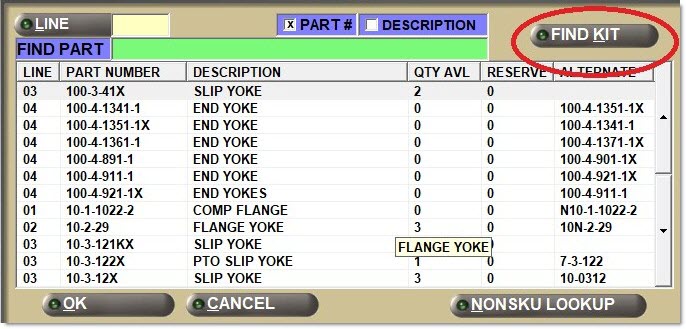
Find Kit Pop-Up
Click the 'FIND KIT' button on the 'FIND PART' pop-up and the 'Find Kit' pop-up opens.
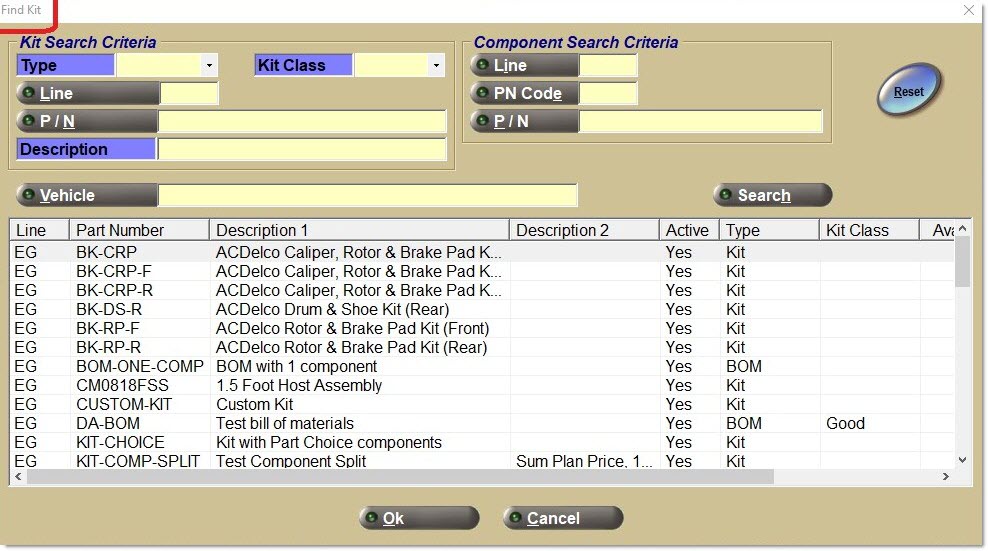
The 'Find Kit' pop-up contains all of the same kit and component search filters as the 'Kit List' tab. Enter search criteria and click the 'Search' button to find a kit. it is also possible to scroll the list to find a kit.
When the 'Vehicle' button is clicked, the application displays a unique list of all custom or catalog vehicles set up for all kits.
If a kit is found and selected, by double-clicking the highlighted kit or by clicking the 'OK' button with the selected kit highlighted, the 'Kit' pop-up opens.
Kit Pop-Up
The 'Kit' pop-up is available to sell KITs and BOMs.
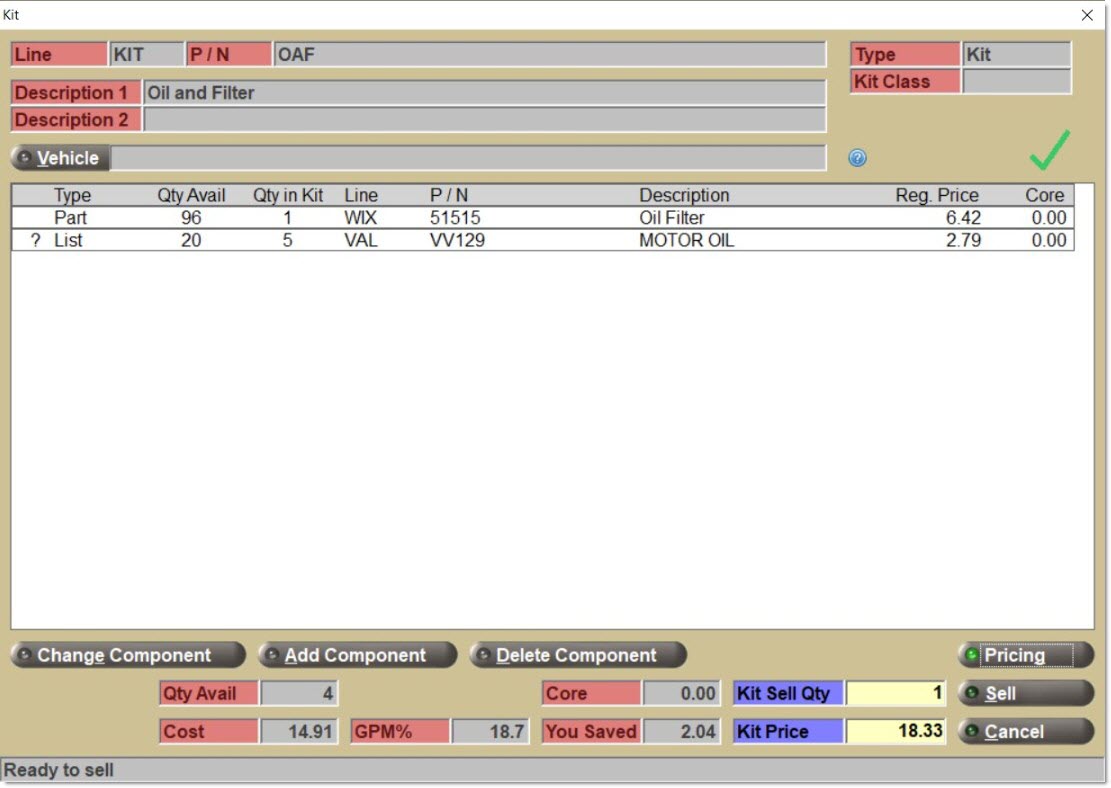
The 'Line', 'P/N', 'Description 1', 'Description 2', 'Type', and 'Kit Class' are displayed at the top of the pop-up to describe the KIT.
Click the 'Vehicle' button to search for, find, and display a vehicle and vehicle description.

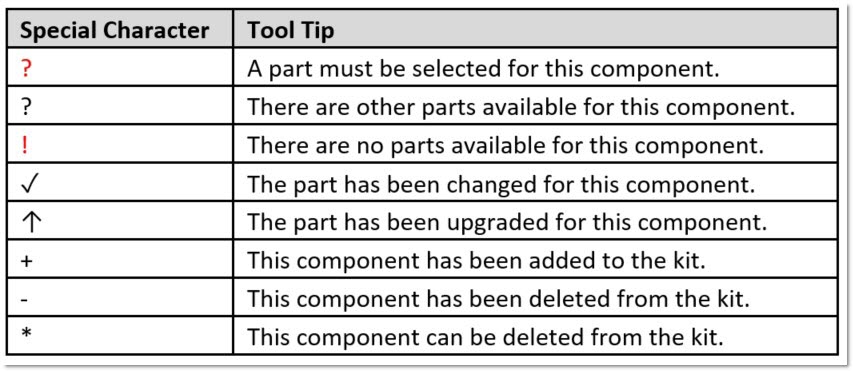
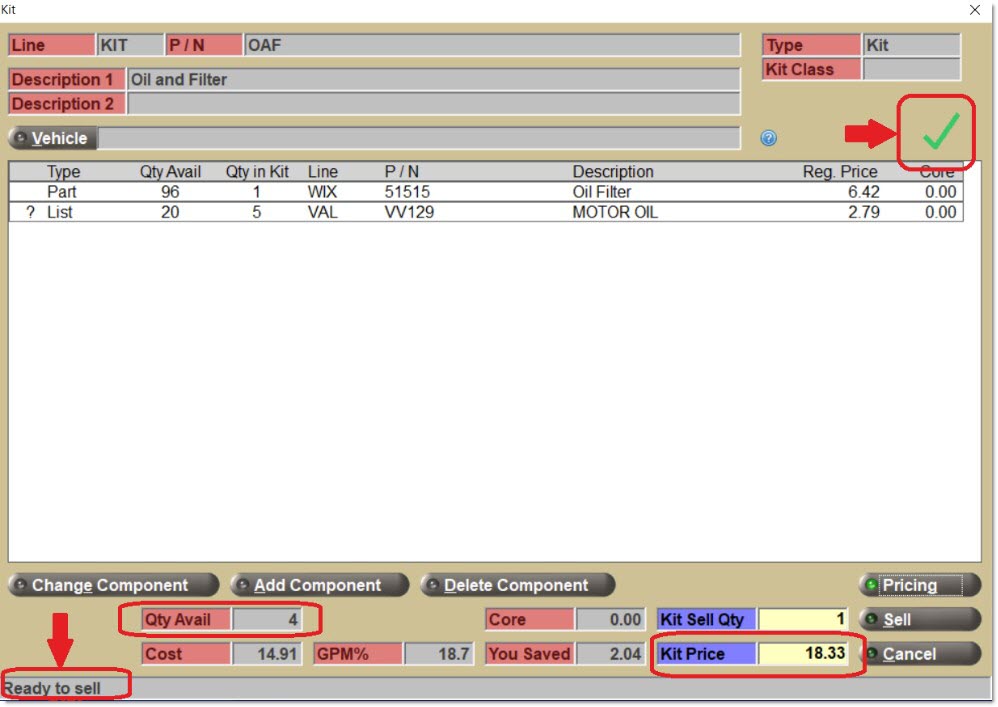
Hover over the blue question mark help icon to display the following text: "Mouseover special character shown (?, !, etc.) by the Type column to see its meaning." Mouse-over any of the large special characters by the 'Type' column to see what is going on with the kit, and whether or not it is ready to be sold, or needs some other data entered. In the image above, the special character is the Green Checkmark, indicating the kit is ready to sell!
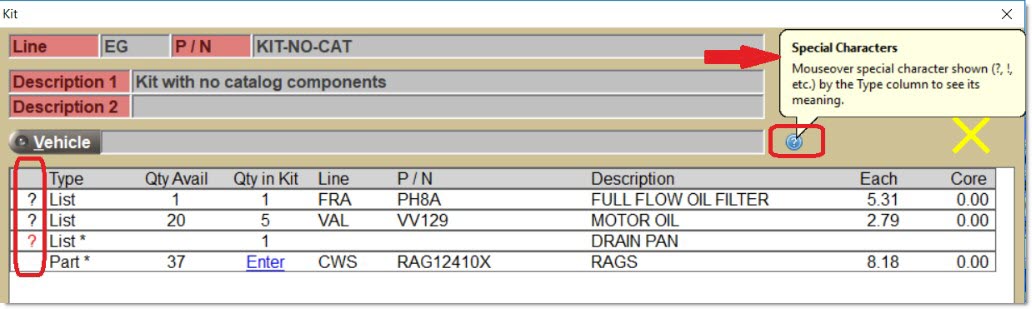
The chart below contains all of the tooltips for the eight special characters in the 'Kit' pop-up:
A graphical image character (in a green, yellow, or red color) displays at the top right of the pop-up that quickly indicates whether the kit is "ready to sell". "Ready to sell" (indicated by a green-colored checkmark) means that there is a part selected for each kit component within the kit, there is a 'Qty in Kit' for each component, and the kit price is not zero.
- For a BOM, the system always immediately displays the 'Qty Avail' and 'Kit Price'.
- For a KIT, the system displays the 'Qty Avail' and 'Kit Price' when they are known, when all of the parts for all of the components have been selected.
A yellow X character displays when the kit is not yet "Ready to sell", indicating that one or more components require selecting a part.
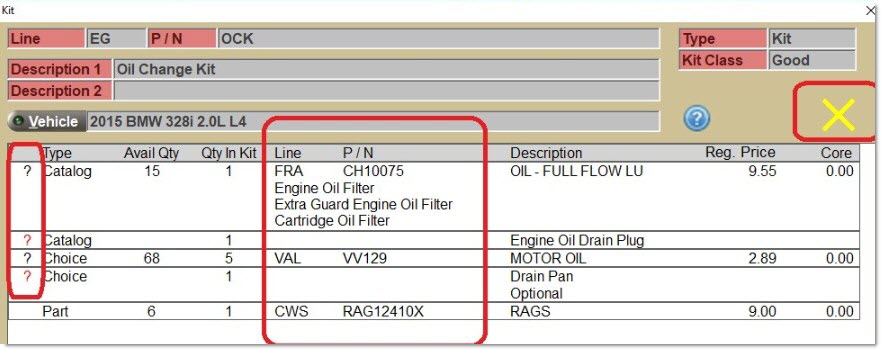
A red question mark character (?) displays in the first column in the grid to indicate that a component requires the selection of a part.
A black question mark (?) displays to indicate that a component already has a part selected but that other parts are available to replace the part selected.
The image character changes from a yellow X to a green checkmark when the last part required has been selected, and the kit price is also greater than zero.
A checkmark character displays in the first column in the grid to indicate that a part was selected or changed for a component.
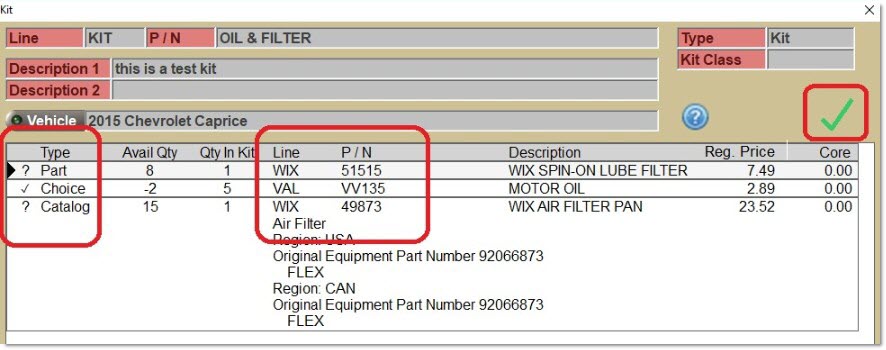
A red X character displays when the kit cannot become "Ready to sell" at Point-of-Sale without making further setup changes to the components or the kit price.
A red exclamation point character (!) displays in the first column in the grid for a component when there are no parts that can be selected for that component. In this situation, the KIT cannot be sold without first deleting those components. In the sample below, this condition is true for all three components and therefore, the Kit cannot be sold to any customer for this vehicle:
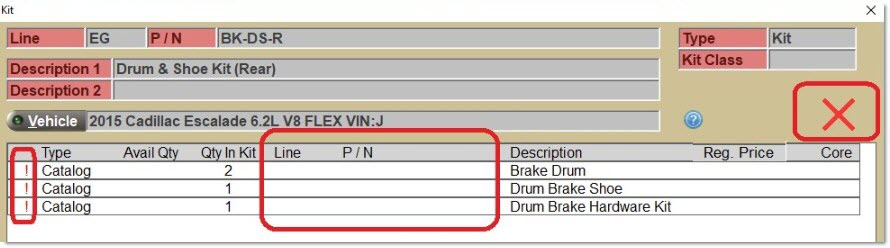
To do so, it must also be allowed that components can be deleted at Point-of-Sale during the setup of the kit.
A list of components in the kit also displays in the grid:
-
A "pre-selected" part for each component displays, if possible. Note: It is possible to change the part selected if there are other parts available for a component and the change function has been user-defined in setup "as allowed" for that component.
-
If the component is a Part, the 'Line' and 'P/N' always display.
-
If the component is a List or Choice, the 'Line' and 'P/N' are displayed if there is a default part selected during setup, otherwise, the part is left blank.
-
If the component is a Part Type / Catalog, the 'Line' and 'P/N' display if there is at least one part available for that 'Part Type' for the vehicle selected otherwise, the part is left blank.
-
-
Parts for any component are excluded if Min and Max Price and/or Cost range limits have been set up for a component, and the part's regular sell price or cost does not fall within the range defined. The application always only uses the price and cost ranges set up in the "outermost" kit, and ignores the price and cost ranges set up in all "inner" kits. Note: This feature is most useful when defining kits with different price grades, or when using a 'Pricing Rule' of 'Kit Fixed Price' or 'Kit Plan Price'.
-
Parts for any Part Type (Catalog) component are excluded if additional filters have been set up (e.g. 'Lines', 'PN Codes', 'PN Groups', or 'Prdt Codes'), and the part's 'Line', 'PNCode', 'PN Group', or 'Prdt Code' value does not match the values set up for the filter. The application always only uses the additional filters set up in the "outermost" kit, and ignore the additional filters set up in all "inner" kits.
-
A Part Type (Catalog) component (and all available parts) does not display if the option 'Applicable to all vehicles' is unchecked, and there are no applicable parts for the Part Type (Catalog) component for the vehicle selected.
The following columns display for each component in the kit:
A special character displays to indicate the "readiness" of the kit.
- A blank displays if there is nothing to alert about this component.
- A red "?" displays if a component requires a part to be selected.
- A "?" displays if a component has a part selected but also has additional parts that can be selected to replace the current part selected.
- A red "!" displays if a part cannot be selected for this component. Note: If any component has this character displayed, then the red X character will also display because the kit cannot become "Ready to sell" without further setup changes.
- A checkmark character displays if a component was changed.
- An up arrow character displays if a component was "upgraded".
- A "-" displays if a component was deleted. Note: Deleted components remain displayed on the 'Kit' pop-up but are no longer within the kit. Deleted components are not included in the Kit's sell price, and will not be added to the invoice.
- A "+" displays if a component was added.
Displays the part information for the seleted component, when clicked.
Displays the type of component, values are 'Part', 'List', 'Choice', or 'Catalog' (Part Type).
The column displays an "*"(asterisk character) after the component's 'Type' (e.g. 'Part *', 'List *', 'Choice *' or 'Catalog *') if the component is allowed to be deleted.
Note: The 'Type' will always be 'Part' for all components within a BOM.
Displays the available quantity for each component part.
The column displays fractional units if the component part is being sold in fractional units.
The column displays blank if the part selection has not occurred for the component.
Note: Blanks display for all BOM component parts unless the 'Assemble Now' option has been selected.
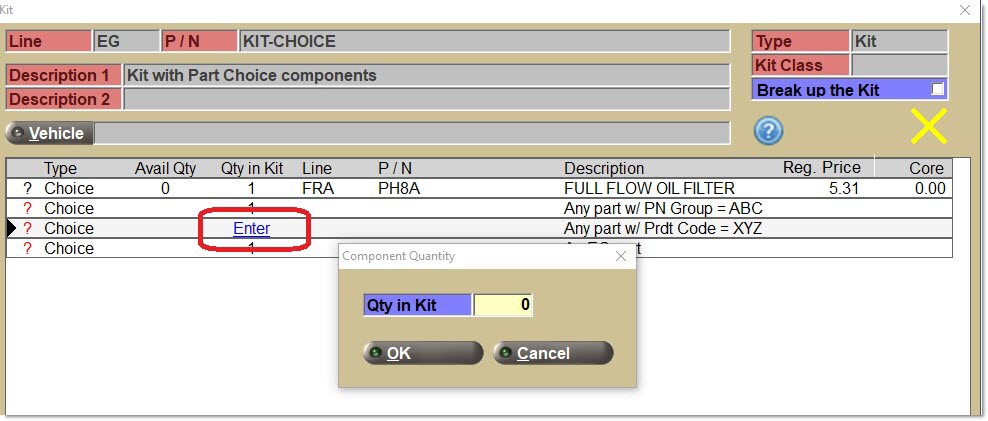
The column displays '1' or '1.5' as hyperlink text if the 'Enter Qty in Kit at POS' option is selected, enabling changing the value defined at setup.
The column displays 'Enter' if the 'Enter Qty in Kit at POS' option is selected and the 'Qty in Kit' value is zero for the component.
-
When the 'Enter' hyperlink text is clicked, it becomes possible to enter a 'Qty in Kit' value between 1 and 9999.
-
When the 'Enter' hyperlink text displays, a yellow X also displays (as the KIT is not yet "Ready to sell") and the text message "Qty in Kit must be entered for one or more components." displays in the status bar at the bottom of the pop-up.
-
After a non-zero value for 'Qty in Kit' has been entered, the pop-up closes, the displayed value of 'Qty in Kit' for the component updates, the Kit Price (based upon pricing rule) possibly updates, the yellow X possibly changes to a green checkmark if the kit becomes "Ready to sell") and the warning message is removed.
-
The entered quantity is still displayed as a hyperlink indicating that the quantity can be changed again.
-
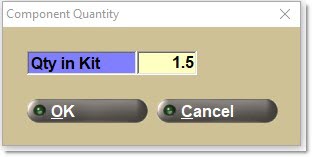
For component parts being sold in fractional units (e.g. 1.5, or 1.25), enter a fractional 'Qty in Kit' at Point-of-Sale.
-
When the kit is sold, the fractional units are displayed on the sales order and on the finalized printed invoice for the customer.
For 'Part Type' components, where the 'Use Catalog Per Car' option is selected, and if the catalog data vendor provides 'Per Car' quantities, a 'Qty in Kit' value displays based upon the catalog supplied 'Per Car' quantity value for the part. If the 'Part Type' component has no part selected, a blank value displays.
Note: The 'Use Catalog Per Car' option is only available for the ACES and Epicor catalogs.
Note: If 3 kits are purchased and the 'Qty In Kit' is 5 for a component, then on the invoice the 'QTY' column for the component part will be 15.
The application does not display any NIF parts on the 'Kits' pop-up.
If the component is a 'Part' (a regular part, and not another KIT part), the application displays the part's line code and part number.
If the 'Component Type' is 'Part List' or 'Part Choice', and there is a default part, the application displays that line code and part number. Otherwise, the application displays a blank line code and part number until a part is chosen for that component.
If the 'Component Type' is 'Catalog' (Part Type), and the system automatically selects a part for the vehicle selected, the application displays a line code and part number. Otherwise, the application displays a blank line code and part number until a part is chosen for that component.
Below are the rules if the component is a 'Part' (that is a KIT part):
-
If the "child" KIT part does not contain any "child" KIT parts:
-
The application does not look at the "child" KIT part's line code and part number.
-
Instead, for each "child" KIT component that is a 'Part', the application displays that part's line code and part number on a different row in the list (grid). For example, if the "child" KIT part contains three components that are all Parts, the application displays each part's line code and part number on three different rows in the list (grid).
-
For each "child" KIT component that is a 'Part List', 'Part Choice', or 'Part Type', the application follows the rules above for what is displayed for those types of components.
-
More rules for "KITs within KITs":
-
The application always only displays "child" KIT components and never display a "child" KIT part.
-
The application always only displays "child" KIT components in the "parent" KIT, if the "child" KIT part has an 'Active' status of 'Yes', has the same 'Catalog Type' value as the "parent" KIT part.
-
The application does not display any "child" KIT part if a "circular reference" exists. As one example, a "parent" KIT part "A" contains a "child" KIT part "B", which contains a "child" KIT part "C", which contains a "child" KIT part "A". The application displays a prompt pop-up to the user if any "chain of kits" is set up incorrectly.
-
-
-
If the "child" KIT part contains a "child" KIT part:
-
When the application displays the components in the "child" KIT, follow the rules above for when line code and part numbers are displayed.
-
When the application displays the components in the "child" KIT part's "child" KIT part, follow the rules above for when line code and part numbers are displayed.
-
Note: Since there is no limit to how many levels of KITs within KITs can be set up, the 'Kit' pop-up displays more "child" KIT components in the list (grid) until the "end of the chain" of KITs is reached.
-
If the 'Component Type' is 'Part', the part 'Description' displays.
If the 'Component Type' is 'Part List' or 'Part Choice', and there is a default part, the part 'Description' displays. Otherwise, the Component 'Description 1' displays.
If the 'Component Type' is 'Catalog' (Part Type), the Component 'Description 1' displays. Unless a part is selected, then the part 'Description' displays.
Each customer's regular sell price and each core sell price displays, once a part is selected, based on the customer's regular pricing plan.
-
For a kit priced by components (prices or costs), the 'Reg. Price' for components is not changed to reflect any adjustment ('Discount', 'Margin', or 'Markup %') entered in Kit Setup. The application only uses these adjustments in the calculation of the 'Kit Price' (displayed on the 'Kit' pop-up).
-
Note: The sum of the 'Extended Price' for all components will be different from the 'Kit Sell Price' if a 'Discount', 'Margin', or 'Markup %' adjustment was defined during setup.
-
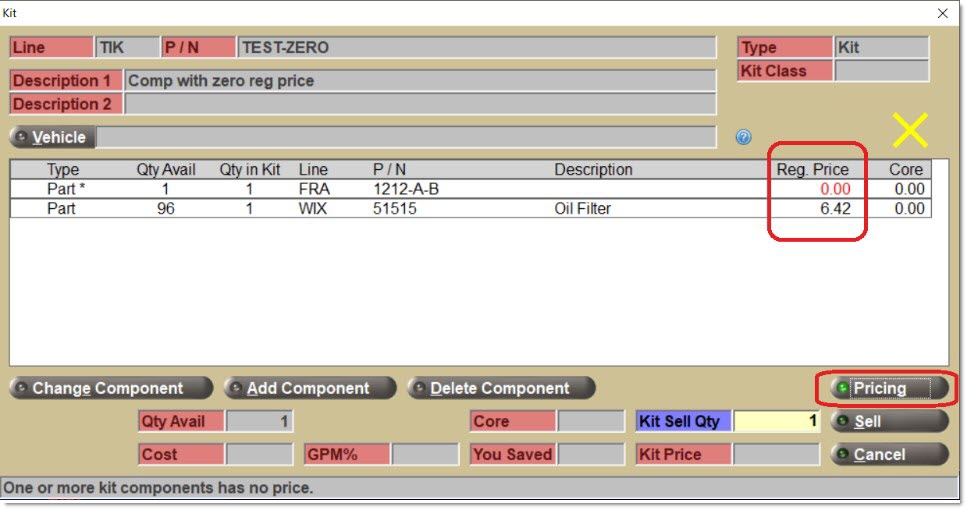
Note: It is possible to view the 'Reg. Price' compared with the calculated 'Kit Price' for each component by clicking the 'Pricing' button (circled in the sample below).
-
The 'Reg. Price' displays in red for a component if the component's sell price is zero and the kit's 'Pricing Rule' is 'Sum Plan Price'.
-
For the component, if any of the 'Allow' replacement part checkboxes are checked (e.g. 'Allow Alternates', 'Allow Supersedes' or 'Allow VCO'), or the component can be deleted and other parts are available beyond the current part selected (like in the sample above), then a yellow X displays because the kit can become "Ready to sell".
-
For the component, if no 'Allow' replacement part checkboxes are checked, or the component cannot be deleted, then a red X displays because the kit cannot become "Ready to sell" (without further setup changes).
-
If the 'Pricing' button below the grid (on the right) is clicked, the 'Pricing' pop-up displays, enabling the viewing of the kit's 'Pricing Rule' and pricing information for all components in a list (grid).
-
At the top of the pop-up, the kit's 'Pricing Rule' and also the 'Discount %', 'Markup %', 'Margin %', or 'Fixed Price $' (as appropriate) display. Note: If the kit's 'Pricing Rule' is 'Sum Cost', the application uses the 'INVOICE GP% ON POS SCREEN' security proc to hide or show the Margin/Markup% value on the 'Pricing' pop-up based on user access.
-
A grid containing all of the kit's components displays. For each component, the application displays:
-
'Line'
-
'P/N'
-
'Description'
-
'Reg. Price' - This is the customer's regular sell price for this kit component part based upon existing customer price plans. The 'EACH' sell price the customer would pay if the part was purchased outside of the kit.
-
'Kit Price' - This is the calculated 'EACH' sell price based upon applying any Discount/Margin/Markup percentages, or any surcharge fees.
-
'You Saved' - The difference between 'Reg. Price' and 'Kit Price'. This amount represents any savings for this component that the end customer will receive when purchasing the kit. A value is only displayed when the difference is a positive amount. If the difference is zero or a negative amount a blank value is displayed because there are no savings for this kit component part when the kit is purchased.
-
Note: There may be savings for all components on the kit. There may be savings for some components but not others. Finally, there may be no savings for any components.
-
-
'GPM%' - Based upon selling this component using the 'Kit Price'.
-
This column is hidden if the security plan has the security proc 'INVOICE COST ON POS SCREEN' set to 'NOT VISIBLE'.
-
Note: The 'GPM%' based upon selling this component at 'Reg. Price' is not shown in the pop-up.
-
-
'Cost' - The part's current or average cost.
-
The part's current or average cost displays based upon the 'COST AT POS' option on the 'STANDARD' tab of the STORE INVOICE OPTIONS screen.
-
This column is hidden if the security plan has the security proc 'INVOICE COST ON POS SCREEN' set to 'NOT VISIBLE'.
-
-
-
The application displays an 'Adjustments' button if there are any changes (increases or decreases) made to the 'Kit Price'. The 'Adjustments' button opens the 'Adjustments' pop-up, which displays the following 'Kit Price' optional adjustments.
-
'Assembly Fee' - A 'Kit Price' increase if an assembly fee is applied to the KIT. Typically, this is used with the packaging or manufacturing of a BOM part.
-
'Surcharge' - A 'Kit Price' increase if an add, upgrade, or delete component surcharge fee is applied to the KIT.
-
'Fixed Price Upgrades' - A 'Kit Price' increase if a component part is upgraded in a KIT with a 'Pricing Rule' of 'Kit Fixed Price' or 'Kit Plan Price'.
-
'Fixed Price Deletes' - A 'Kit Price' decrease if a component part is deleted from a KIT with a 'Pricing Rule' of 'Kit Fixed Price' or 'Kit Plan Price'.
-
-
The 'Reg. Price' displays in red for a component if the component's part cost is zero and the kit's 'Pricing Rule' is 'Sum Cost'.
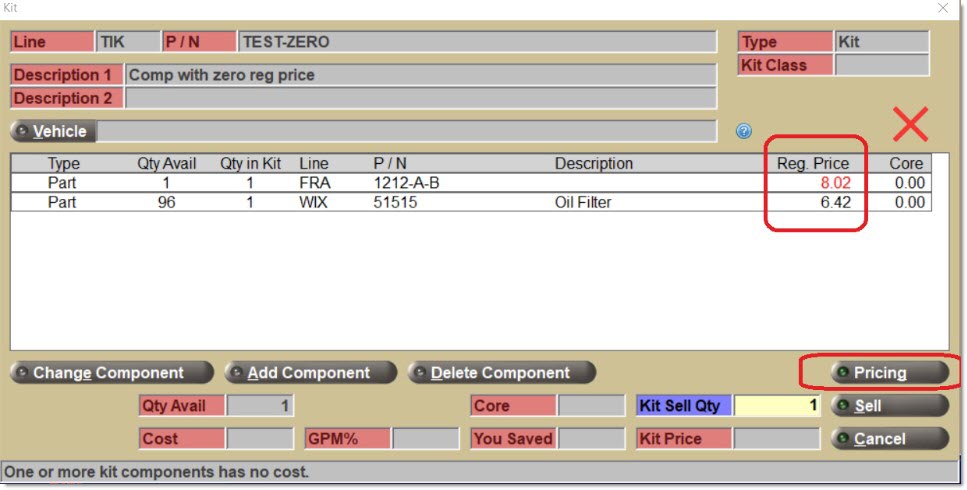
-
For the component, if any of the 'Allow' replacement part checkboxes are checked (e.g. 'Allow Alternates'), or other parts are available and the component can be deleted, then a yellow X displays because the kit can become "Ready to sell".
-
For the component, if there are no 'Allow' replacement part checkboxes checked, and if there are other parts available on the kit but the component cannot be deleted, then a red X displays because the kit cannot become "Ready to sell" (without further setup changes).
-
If the Pricing button is clicked, the kit's 'Pricing Rule' and pricing information for all components in the kit can be viewed.
-
-
The quantity available displays at the bottom-left of the pop-up.
-
For a BOM, a value for the quantity available for the kit part always displays, even if it is zero.
-
For a KIT, the label always displays, but a value (even zero) only displays if there is a part and a 'Qty in Kit' value for every component in the kit. The maximum quantity available for the kit part that is "Ready to sell" displays based upon sufficient stock for all of the components.
-
The kit part's quantity available is calculated using a formula that determines, for each component part, the maximum number of kits that can be assembled at Point-of-Sale, based upon the component part's 'Qty in Kit' value and quantity available. Then the smallest amount calculated is used.
-
The total core amount for the kit displays (even zero) at the bottom of the pop-up (to the right of the 'Qty Avail') based upon the core values aggregated together for all component parts on the kit.
Note: The Core value may change as kit component parts are added, changed, or deleted from the kit.
A default value of 1 displays and a Kit Sell Qty from 1 to 9999 can be entered.
Note: Only 'Kit Sell Qtys' with whole units are supported, and not with fractional units.
The 'Cost' for the kit displays at the bottom-left of the pop-up if the security plan has the security proc 'INVOICE COST ON POS SCREEN' set to 'VIEW ONLY' or 'ALLOW EDIT'.
The 'Cost' for the kit is the sum of the part cost for all kit component parts. This amount will change as component parts are added, deleted, or changed on the 'Kit' pop-up.
The 'Cost' for all components can be viewed by clicking the 'Pricing' button.
The 'GPM%' for the kit displays at the bottom-left of the pop-up if the security plan has the security proc 'INVOICE COST ON POS SCREEN' set to 'VIEW ONLY' or 'ALLOW EDIT'.
The 'GPM%' for the kit is the mix of the 'GPM%' amounts for all kit component parts. This amount can change as component parts are added, deleted, or changed on the 'Kit' pop-up.
The 'GPM%' for all components can be viewed by clicking the 'Pricing' button.
The 'You Saved' for the kit is the sum of the 'You Saved' amounts for all kit component parts. This amount will change as component parts are added, deleted, or changed on the 'Kit' pop-up.
Note: The 'You Saved' amount for the kit may be a blank value.
A zero 'Kit Price' displays if the kit's 'Pricing Rule' is 'Kit Fixed Price' and a Fixed Price on the KIT SETUP screen has not been entered. Furthermore, the text "Kit can't be sold because the price is zero." displays.
Note: Click the 'Pricing' button to verify the kit is missing a fixed price.
Note: A zero 'Kit Price' may result from other 'Pricing Rules'.
A "blank" 'Kit Price' displays if any one of the components does not have a selected part. Furthermore, the following text displays: "One or more kit components require part selection."
A "blank" 'Kit Price' displays if any one of the components does not have a 'Qty in Kit' value. Also, the following text displays: "Qty in Kit must be entered for one or more kit components."
A "blank" 'Kit Price' displays if there are no components. Also, the following text displays: "Add one or more kit components."
A "blank" 'Kit Price' displays if the pricing rule is 'Sum Cost' and one or more of the component parts has a zero cost. Furthermore, the following text displays: "One or more kit components has no cost."
A "blank" 'Kit Price' displays if the pricing rule is 'Sum Plan Price' and one or more of the component parts has no sell price. Also, the following text displays: "One or more kit components has no price."
A "blank" 'Kit Price' displays, with any pricing rule, if no parts were found for any of the components. Also, the following text displays: "No parts were found for one or more kit components."
A non-zero "complete" 'Kit Price' displays if the pricing rule is 'Sum Plan Price', all component parts have sell prices, and the kit is "Ready to sell", even if one or more component parts has no cost. Furthermore, the following text displays: "Ready to sell."
A non-zero "complete" 'Kit Price' displays if the kit is "Ready to sell". This price indicates that there is a selected part for every component in the kit, and every kit component has a 'Qty in Kit'.
The 'Kit Price' is enabled for edit when the kit is "Ready to sell" and has a green checkmark displayed.
It is possible to edit the 'Kit Price' with manager override security if the 'INVOICE PRICE EDIT' button security proc is set to 'ALLOW EDIT'. The 'Kit Price' cannot be changed if the 'INVOICE PRICE EDIT' button security proc is set to 'VIEW ONLY' or 'NOT VISIBLE'.
The following manager overrides are enforced, in the order specified below, after the 'Sell' button is clicked, or the 'Enter' key is pressed from the 'Kit Sell Qty' field:
-
'SELL PRICE OF ZERO' (enforced for price edits only)
-
'PRICE EDIT AT OR BELOW COST'
-
'OST' (enforced for price edits only)
-
'NEGATIVE MARGIN' (enforced whether the price is edited or not)
-
'BELOW ALLOWABLE COST/MARGIN' (enforced whether the price is edited or not)
-
'ABOVE ALLOWABLE COST/MARGIN' (enforced whether the price is edited or not)
-
'PRICE CHANGE' (enforced for price edits only)
-
Like at Point-of-Sale, once a manager provides a password for an override, no other overrides are checked.
-
If the manager approves an override that displays or an applicable override is set up as 'ALLOW USER (NO POP-UP DISPLAYS)', or none of the overrides are applicable, the kit is added to the sales order.
-
If the manager does not approve an override that displays or an applicable override is set up as 'NEVER ALLOW USER (NO POP-UP DISPLAYS)', the kit is not added to the sales order, the 'Kit Price' is reset back to the calculated value (if it was edited), and the cursor is returned to the 'Kit Price' field.
-
If the 'Kit Price' is edited, the application recalculates the kit's 'GPM%' and displays the new 'GPM%' on the 'Kit' pop-up. The system also recalculates each component's 'GPM%', and displays the new values on the 'Pricing' pop-up.
-
Note: If the kit's 'Pricing Rule' is 'Kit Fixed Price', 'Kit Plan Price', 'Sum Cost', or 'Sum Sales Class Margins', the kit's 'GPM%' will still be the same as all part components (with potentially a minor exception for any part component). This is because each part component's sell price will be recalculated to ensure that the part component's 'GPM%' matches the kit's 'GPM%'.
-
Note: If the kit's 'Pricing Rule' is 'Sum Plan Price', the kit's 'GPM%' will be different from all or most part components. This is because each part component's sell price will be recalculated using the proportional difference between the kit's previous and revised sell price.
If the 'Kit Price' is edited, and then additional changes are made to the kit (e.g. adding, changing, or deleting components), a prompt displays with the text: "You already changed the kit price to <KIT PRICE>. Do you want to keep that price?" with 'YES', 'NO', and 'CANCEL' buttons.
-
Click 'YES' to keep the old 'Kit Price'.
-
Click 'NO' to edit the 'Kit Price' again.
-
Click 'CANCEL' to close the prompt and undo the adding, deleting, or changing that went on in the kit.
Click the 'Pricing' button to display the 'Pricing' pop-up.
The 'Pricing' pop-up displays an indicator if any surcharges have been added to the kit (instead of displaying a Price Override amount).

Click the 'Cancel' button to return to the Invoice Point of Sale screen or CATALOG screen with the kit cleared.
If the 'Sell' button is clicked, and the kit is not "Ready to sell", a prompt with any of the seven text messages below displays, and the application returns to the 'Kit' pop-up:
-
"A part must be selected for one or more kit components."
-
"Kit can’t be sold because the price is zero."
-
"Qty in Kit must be entered for one or more kit components."
-
"One or more kit components has no cost."
-
"One or more kit components has no price."
-
"Add one or more kit components."
-
"All kit components have been deleted."
If the 'Sell' button is clicked, with a non-zero 'Kit Price', and quantity available is sufficient for all component parts, the kit is added to the invoice, and the application returns to the INVOICE or CATALOG screen.
Note: Since kits are added to the sales order directly from the 'Kit' pop-up, any 'PART NOTE' or 'POS REMINDER' entries that have been set up for any kit part are not displayed.
Once a kit has been added to the invoice, if the kit part, kit note, or any kit component on the sales order is double-clicked, the 'Kit' pop-up re-opens and the 'Kit Sell Qty' and the 'Kit Price' (only) can be edited.
Any changes to the 'Kit Sell Qty' or the 'Kit Price' would require a click of the 'Sell' button on the 'Kit' pop-up, returning the kit to the sales order. If the 'Cancel' button on the 'Kit' pop-up is clicked, the kit is returned to the sales order without any changes.
If the 'Sell' button is clicked, with a non-zero 'Kit Price', and one of the components (that affects stock) does not have sufficient quantity available (for the number of KITs sold):
A pop-up with the text: "There is insufficient stock for this sale." displays, and three buttons display: 'Oversell', 'Source Later', and 'Cancel'.
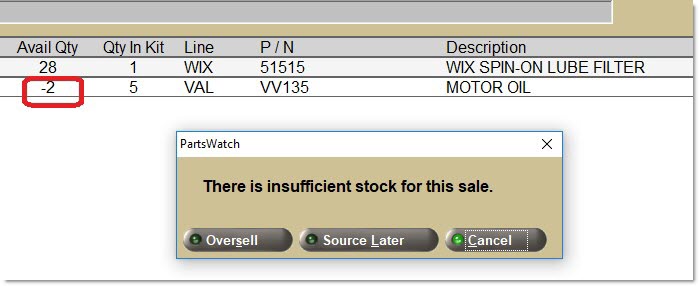
-
Click the 'Cancel' button to return to the 'Kit' pop-up.
-
If the 'Oversell' button is clicked, the kit is added to the invoice (with an S modifier for all components including those with insufficient quantity available), and the application returns to the INVOICE or CATALOG screen.
-
If the 'Source Later' button, the kit is added to the invoice (with a BO modifier for any component with insufficient quantity available), and the application returns to the INVOICE or CATALOG screen. Note: Only the 'Quick Sourcing' pop-up can be used for sourcing kit components, the ADVANCED SOURCING screen cannot be used.
-
If the Line Code of all kit components with insufficient quantity has the 'AUTO OVERSELL' option checked (in the 'Invoice Options' frame on the LINE CODE RANK SPECIFICS screen), the 'Kit' pop-up does not prompt for insufficient quantity.
The 'Change Component' button is enabled when a component is selected/highlighted, there is more than one part available for a 'List', 'Choice', or 'Catalog' component, or the 'Allow Alternates', 'Supersedes', or 'VCO' option is checked at setup for the component. Note: The button is enabled by the display of a question mark character (?) for this component. The 'Change Component' button is hidden for a BOM.
The 'Add Component' button is enabled when the KIT's 'Allow' 'Add Components' option is checked at setup. The 'Add Component' button is hidden for a BOM.
The 'Delete Component' button is enabled when the selected/highlighted component's 'Allow Delete Component' option is checked at setup. Note: The button is enabled by the display of an asterisk character (*) for this component. The 'Delete Component' button is hidden for a BOM.
Kit Pop-up: Other Rules
For a BOM:
For a KIT:
Kit Pop-up: Assembly Fees
Notes:
-
Typically, assembly fees might be used more often with BOM parts (where the components are "packaged" or "manufactured" together before Point-of-Sale), but can be used with both BOM and KIT parts.
-
For KIT parts, optionally set up an assembly fee to "assemble" sold component parts at Point-of-Sale, as well as a restocking fee to "un-assemble" returned components parts at Point-of-Sale.
-
Regardless of the kit's 'Pricing Rule', once an assembly fee is applied to a kit, the 'Kit Price' is now considered a "fixed price".
-
Typically, an assembly fee for a kit is a "flat fee" (entered in the 'Minimum Assembly Fee' amount field on the 'Kit Fees' tab on the KIT SETUP screen), but an assembly fee percentage can also be used based upon the kit part's price.
-
In addition, for kits with any 'Pricing Rule' except 'Sum Plan Price', the 'GPM%' for all components within the kit will be recalculated to be the same as the 'GPM%' for the entire kit because by "assembling" or "mixing" all of the component parts together, it would otherwise be impossible to determine which portion of the assembly fee applies to which component.
-
Therefore, instead, first the kit's 'GPM%' is calculated (including the assembly fee), and then each part component's sell price will be recalculated to ensure that the part component's 'GPM%' matches the kit's 'GPM%'.
-
For a kit with a 'Pricing Rule' of 'Sum Plan Price', the calculation of 'GPM%' for each component is based upon a pro-rated percentage of the kit's sell price when the sell price is considered a "fixed price" as a result of an assembly fee.
The application uses the following formula to calculate the kit's 'GPM%' (including the assembly fee):
-
The application determines that the option 'Use Kit Assembly Fee' is selected on the 'Kits Options' tab on the KIT SETUP screen.
-
If selected, the application calculates the kit's assembly fee by multiplying the 'Kit Assembly Fee %' on the 'Kit Fees' tab to the part's sell price (regular plan price). Note: Like restocking fees, the assembly fee is not based upon the 'Surcharge Applied To' option of "Price" or "Cost" on the 'Kit Fees' tab.
-
The application compares that calculated fee amount to the 'Minimum Assembly Fee' fee amount (on the 'Kit Fees' tab), and increases the 'Kit Price' by the higher amount.
If the 'Kit Price' is overridden on the 'Kit' pop-up, the application retains the assembly fee (and it is not recalculated based upon the edited sell price).
If any kit components are added, changed, or deleted on the 'Kit' pop-up, the application recalculates the assembly fee.
Note: The component portion of an assembly fee is refunded when the component is returned.
Add Component - Part (KITs Only)
-
Click the 'Add Component' button on the 'Kit' pop-up if the 'Allow Add Components' option is selected for the KIT on the 'Kit Options' tab within the 'Kits Setup' tab.
-
Click the 'Add Component' button and the 'Add Component' pop-up displays:
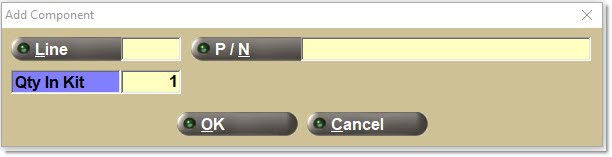
-
When the pop-up opens, the 'Cancel' button is enabled. The 'Ok' button is only enabled after all three values are entered.
-
Click the 'Cancel' button to return to the 'Kit' pop-up.
-
Enter a 'Line', 'P/N', and 'Qty In Kit' value.
-
When searching for a part to add to the KIT and the 'Line' or 'P/N' buttons are clicked, the 'BROWSE LINE CODES' or 'FIND PART' pop-ups open. No 'FIND KITS' button displays on the pop-up because another KIT cannot be selected as an additional component at Point-of-Sale. If a KIT part is entered without using the pop-ups, the application displays a message that this part cannot be added to the KIT. Note: The "KIT within KIT" feature is only supported at 'Kit Setup'.
-
If the 'OK' button is clicked, the following validations are performed, and if all validations are successful, the part is added to the KIT, and the application returns to the 'Kit' pop-up.
-
The line code/part number must exist in the store's inventory or virtual inventory (nonsku file). It is not possible to add a NIF part to a kit. If a NIF part is added, the application displays a "No matching parts were found." pop-up.
-
Enter a 'Qty In Kit' value between 1 and 999999999 (9 digits).
-
If the part is added to the KIT, the application re-calculates the 'Kit Price' and displays the plus character (+) indicating that the component was added.
-
-
It is possible to a part to a KIT that is already contained in the KIT. The application displays both "duplicate" parts as separate components in the KIT.
-
It is possible to add back a part to a KIT after that same part has been deleted from the KIT on the 'Kit' pop-up. The application displays both "duplicate" parts as separate components in the KIT: one deleted and one added.
-
If the 'Pricing Rule' for the KIT is 'Sum Plan Price', 'Sum Cost', or 'Sum Sales Class Margins', and the 'Surcharge on Add' option for the KIT is selected, The application calculates and includes a surcharge amount into the 'Kit Sell Price'. The application uses the following calculation:
-
The application multiplies the 'Add Component Surcharge %' on the 'Kit Fees' tab to either the part's sell price (regular plan price) or part cost (current or average cost based upon 'Cost at POS', based upon the 'Surcharge Applied To' option of "Price" or "Cost", on the 'Kit Fees' tab.
-
The application compares that calculated surcharge amount to the 'Minimum Add Surcharge Fee' amount on the 'Kit Fees' tab, and uses the higher amount.
-
The application multiplies the higher surcharge amount by the 'Qty in Kit' value for the part.
-
If a component part is added to a KIT, and then the same part is deleted from the KIT, the application removes any surcharges for that component.
-
If the 'Add Component Surcharge %' is 0, and the 'Minimum Add Surcharge Fee' is 0.00, the application does not apply an Add surcharge fee amount.
-
The application does apply a surcharge fee to each quantity in the 'Qty in Kit'.
-
-
If the 'Pricing Rule' for the KIT is 'Kit Fixed Price' or 'Kit Plan Price', the application does not calculate any Add surcharge, as the 'Allow Add Components' option is disabled on the 'Kit Options' tab within the 'Kits Setup' tab.
Delete Component (KITs Only)
-
Click the 'Delete Component' button on the 'Kit' pop-up, for a highlighted component, if the 'Allow Delete Component' option is selected for that component on the 'Components' tab within the 'Kits Setup' tab.
-
If the 'Delete Component' button is clicked with a component selected/highlighted, the application displays the "Are you sure?" pop-up; with 'YES' and 'NO' buttons displayed.
-
If the 'NO' button is clicked, the application returns to the 'Kit' pop-up with no changes.
-
If the 'YES' button is clicked, the application returns to the 'Kit' pop-up, removing the component from the kit, displaying a minus sign character (-) indicating that the component was removed, recalculating the 'Kit Price', and redisplaying the "sale-ready" image character.
-
If all components of a kit are removed, the application changes the "sale-ready" image character from a green checkmark or yellow X to a red X character because the Kit can no longer be sold.
-
-
If the 'Pricing Rule' for the KIT is 'Sum Plan Price', 'Sum Cost', or 'Sum Sales Class Margins', and the 'Surcharge on Delete' option for the component is selected, the application calculates and includes a surcharge amount into the 'Kit Sell Price', even while removing the component from the 'Kit Sell Price'. The application uses the following calculation:
-
The application multiplies the 'Delete Component Surcharge %' on the 'Kit Fees' tab to either the part's sell price (regular plan price) or part cost (current or average cost based upon 'Cost at POS'), based upon the 'Surcharge Applied To' option of "Price" or "Cost", on the 'Kit Fees' tab.
-
The application compares that calculated surcharge amount to the 'Minimum Delete Surcharge Fee' amount on the 'Kit Fees' tab, and uses the higher amount.
-
The application multiplies the higher surcharge amount by the 'Qty in Kit' value for the part.
-
If the 'Delete Component Surcharge %' is 0, and the 'Minimum Delete Surcharge Fee' is 0.00, no delete surcharge fee amount is applied.
-
The application applies a surcharge fee to each quantity in the 'Qty in Kit'.
-
If the component deleted has no part selected at the time of deletion, the application only uses the 'Minimum Delete Surcharge Fee' amount.
-
If the component deleted has no 'Qty in Kit' value at the time of deletion, the total delete surcharge fee amount is calculated using a 'Qty in Kit' value of 1.
-
-
If the 'Pricing Rule' for the KIT is 'Kit Fixed Price' or 'Kit Plan Price', and the 'Surcharge on Delete' option for the component is selected, the same formula is used to calculate the delete surcharge fee as the calculation used for all other pricing rules.
-
However, the calculation for the amount removed from the 'Kit Sell Price' for the component is different. The application uses the following calculation:
-
If the component being deleted has a part selected at the time of deletion, the application removes the part cost (either current or average cost based upon 'Cost at POS') multiplied by 'Qty in Kit'.
-
If the component being deleted does not have a part selected at the time of deletion, the application removes the 'Minimum Cost' value set up on that component's 'Kit Setup Component' pop-up (if one exists) multiplied by 'Qty in Kit'.
-
In both cases above, if the cost is zero, the application does not remove any component cost amount from the 'Kit Sell Price', but adds the delete surcharge fee to the 'Kit Sell Price'.
-
When a component is deleted from the KIT, a pop-up displays indicating the change to the 'Kit Sell Price', and requests to continue with the change.
-
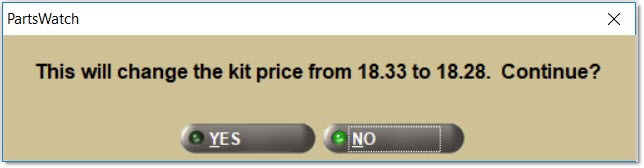
Change Component Pop-up - Part (KITs Only)
-
Note: There are different rules for the two events, "changing" versus "upgrading" a component. Even though both events involve replacing a part with another part at Point-of-Sale, the "upgrade" event involves replacing a part with a more expensive part and the application determines whether a surcharge fee will be charged.
-
The application allows a "change" event for a part component when one or more of the following checkboxes are selected on the 'Setup Kit Part Component' pop-up: 'Allow Alternates', 'Allow Supersedes', or 'Allow VCO'.
-
The application allows an "upgrade" event for a part component when the Upgrade Component checkbox is selected and a 'Max Cost' or 'Max Price' amount is entered on the 'Setup Kit Part Component' pop-up. Also, the application applies an "upgrade" surcharge fee to the "upgrade" event if the 'Surcharge on Upgrade' checkbox is also selected.
-
-
The 'Change Component' button on the 'Kit' pop-up is enabled when a Part component is selected/highlighted, and that component has one or more of the following checkboxes selected at setup: 'Allow Alternates', 'Allow Supersedes', or 'Allow VCO'.
-
Note: The 'Change Component' button is enabled even if the part has no alternates, supersedes, or VCO parts.
-
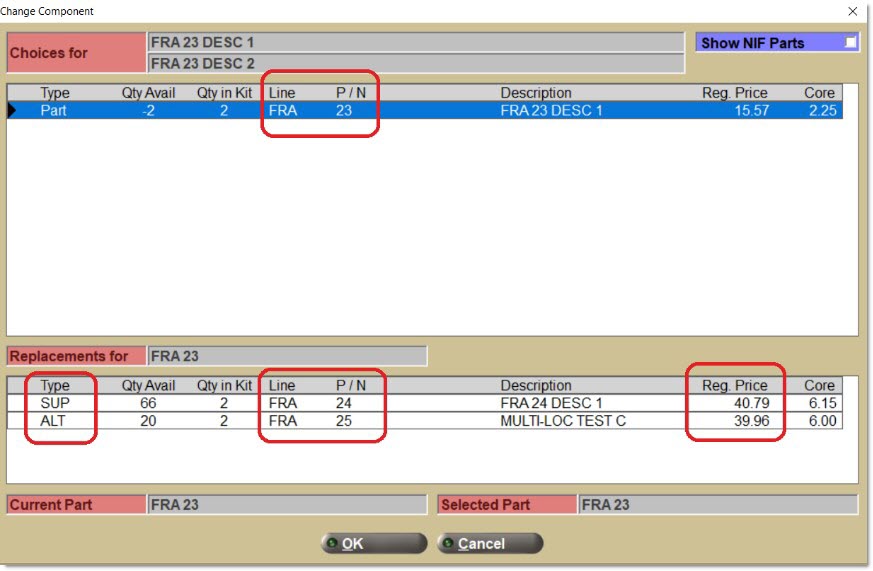
When the 'Change Component' button is clicked, with a Part component selected/highlighted, the 'Change Component' pop-up displays:
-
The following information displays on the 'Change Component' pop-up:
-
The application displays the component 'Description 1' over 'Description 2' (without labels) for the current component at the top of the pop-up with the label "Choices For".
-
The application displays a 'Show NIF Parts' checkbox (default unchecked) at the top of the pop-up. Check this option to view NIF parts for this component. Although a kit cannot be sold with NIF parts, this information may sometimes explain why a KIT might not be, and cannot become, "sale-ready". Note: This condition mostly applies to 'Catalog' (Part Type) components when the catalog result set only returns NIF parts.
-
The application displays the "current part" for the component in the upper list, and allows for selection/highlighting of the part.
-
The application displays the "current part" line and part number below the upper list and above the lower list with a label of "Replacements For".
-
The application displays all replacement parts in the lower list for the one part selected/highlighted in the upper list.
-
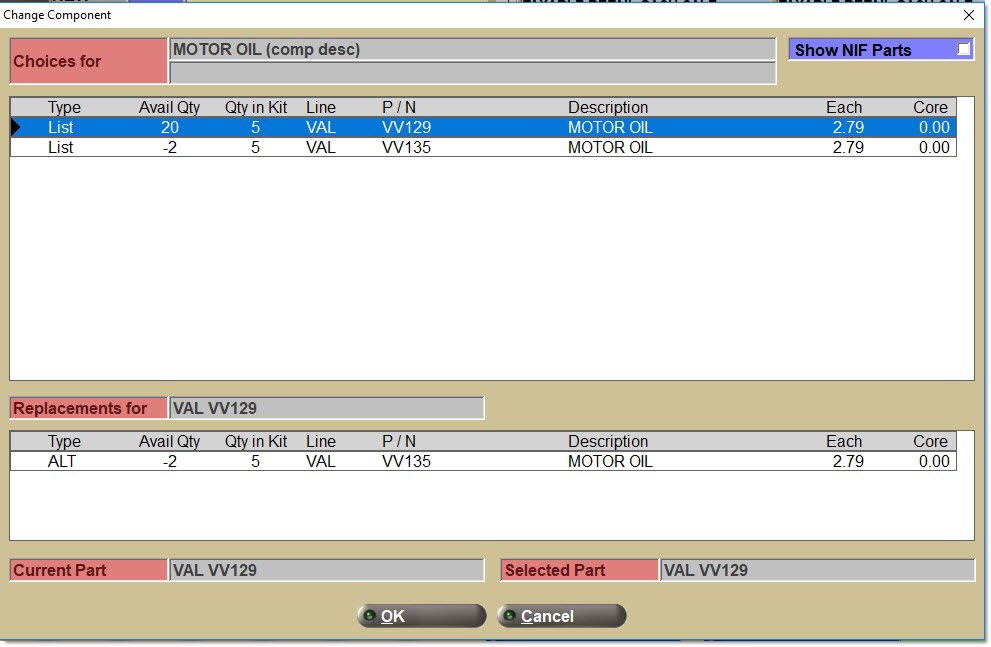
For each part in the lower list, the application displays the same attributes displayed in the upper list, with one exception; the first column 'Type' in the lower list of replacement parts will display the abbreviation for the type of replacement part: 'ALT' for alternates, 'SUP' for supersedes, and 'VCO' for vendor changeovers.
-
The application displays the "Current Part" that is presently selected below the lower list.
-
The application displays the "Selected Part" to the right of the "Current Part". Note: The "Selected Part" can be the same value as the "Current Part" or one of the replacement parts.
-
'OK' and 'Cancel' buttons are available at the bottom of the pop-up.
-
-
If the 'Cancel' button is clicked, the application returns to the 'Kit' pop-up with no changes.
-
If a replacement part is double-clicked, or single-clicked and then the 'OK' button is clicked:
-
The application returns to the 'Kit' pop-up.
-
The component is changed or upgraded within the KIT.
-
The application recalculates the 'Kit Price' if the 'Pricing Rule' is 'Sum Plan Price', 'Sum Cost', or 'Sum Sales class Margins'.
-
The "sale-ready" image character changes from a yellow X to a green checkmark if this component was the last component that required a part be selected.
-
A checkmark character displays indicating that the component was changed.

-
-
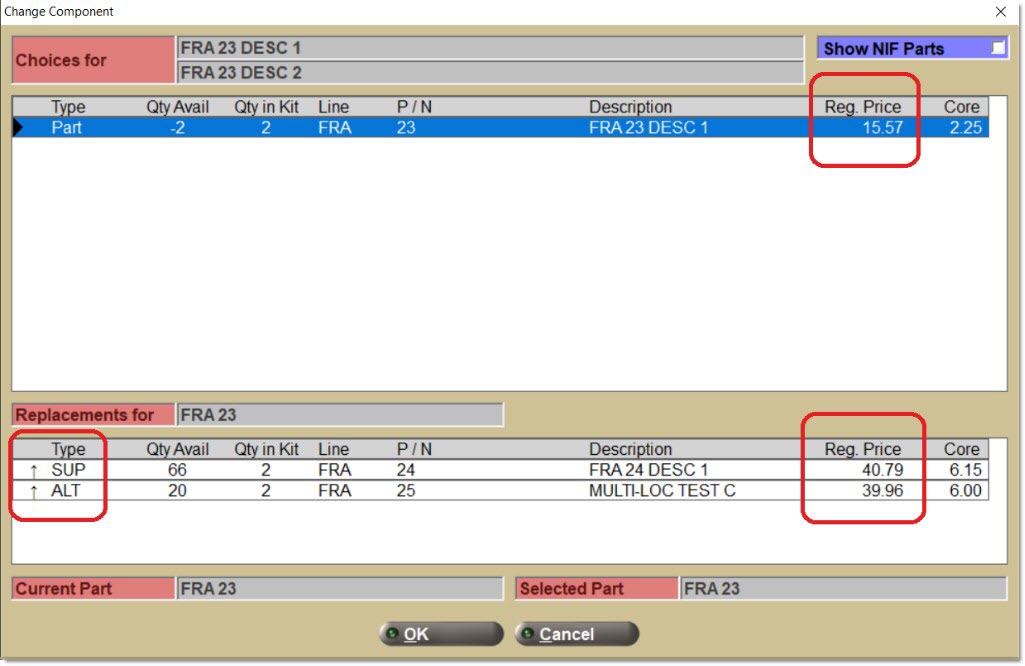
If the 'Upgrade Component' option is selected, and either a 'Max Cost' or 'Max Price' amount has been entered, on the 'Setup Kit Part Component' pop-up, when replacement parts are displayed on the 'Change Component' pop-up, there is an "up-arrow" character displayed to indicate that these replacement parts are "more expensive" parts, above the 'Max Cost' or 'Max Price' threshold.
-
If one of the "upgrade" replacement parts are selected, when the application returns to the 'Kit' pop-up, an "up-arrow" character is displayed to indicate an "upgraded component" instead of a "checkmark" character displayed to indicate a "changed component".
-
If the 'Surcharge on Upgrade' option is selected, and an "upgrade" replacement part is selected, the application calculates and includes a surcharge amount into the 'Kit Sell Price'. The application uses the following calculation:
-
The application multiplies the 'Upgrade Component Surcharge %' on the 'Kit Fees' tab to either the replacement part's sell price (regular plan price) or part cost (current or average cost based upon 'Cost at POS'), based upon the 'Surcharge Applied To' option of "Price" or "Cost", on the 'Kit Fees' tab.
-
The application compares that calculated surcharge amount to the 'Minimum Upgrade Surcharge Fee' amount on the 'Kit Fees' tab, and uses the higher amount.
-
The application multiplies the higher surcharge amount by the 'Qty in Kit' value for the part.
-
If the 'Upgrade Component Surcharge %' is 0, and the 'Minimum Upgrade Surcharge Fee' is 0.00, no upgrade surcharge fee amount is applied.
-
Note: The system will never select an "upgrade" part as the default part displayed for a component on the 'Kit' pop-up, even if this part was previously selected as the default part on the 'Setup Kit Part Component' pop-up. It is only possible to select an "upgrade" part on the 'Change Component' pop-up.
-
Note: If both 'Max Cost' and 'Max Price' are zero, then no replacement parts will be identified as "upgrade" parts and any replacement part selected will be added to the KIT but there will be no change to the 'Kit Sell Price'.
-
-
If the 'Pricing Rule' for the KIT is 'Kit Fixed Price' or 'Kit Plan Price', and a an "upgrade" replacement part is selected, the application uses a different formula to calculate the "upgrade" amount added to the 'Kit Sell Price'.
-
Note: For "fixed kit" pricing rules, the system cannot add the replacement part's sell price to the 'Kit Sell Price', like for a kit with a "sum component" pricing rule.
-
Therefore, the system needs to calculate an "upgrade amount" to add to the 'Kit Sell Price'.
-
The system cannot calculate an "upgrade amount" by comparing the sell prices of the current and replacement parts because there may not be a current part yet for the component.
-
Therefore, the system needs to calculate an "upgrade" amount by comparing the replacement part's sell price to the 'Min Cost' or 'Max Cost' amount on the 'Setup Kit Part Component' pop-up.
-
The application uses the following formula to calculate the "upgrade amount":
-
If the 'Max Cost' value is greater than zero, the application subtracts 'Max Cost' from the replacement part's cost (current or average based upon 'Cost at POS').
-
If the 'Max Price' value is greater than zero, the application subtracts 'Max Price' from the replacement part's plan price.
-
The application uses the larger of the two results above as the "upgrade amount".
-
It multiplies the "upgrade amount" by the 'Qty in Kit'.
-
And the application adds the result to the 'Kit Sell Price'.
-
-
Change Component - Part List
-
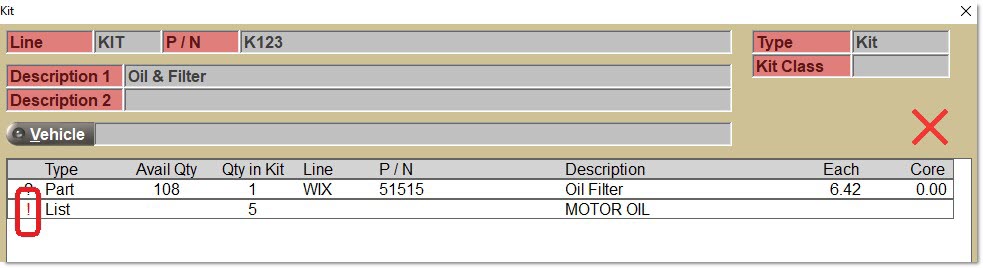
If no parts are available for a 'List' component, because every part set up is not within a cost or price range setup, in addition to disabling the 'Change Component' button, an exclamation point character (!) displays in red color indicating that this component cannot have any parts selected. Also, a red X character displays because the kit is and cannot become "sale-ready".
-
Note: These cost or price range "filters" allow control of the kit's profit margin, especially for a kit with a 'Pricing Rule' of 'Kit Fixed Price' or 'Kit Plan Price', or for a kit assigned to a 'Kit Class' with a specific pricing grade.
-
-
When only one part is set up for a 'List' component, and none of the 'Allow' replacement options have been selected, when this component is selected/highlighted on the 'Kit' pop-up, the 'Change Component' button is disabled on the 'Kit' pop-up. Note: Once two or more parts have been defined for a 'List' component, the 'Change Component' button is always enabled.
-
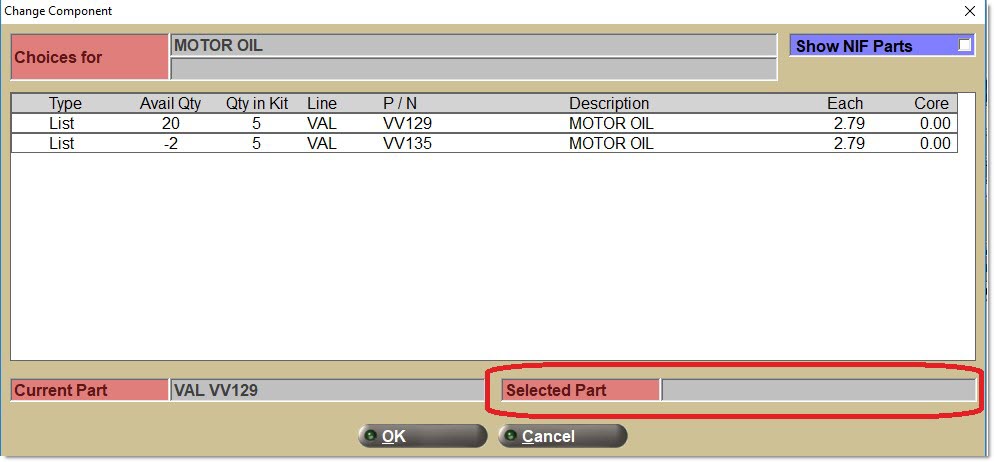
If the 'Change Component' button is clicked with a 'List' component selected/highlighted, which had no default part number selected and no 'Allow' replacement options selected on the 'Setup Kit Part List Component' pop-up (e.g. 'Allow Alternates', 'Allow Supersedes', or 'Allow VCO') the following pop-up displays:
-
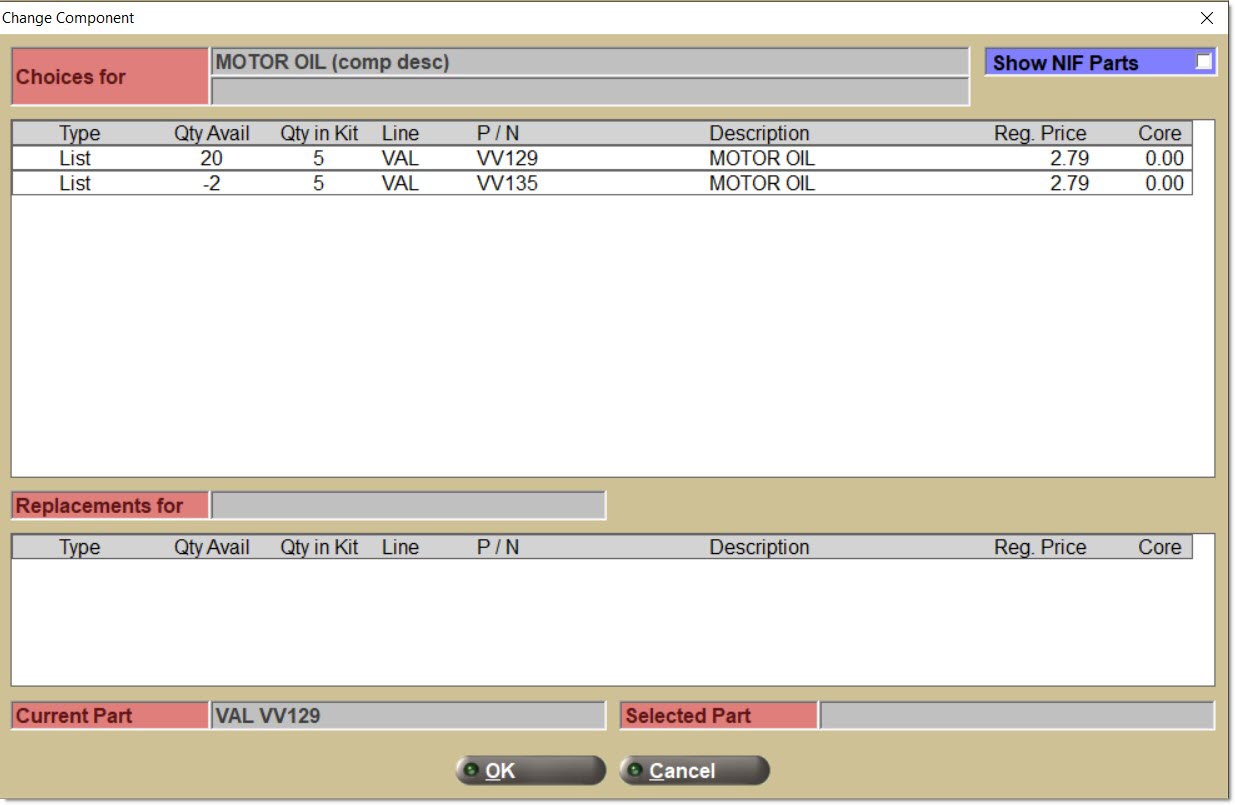
If the 'Change Component' button is clicked, with a 'List' component selected/highlighted, and that component has 'Allow' replacement options selected (e.g. 'Allow Alternates', 'Allow Supersedes', or 'Allow VCO'), the following pop-up displays:
-
The application does not display any replacement parts until a part in the upper list is selected/highlighted.
-
If any part in the upper list is selected (by clicking on that part), a list of replacements (e.g. alternates, supersedes, or VCOs) displays for that part in the lower list.
-
The same upgrade surcharge rules used for Part components are applied.
Change Component - Part Choice
-
Note: The 'Change Component' button is always enabled for a 'Part Choice' component because the purpose of this component is specifically to select a part at Point-of-Sale, even if a default part number has been selected for this component on the 'Setup Kit Part Choice Component' pop-up.
-
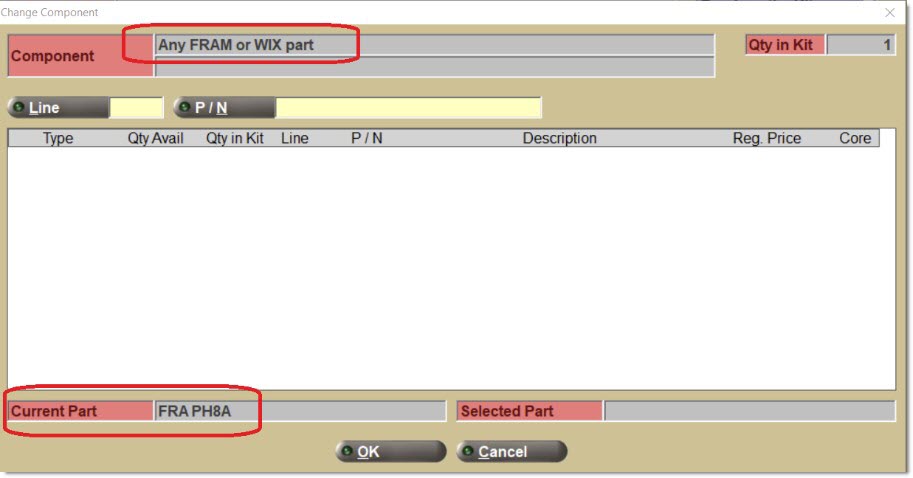
If the 'Change Component' button is clicked with a 'Part Choice' component selected/highlighted, whether or not a default part number was selected during setup, the 'Change Component' pop-up opens with no parts displayed in the grid:
-
At the top of the pop-up, the 'Component' description for a 'Part Choice' component will typically display the criteria used for eligible parts for this component.
-
Note also that when this pop-up was opened, at the bottom of the pop-up, that a 'Current Part' was already displayed. This either meant that this was the default part number for this component, or that this part number had been previously selected for this component on this pop-up and then this pop-up was re-opened, possibly to select a different part number.
-
Similar information displays in the pop-up that would display for a 'Part' or 'Part List' Component except the application displays the 'Qty in Kit' value of the component in the upper-right of the pop-up instead of displaying a 'Show NIF Parts' checkbox.
-
The application displays one part list (grid) on this pop-up, as opposed to the two part list (grids) displayed on the 'Change Component' pop-up for a 'Part' or 'Part List' component.
-
The application uses similar validation rules for entering a 'Line' and 'P/N' as when a 'Line' and 'P/N' are entered for a component type of 'Part' or 'Part List'.
-
However, the application also applies additional validation rules that determine if the part entered is eligible for this 'Part Choice' component.
-
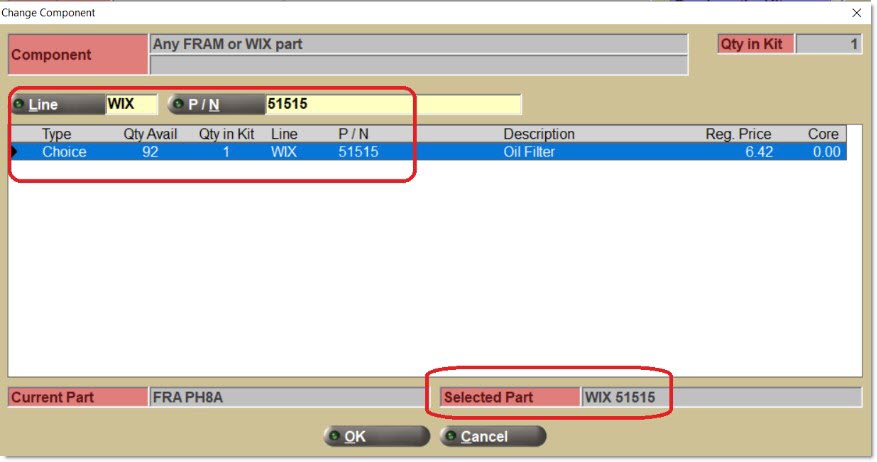
If the part entered is eligible, and "passes" all validation rules, the part is added to the list (grid), and the part number also displays as the 'Selected Part' for this component at the bottom of the pop-up.
-
If the 'Ok' button is clicked, the application returns to the 'Kit' pop-up selecting the part entered for this component (and replacing any 'Current Part' previously selected).
-
If the 'Cancel' button is clicked, the application returns to the 'Kit' pop-up without selecting any part entered on this pop-up and retaining any 'Current Part' previously selected.
-
When a 'Line' and 'P/N' are entered that "pass" all of the ten 'Part Choice' component validation rules, and the 'Part Choice' component has 'Allow Alternates', 'Allow Supersedes', or 'Allow VCO' options selected on the KIT SETUP screen, the application displays all of the replacement parts that also meet the ten 'Part Choice' component validation rules, in the one part list (grid), instead of displaying the replacement parts in a separate second part list (grid) like with other component types.
-
-
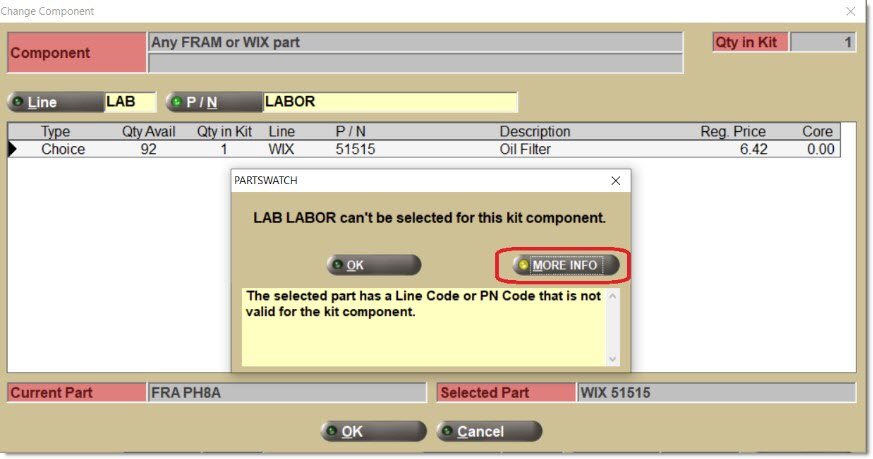
If the part entered is not eligible, a prompt displays with the following text: "<LINE PART NUMBER> can't be selected for this kit component."
-
If the 'MORE INFO' button is clicked, message text displays indicating why the part was not eligible.
-
There are ten validation rules to determine if a part is eligible for a 'Part Choice' component. The following is a list of the ten possible text messages displayed when the 'MORE INFO' button is clicked, for each of the ten validation rules:
-
"The selected part has a Line Type that is not valid for the kit component." A 'Line Type' of 'PARTS', 'FREIGHT', or 'LABOR' is valid but not 'GIFT CARDS'. Note: Parts added to a kit within a 'Line' of 'Line Type' 'FREIGHT' or 'LABOR' will not be charged as freight or labor in the sales order sub-totals.
-
"The selected part has a Sub Type that is not valid for the kit component." All 'Sub Types' are valid except 'KIT' or 'BOM'.
-
"The selected part has a Line Code or PN Code that is not valid for the kit component." Only 'Line Code' / 'PN Code' combinations defined on the KIT SETUP screen for this component are valid.
-
"The selected part has a PN Group that is not valid for the kit component." Only 'PN Groups' defined on the KIT SETUP screen for this component are valid.
-
"The selected part has a Prdt Code that is not valid for the kit component." Only 'Prdt Codes' defined on the KIT SETUP screen for this component are valid.
-
"The selected part Quantity Decimals is not valid for the kit component." The part's 'Quantity Decimal' value must be greater than or equal to the component's 'Quantity Decimal' value. Meaning, the component can be sold with less decimal precision (in terms of the number of decimal places) for units sold than when the same part is sold outside of the kit. For example, a part can be sold with two decimal places outside of the kit (e.g. 1.25) and then only sold with one decimal place as a component inside a kit (e.g. 1.2).
-
"The selected part does not meet the minimum price of the kit component." The regular customer price plan sell price for this part must be greater than or equal to the 'Min Price' defined on the KIT SETUP screen for this component.
-
"The selected part exceeds the maximum price of the kit component." The regular customer price plan sell price for this part must be less than or equal to the 'Max Price' defined on the KIT SETUP screen for this component.
-
"The selected part does not meet the minimum cost of the kit component." The current or average cost (based upon the 'COST AT POS' value) for this part must be greater than or equal to the 'Min Cost' defined on the KIT SETUP screen for this component.
-
"The selected part exceeds the maximum cost of the kit component." The current or average cost (based upon the 'COST AT POS' value) for this part must be less than or equal to the 'Max Cost' defined on the KIT SETUP screen for this component.
-
-
-
When searching for a part number to add to this component, click the Line button and the 'BROWSE LINE CODES' pop-up opens, and displays all available lines in the store's inventory even though all lines may not be applicable for this 'Part Choice' component (e.g. only those parts within the FRA or WIX lines).
-
If a NIF line is entered (without using the 'BROWSE LINE CODES' pop-up), and then enters a NIF part number, the application does not allow the part number to be selected for this 'Part Choice' component. Instead, the application displays a prompt pop-up with the text "No matching parts were found."
-
If a line in the store's inventory is entered (that does not apply to this 'Part Choice' component), and then a NIF part number is entered, the application does not allow the part number to be selected. Instead, it displays a prompt pop-up with the text "No matching parts were found."
-
If a line in the store's inventory is entered (that does not apply to this 'Part Choice' component), and then a part number in the store's inventory is entered (that also does not apply to this 'Part Choice' component), the application does not allow the part number to be selected. Instead, it displays a prompt pop-up with the text "< line/part number> can't be selected for this kit component."
-
If a line in the store's inventory is selected that does not apply to this 'Part Choice' component and then the 'P/N' button is clicked, the application does not display or allow any part numbers to be selected. Instead, it displays the 'Available Choices' pop-up, with the 'Line' filter pre-populated with the 'Line' value selected, and displays an "empty" list (grid) of parts within that line.
-
If a line in the store's inventory is selected that applies to this 'Part Choice' component and then the 'P/N' button is clicked, the 'Available Choices' pop-up displays, with the 'Line' filter pre-populated with the 'Line' value previously selected, and displays a list (grid) of parts within that line that also "pass" the following four of ten 'Part Choice' component validation rules below. They are:
-
The part's 'Line' and/or 'PN Code' matches one of the 'Line Code' / 'PN Code' combinations defined on the KIT SETUP screen for this component.
-
The part's 'PN Group' matches one of the 'PN Groups' defined on the KIT SETUP screen for this component.
-
The part's 'Prdt Code' matches one of the 'Prdt Codes' defined on the KIT SETUP screen for this component.
-
The part's 'Quantity Decimal' value is greater than or equal to the component's 'Quantity Decimal' value.
-
Note: The 'Available Choices' pop-up is similar in functionality but not identical to the 'FIND PART' pop-up.
-
Similar to the 'FIND PART' pop-up:
-
Only the first 100 parts within the appropriate Lines are returned from the store's inventory, and only 10 parts are displayed at a time.
-
Filter the part list by entering a part number or part description.
-
Parts within the store's inventory are initially displayed (including both "stocked" and "non-stocked" parts).
-
Parts within the store's virtual inventory can be selected.
-
The list of parts contains 'Line', 'Part Number', 'Description', 'Qty Avail', and 'Qty Resvd'.
-
-
Different from the 'FIND PART' pop-up:
-
Parts within the store's inventory are initially displayed, but also only those parts that also meet four of the ten 'Part Choice' component validation rules.
-
Parts within the store's virtual inventory can be selected by clicking a 'Virtual' radio button instead of a 'Nonsku Lookup' button.
-
The last column in the list of parts is 'QOH' instead of 'Alternate'.
-
"Stocked" parts within the store's inventory can be viewed by themselves by clicking a 'Stocked' radio button, and when clicked, "non-stocked" parts within the store's inventory will be excluded from the list of parts displayed for selection.
-
-
If a part is selected and the 'Ok' button is clicked, the remaining six of ten 'Part Choice' component validation rules are performed.
-
If the part is eligible (passing all validation rules), the application returns to the 'Kit' pop-up selecting or changing the part for this component.
-
If the part is not eligible due to failing to pass one or more of the validation rules, the part cannot be selected, and a prompt pop-up displays with the following text: "<LINE PART NUMBER> can't be selected for this kit component."
-
If the 'Cancel' button is clicked, the application returns to the 'Kit' pop-up without selecting or changing the part for this component.
-
-
If no 'Line' is selected, and instead only the 'P/N' button is clicked, the 'Available Choices' pop-up displays, the application does not pre-populate the 'Line' filter with any 'Line' value, and displays a list (grid) of parts within all lines that meet four of the ten 'Part Choice' component validation.
-
Note: Since the pop-up only displays the first 10 parts of the first 100 parts retrieved from the store's inventory, all of the parts initially displayed are within the FRA line instead of the WIX line. Filter the parts displayed using the filter criteria at the top of the 'Available Choices' pop-up.
-
If a part is selected, and the 'Ok' button is clicked, and the part passes all ten 'Part Choice' component validation rules, the application returns to the 'Kit' pop-up selecting the part for this component.
-
If the 'Cancel' button is clicked, the application returns to the 'Kit' pop-up without selecting the part for this component.
-
-
If no 'Line' is selected and a part number is entered that is contained in multiple lines (e.g. part number 23), the 'Available Matches' pop-up displays. Note: This pop-up will include parts within lines that both meet and do not meet the 'Part Choice' component validation.
-
If a part is selected that does not meet the 'Part Choice' component validation, a prompt pop-up with the following text displays: "<LINE PART NUMBER> can’t be selected for this component."
-
-
-
-
The application applies the same upgrade surcharge rules used for 'Part' components.
Change Component - Part Type
-
If the 'Change Component' button is clicked with a 'Catalog' component selected/highlighted, and that component has no 'Allow' options selected on the 'Setup Kit Part Type Component' pop-up (e.g. 'Allow Alternates', 'Allow Supersedes', or 'Allow VCO'), the following pop-up displays:
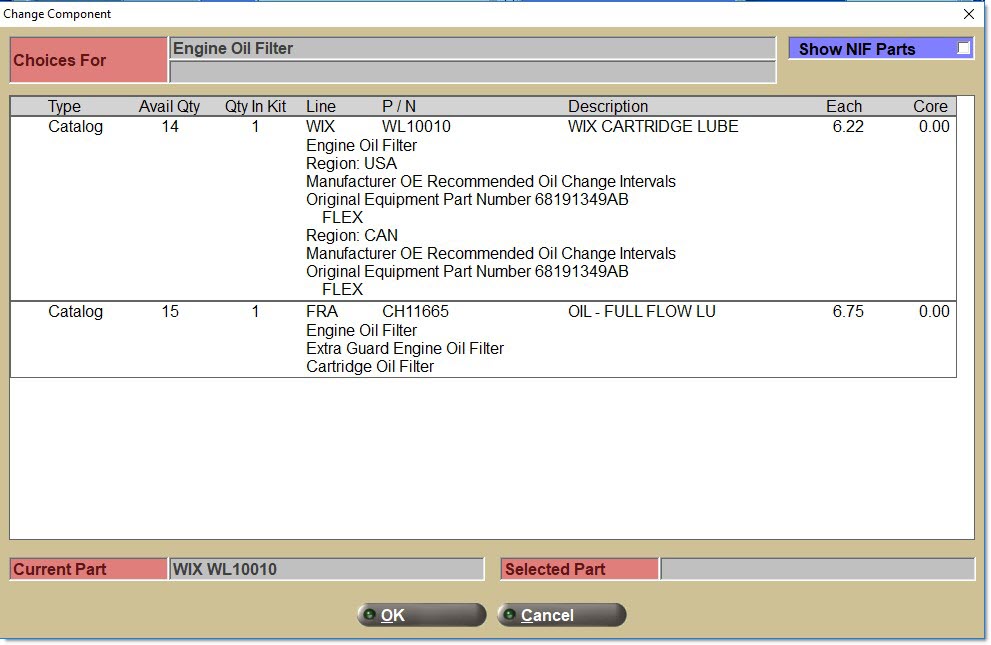
-
In the upper list, all of the same parts that would be returned for this 'Part Type' on the CATALOG screen for the vehicle selected from the CATALOG or Invoice Point of Sale screen are displayed, excluding the following parts:
-
NIF parts
-
Parts with a sell price or part cost that fall outside the price or cost range filters defined at setup.
-
Parts that do not match the additional filter values (e.g. 'Lines', 'PN Codes', 'PN Groups', and 'Prdt Codes') defined at setup.
-
-
For each part in the list, the application displays the same attributes displayed for each component on the 'Kit' pop-up, as well as the same additional information displayed for that part on the CATALOG screen.
-
If there is more than one part in the list, the application does not select/highlight any part in the list.
-
-
If the 'Change Component' button is clicked with a 'Catalog' component selected/highlighted, and that component has 'Allow' replacement options selected (e.g. 'Allow Alternates', 'Allow Supersedes', or 'Allow VCO'), and one of the parts in the upper list has been selected/highlighted, the following pop-up displays:
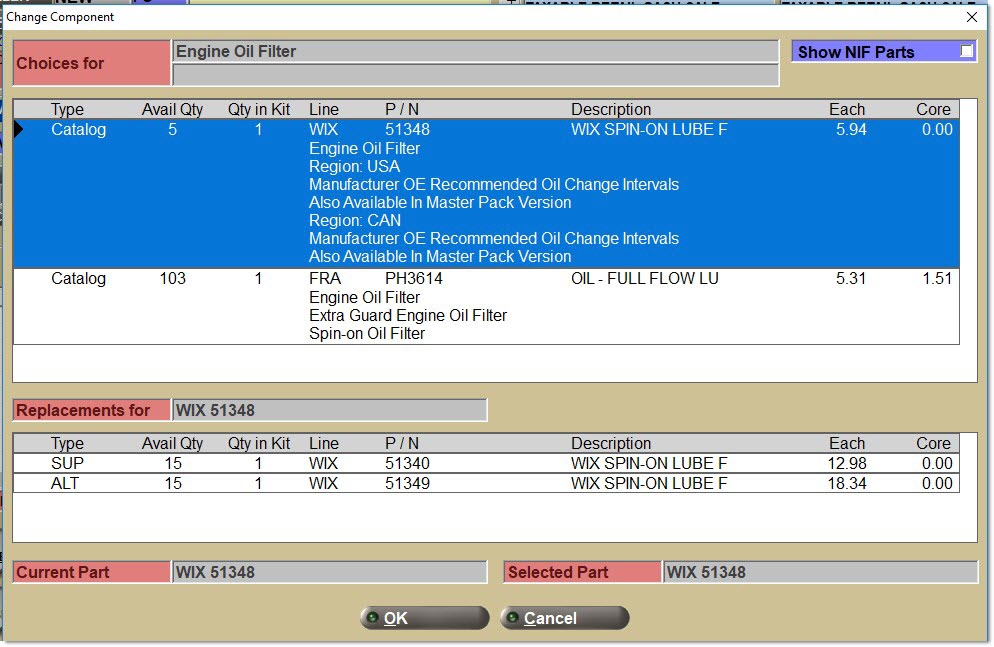
-
Note: Replacement parts displayed in the lower list do not have to match the "Additional Filters" defined in setup (e.g. 'Lines', 'PNCodes', 'PNGroups', or 'Prdt Codes') but they do have to match the 'Min Cost', 'Max Cost', 'Min Price', and 'Max Price' filters.
-
When the 'Change Component' pop-up opens, the 'Show NIF Parts' checkbox displays (automatically checked) when all parts in the upper list are NIF parts (for any component type).
-
Note: This display is for information only (to assist why a KIT is not "sale-ready"). This condition can also apply to 'Part' or 'Part List' components if a component part is deleted in a store, or the component part never existed in one of several stores.
-
-
The application applies the same upgrade surcharge rules used for 'Part' components.
No Components (KITs Only)
-
If a KIT has been set up with no components, the 'Allow Add Components' option checked, and a 'Pricing Rule' of 'Sum Plan Price' (with a discount %), 'Sum Cost' (with a margin or markup %), or 'Sum Sales Class Margins', then it is possible to build a dynamic KIT at Point-of-Sale with any group of related or unrelated parts.
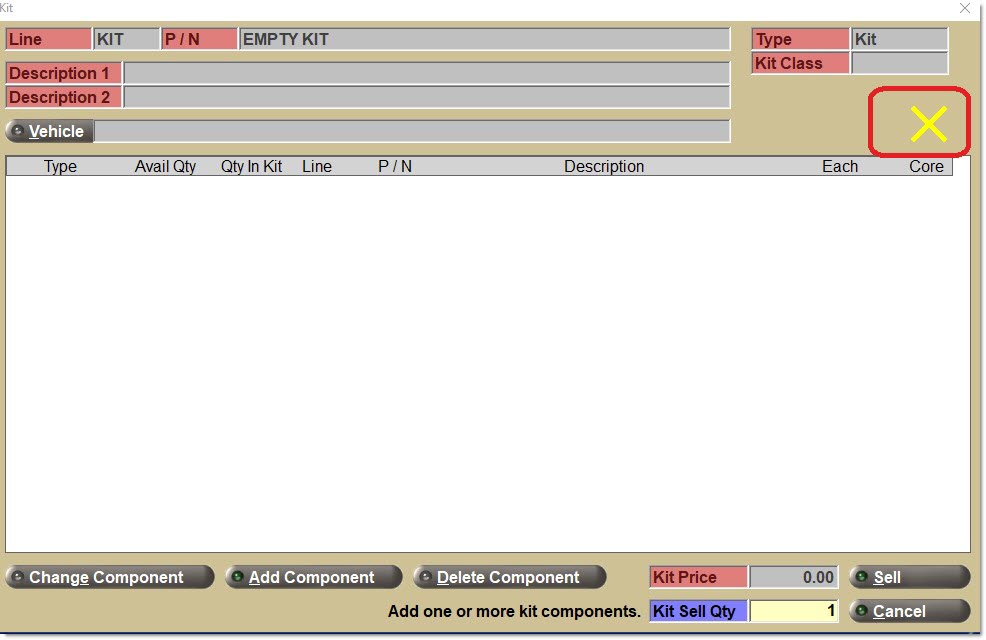
-
Notice the yellow X to indicate that components are required. Once one or more component parts have been added to the KIT, and the KIT becomes "sale-ready", and the yellow X will change to a green checkmark.
Catalog Screen
All Catalogs - Selling Kits
-
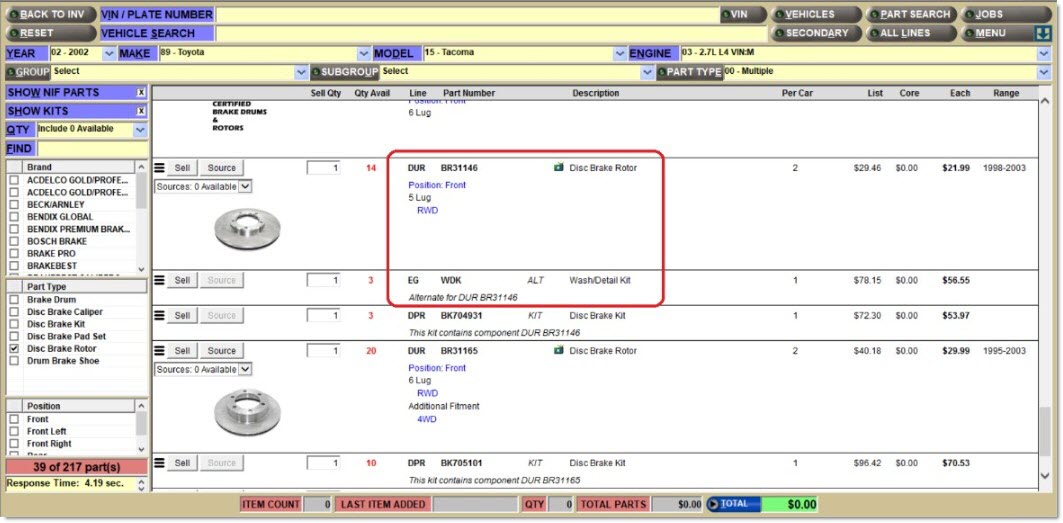
When any part returned from the catalog or interchange lookup is a component within a user-defined kit, the application displays the user-defined kit as an alternate directly below the part, and optionally displays pricing and availability information for the user-defined kit. Note: The user-defined kit is not really an "alternate" for a part, but this capability is being used so that user-defined kits can be viewed in embedded browser-based catalogs.
-
If any user-defined kit is set up as an alternate for one or more parts (using the PART ASSOCIATION screen, DFIU, or any other method), and the kit is activated for sale, and any of those parts are returned within a catalog or interchange result set, the application displays the user-defined kit as an alternate directly below the part, and optionally displays pricing and availability information for the user-defined kit.
-
Note: The user-defined kit displays the text "ALT" (for alternate).
-
Note: The user-defined kit displays pricing and availability information. For a BOM, the pricing and availability is based upon the user-created kit part, and for a KIT, the pricing and availability is based upon the user-created kit component parts.
-
Note: The user-defined kit is not really an "alternate" for a part, but this capability is being used so that user-defined kits can be viewed in embedded browser-based catalogs.
-
Note: For all user-created kits displayed on embedded browser-based catalogs, all kit components are either 'Part', 'Part List', or 'Part Choice' component types and are not 'Part Type' components.
-
-
If any user-defined kit is set up with a kit part number that "exactly matches" a manufacturer's branded kit part number, and the user-defined kit is activated for sale, and the manufacturer's kit part number is returned in a catalog or interchange result set, the application optionally displays pricing and availability information for the manufacturer's part "as a user-defined kit" instead of "as a part".
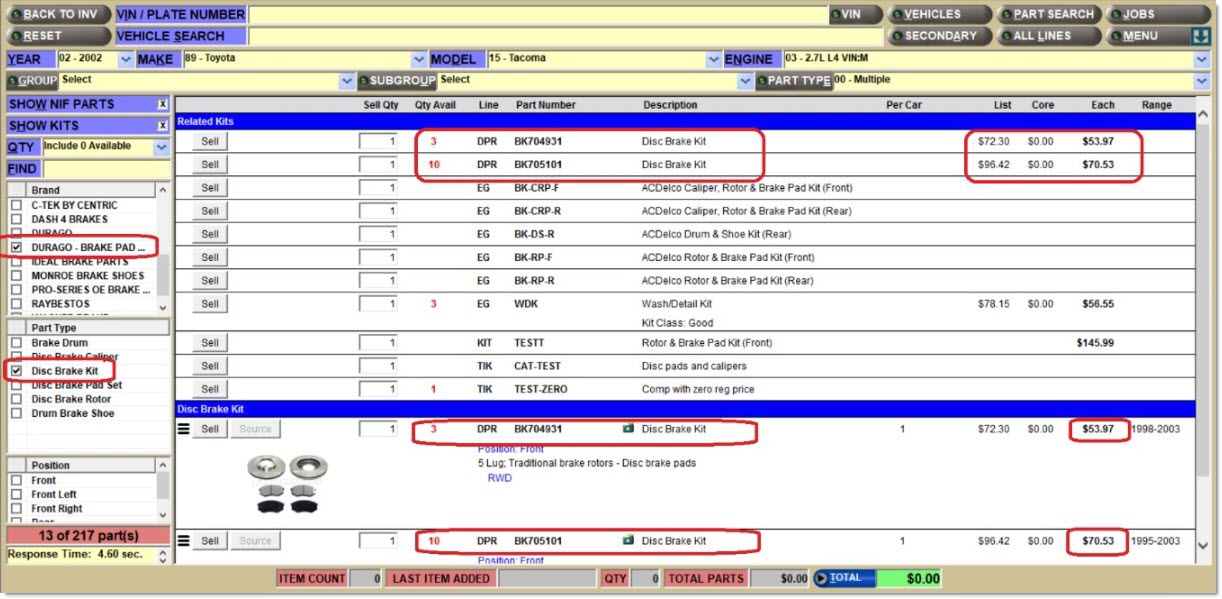
-
When the 'Sell' button is clicked on the 'Kit' pop-up, the user-defined kit and components are added to a sales order for this customer, and the application returns to the CATALOG screen.

-
-
Notes:
-
The flexibility of user-defined kits is that kit components can use brands from different manufacturers. For example, a "brake kit" can have Bosch rotors and Durago pads or Durago rotors and Bosch pads.
-
Sometimes in a catalog's data, and contained within a catalog or interchange result set, a manufacturer will provide a branded kit part. The part might be within a 'Part Type' that is for kits like "Disc Brake Kit" in the ACES catalog data.
-
Sometimes, the manufacturer's branded kit part displayed will include a list of components, but more often components are not displayed. However, if a user can obtain the component part numbers for that manufacturer's branded kit, and if the store stocks or can easily source those parts, the user-defined kit can be set up to "exactly match" the manufacturer's branded kit.
-
The benefit is that the manufacturer has taken care of the burdensome task of the fitment in terms of which vehicles can use the kit part and all of its component parts.
-
ACES, Epicor, or TecAlliance Catalogs - Selling Kits
-
During Kit setup, if ACES, Epicor, or TecAlliance 'Part Types' are defined as components for a KIT, and the KIT is activated for sale, if any of the 'Part Type' components defined for that KIT are returned in a catalog result set, the application displays that KIT part at the top of the catalog result set in a section called 'Related Kits'.
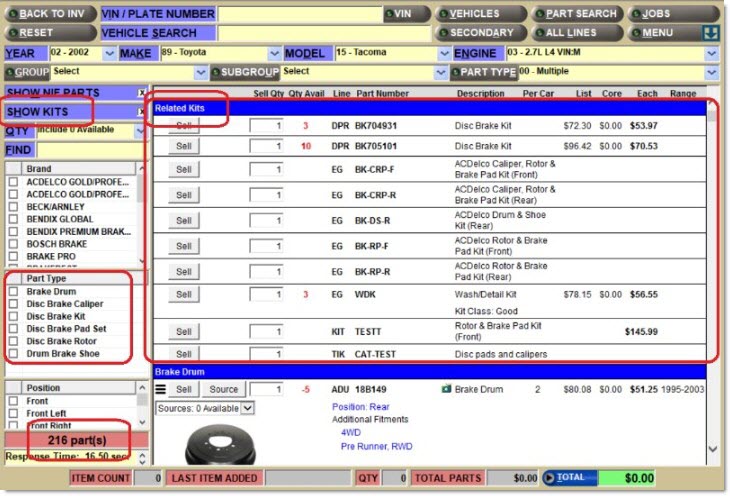
-
Below the 'Related Kits' section is a list of all parts returned within all of the 'Part Types' selected.
-
A switch called 'SHOW KITS' is on the screen. If the switch is unchecked, all 17 kits are hidden and only the catalog parts returned in the result set are displayed.
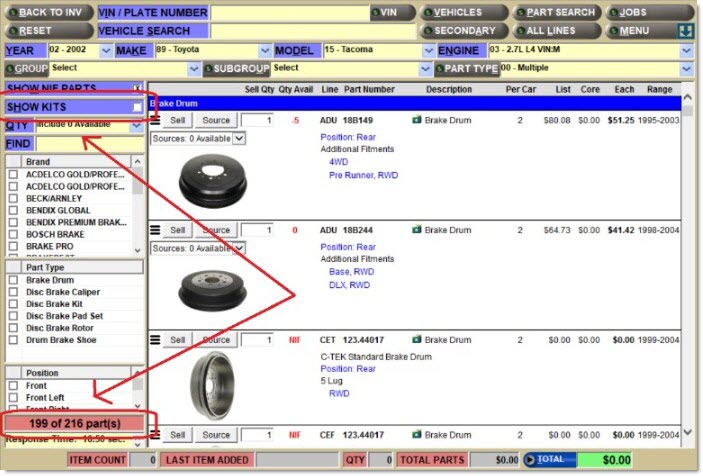
-
Note: A kit might also be displayed in the 'Related Kits' section if, during setup, that kit is "associated" to specific vehicles (in addition to, or instead of 'Part Types'), and one of those vehicles is selected during a catalog lookup.
-
Note: If it is decided that a specific KIT should not display at the top of the catalog result set, they can remove all vehicles on the 'Vehicles' tab, or remove all 'Part Types' on the 'Catalog Inclusions' tab in Kit Setup.
-
Note: If a KIT or BOM is created with only 'Part', 'Part List', or 'Part Choice' components, and without any 'Part Type' components, it is still possible to add one or more 'Part Types' on the 'Catalog Inclusions' tab or one or more vehicles on the 'Vehicles' tab. The KIT or BOM displays at the top of the catalog result set if the selected 'Part Type' has parts returned within the result set, or one of the "associated" vehicles is selected.
-
-
For each KIT or BOM displayed in the 'Related Kits' section of the CATALOG screen, the following is displayed:
-
Sell button -When clicked, the 'Kit' pop-up opens. On the 'Kit' pop-up, when the 'Cancel' or 'Sell' button is clicked, the application returns to the CATALOG screen.
-
Sell Qty - Textbox with a default value of 1.
-
Allows overriding the default with a value between 1 and 999999.
-
Displays the default or an override value in the 'Kit Sell Qty' textbox on the 'Kit' pop-up (when opened).
-
-
'Qty Avail' - If known for the kit part.
-
For a BOM, the 'QTY AVAILABLE' (from the Part Entry screen) displays even if it is a zero value.
-
For a KIT, the application displays and calculates a value (even a zero value) using the following rules:
-
If any component has a component type of 'Part Type', the application displays a blank value and performs no further calculations. Note: Since parts might change for these component types, the system is avoiding the "performance hit" of calculating and displaying a value that may change.
-
It is always possible to view the 'Qty Avail' (and 'Kit Price') for this, or any, kit in the 'Related Kits' section by clicking the 'Sell' button and opening the 'Kit' pop-up.
-
The application reviews every component with a component type of 'Part List' or 'Part Choice'.
-
If there is no 'Default Part Number' defined at setup, the application displays a blank value and performs no further calculations.
-
If there is a 'Default Part Number' defined, the application uses that part's 'QTY AVAILABLE' (from the Part Entry screen) and 'Qty in Kit' (from the KIT SETUP screen) to determine the most number of kits that can be assembled at Point-of-Sale using sufficient stock for that part.
-
-
The application reviews every component with a component type of 'Part'. The application uses that part's 'QTY AVAILABLE' (from the Part Entry screen) and 'Qty in Kit' (from the KIT SETUP screen) to determine the most number of kits that can be assembled at Point-of-Sale using sufficient stock for that part.
-
-
-
The application compares all component results above and display the smallest number for the 'Qty Avail' for the kit.
-
KIT or BOM 'Line' and 'P/N'
-
KIT or BOM 'Description 1'
-
KIT or BOM 'Kit Class': Displays below 'Description 1' (if defined).
-
KIT or BOM 'List' and 'Core': Displays if calculated.
-
KIT or BOM part 'Each (Sell) Price': Displays a non-zero value based upon the following rules:
-
The application calculates a value-based initially upon the kit's 'Pricing Rule' and then upon the kit's components.
-
If the kit's 'Pricing Rule' is "Kit Fixed Price", the application displays the value defined on the KIT SETUP screen unless that value is zero.
-
If the kit's 'Pricing Rule' is "Kit Plan Price", the application displays a calculated non-zero value using the regular customer plan pricing rules for the kit part.
-
If the kit's 'Pricing Rule' is "Sum Plan Price", "Sum Cost", or "Sum Sales Class Margins", the application reviews each component:
-
If any component type is 'Part Type', the application displays a blank value and performs no further calculations.
-
If the component type is 'Part List' or 'Part Choice', and a Default part number has not been defined at setup, the application displays a blank value and performs no further calculations.
-
If the component type is 'Part List' or 'Part Choice', and a Default part number has been defined at setup, its 'Each (Sell) Price' is calculated.
-
If the component type is 'Part', its 'Each (Sell) Price' is calculated.
-
The application aggregates all kit component 'Each (Sell) Prices' to obtain the kit's 'Each (Sell) Price'.
-
-
-
-
For each KIT or BOM displayed in the 'Related Kits' section of the CATALOG screen, the following items are not displayed:
-
The "hamburger style" menu to the left of the 'Sell' button.
-
The 'Source' button. Kit parts cannot be sourced.
-
The smartpage icon to the left of 'Description'.
-
-
The application displays some of the user-defined KIT or BOM kits below the 'Related Kits' section, throughout the other sections of the catalog or interchange result set.
-
There are three instances when a user-defined kit is displayed throughout the catalog or interchange result set, and all three are available when using any catalog, including embedded browser catalogs. However, the first instance will be described in this section because its treatment is different when using the ACES, Epicor, or TecAlliance catalogs. They are:
-
When the part returned from the catalog or interchange lookup is a component within a user-defined kit.
-
When a user-defined kit is set up as an alternate for a part returned from the catalog or interchange lookup. Note: This kit can contain components with a mix of manufacturer's parts.
-
When a user-defined kit is set up using a manufacturer's branded kit part number returned from the catalog or interchange lookup. Note: This kit should contain all component parts from one manufacturer.
-
-
For each KIT or BOM displayed throughout the 'Part Type' sections of the catalog or interchange result set:
-
The application displays the "hamburger style" menu to the left of the 'Sell' button.
-
The 'Source' button is disabled.
-
The smartpage icon is hidden.
-
The application prevents entering an "invoice modifier" in the 'Sell Qty' textbox.
-
When the 'Sell' button is clicked, the 'Kit' pop-up opens. On the 'Kit' pop-up, when the 'Cancel' or 'Sell' button is clicked, the application returns to the CATALOG screen.
-
When selling a kit, the "core exchange" prompt does not display.
-
-
When the 'SHOW KITS' option is checked, all user-defined kits displayed throughout all sections of the catalog result set are hidden.
Adding Kits to the Invoice
-
It is allowed to add kits to open sales orders from the 'Kit' pop-up (only).
-
It is allowed to enter a kit's line and part number "on the sell line", but it is not allowed to enter sell, lost sale, or back order quantities for a kit part on the sell line.
-
After the 'Sell' button is clicked on the 'Kit' pop-up, the kit is added to the sales order, and the application displays both the kit part and all components.
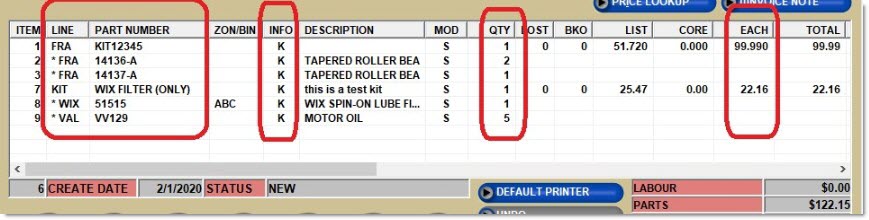
-
For all BOM and Kit parts and components, the application displays the character "K" in the 'INFO' column.
-
On the invoice body:
-
The BOM and Kit parts display all column values like any other part added to the invoice.
-
When a Kit (KIT or BOM) is placed on the sales order, the system displays the tax flag for each Kit component, rather than the Kit part itself, in the 'TAX' column. If Kit components are taxable, the system calculates the tax on the component parts, rather than the Kit part.
-
If the components of the Kit have fees defined, the system calculates the fees on the sales order for each component part that has fees defined. If the Kit has freight or labor components, the freight and/or labor are included in the corresponding invoice total field, not rolled up into the part total.
-
The BOM and KIT components display:
-
'LINE' - prefixed by an asterisk and space
-
'PART NUMBER'
-
'ZONE/BIN'
-
'INFO' - The character "K"
-
'DESCRIPTION'
-
'MOD' - The characters "S" or "BO"
-
'QTY' - Calculated by multiplying 'Qty In Kit' by 'Kit Sell Qty'
-
-
-
It is possible to add the same BOM or KIT to the invoice body multiple times, and the application displays each kit instance separately.
-
For a BOM, the application will not allow more kits sold than are available. If a value is entered in the 'Kit Sell Qty' that is greater than the 'Avail Qty' value displayed for the BOM part, a prompt displays with the text "There is insufficient stock for this sale." with an 'OK' button, and prevents adding the BOM to the invoice. When the 'OK' button is clicked, the application returns to the 'Kit' pop-up. Note: BOM parts cannot be "oversold or sourced later", but they can be "assembled at POS" and sold as a KIT instead.
-
For a KIT, there is no available quantity for the kit part; only available quantity for each of the components. The application allows the selling of any number of KITs, regardless of the quantity available for each of the components. However, when the 'Sell' button is clicked, for any component, if the 'Avail Qty' value is less than the calculated value of 'Kit Sell Qty' multiplied by the 'Qty In Kit' value for that component, then the application displays a prompt with the text "There is insufficient stock for this sale." with the following buttons: 'Oversell', 'Source Later', and 'Cancel'.
-
If the 'Cancel' is clicked button, the application returns to the 'Kit' pop-up.
-
If the 'Oversell' button is clicked, the kit is added to the invoice, the 'MOD' value is set to 'S' for any component that has an insufficient quantity and the application returns to the Invoice Point of Sale screen.
-
If the 'Source Later' button is clicked, the kit is added to the invoice, the 'MOD' value is set to 'BO' for any component that has an insufficient quantity and the application returns to the Invoice Point of Sale screen.
-
-
For any KIT component part, the application displays the 'QUICK SOURCING' right-click menu item but not 'ADVANCED SOURCING'.
-
For any KIT part, BOM part or BOM component parts, the application does not display the 'QUICK SOURCING' and 'ADVANCED SOURCING' right-click menu items. However, if BOM part is sold using the "Assemble Now" option, it does display the 'QUICK SOURCING' right-click menu item for any BOM component with insufficient quantity and a 'BO' modifier.
-
For any KIT part, KIT component part, BOM part, or BOM component part, if a the right-click menu item 'VIEW IN LISA' is selected, transactions for that part are displayed on the LISA TRANSACTIONS REPORT display screen (regardless of any default settings for the LISA Report).
-
When quantities are reserved on a sales order:
-
For a KIT, inventory for the KIT component parts will be decremented based on existing rules. The KIT part is not decremented.
-
For a a BOM, inventory for the BOM part will be decremented based on existing rules. BOM component parts are not decremented.
-
Editing Kits on Invoices
-
If a kit part is right-clicked, or any of its components, and 'VOID ITEM' is selected, the kit part and all of its components are removed from the invoice body.
-
Once a kit is on the invoice body, the kit part or any of its components cannot be edited by returning the kit part or any of its components to the "sell line".
-
However, it is allowed to return a kit to the 'Kit' pop-up to change the 'Kit Sell Qty' and 'Kit Price'.
-
If a kit part, kit note, or any of its components on the sales order are double-clicked, that kit and its components re-display on the 'Kit' pop-up.
-
Below is a sample 'Kit' pop-up before the kit was added to the sales order:
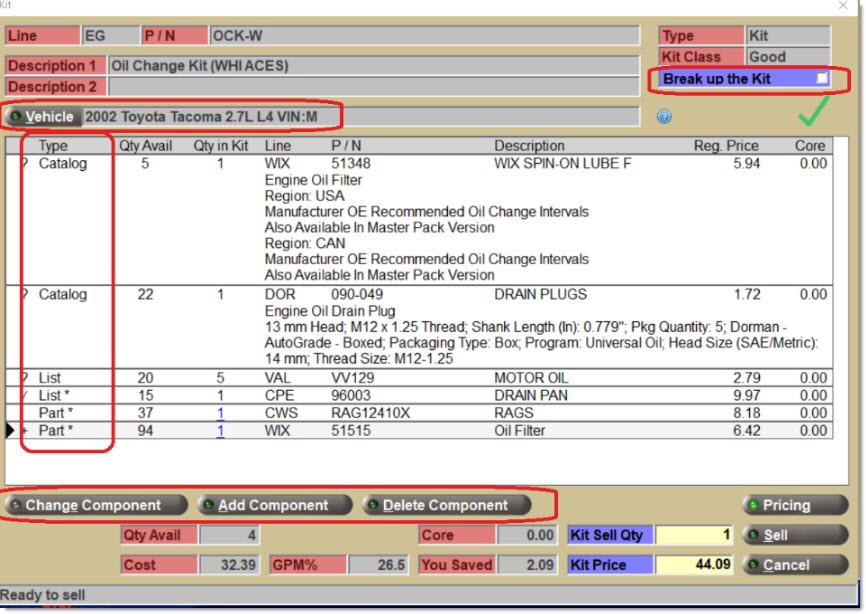
-
Note the four red circled areas on the sample pop-up above. These areas will be impacted when a kit is returned to the pop-up.
-
-
Below is a sample 'Kit' pop-up after a kit was added to the sales order and returned to the 'Kit' pop-up:
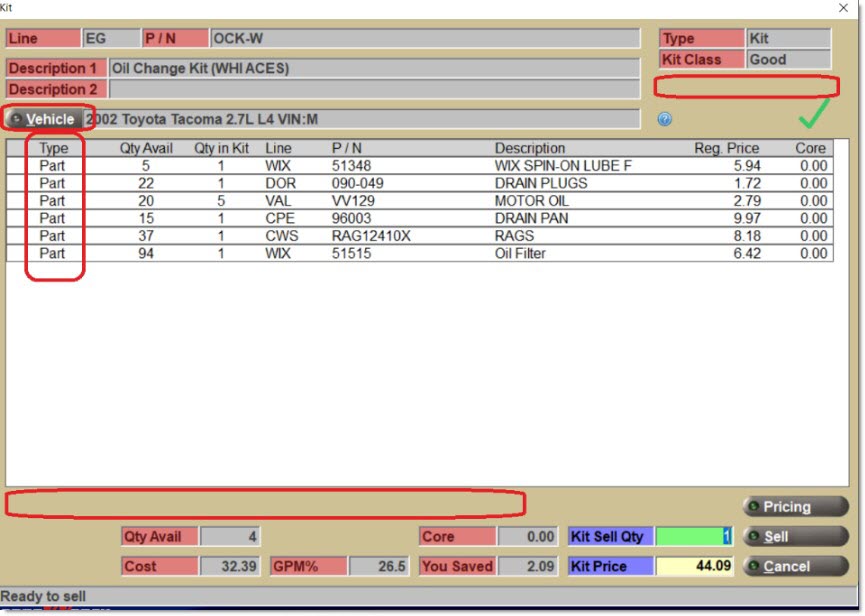
-
For a KIT returned to the 'Kit' pop-up for editing:
-
The 'Vehicle' button is disabled.
-
The 'Break up the Kit' checkbox is hidden, even if the checkbox was displayed initially.
-
'Part' is displayed in the 'Type' column for every component regardless of what the 'Type' value was initially.
-
The 'Change', 'Add', and 'Delete Component' buttons are hidden.
-
The 'Pricing' button is enabled.
-
Only the 'Kit Sell Qty' and 'Kit Price' are enabled for editing.
-
-
For a BOM:
-
The 'Assemble Now' checkbox is disabled. The application displays the value of the checkbox when the BOM was added to the sales order.
-
Only the 'Kit Sell Qty' and 'Kit Price' are enabled for editing.
-
-
-
Note: On the 'Kit' pop-up, click the 'Pricing' button to review pricing information about the kit and its components.
-
If the 'Pricing' button is clicked on the 'Kit' pop-up, the 'Pricing' pop-up displays.
-
In the upper-right section of the pop-up, in a field called 'Invoice Price', the application displays the 'Kit Price' from when the kit was on the sales order.
-
In the lower-right section of the pop-up, the application always hides the 'Adjustment' button, even if the 'Kit Price' was increased or decreased, because the adjustments made to the 'Kit Price' while the kit was on the 'Kit' pop-up are no longer known by the application.
-
-
If the 'Sell' button is clicked on the 'Kit' pop-up, any changes to the 'Kit Sell Qty' and 'Kit Price' are changed on the sales order.
-
If the 'Cancel' button is clicked on the 'Kit' pop-up, the application returns to the sales order without any changes to the kit, and the kit remains on the sales order.
-
If the 'Kit' Price is edited, the application recalculates the kit's GPM% and displays the new GPM% on the 'Kit' pop-up. It also recalculates each component's GPM%, and displays the new GPM% on the 'Pricing' pop-up. For the calculation of GPM%, the application uses "regular" gross profit which only contains part price and cost in the calculation.
-
Note: If the kit's 'Pricing Rule' is 'Kit Fixed Price', 'Kit Plan Price', 'Sum Cost', or 'Sum Sales Class Margins', the kit's GPM% will still be the same as all part components (with potentially a minor exception for any part component). This is because each part component's sell price will be recalculated to ensure that the part component's GPM% matches the kit's GPM%.
-
Note: The component's GPM% may still differ from the kit's GPM% if the 'INCLUDE CORE IN POS GP%' is checked and the component has a core, or the option 'INCLUDE REBATE ADJUSTED COST IN POS GP%' is checked and the component has a rebate.
-
Note: If the kit's 'Pricing Rule' is 'Sum Plan Price', the kit's GPM% will be different from all or most part components. This is because each part component's sell price will be recalculated using the proportional difference between the kit’s previous and revised sell price.
-
Displaying Kit Notes
-
When the 'Print Notes on Invoice' option on the KIT SETUP screen has been selected, the application displays all kit notes on open sales orders (and printed invoices) below the kit part and above the component parts.
-
The application displays a "K" character in the 'INFO' column for all kit notes.
-
If a line item note is attached to a kit, the application does not display a "K" character in the 'INFO' column.
-
It is possible to delete kit notes off the sales order while retaining the kit on the sales order.
-
It is not allowed to edit kit notes displayed on open sales orders. Note: Kit notes edited on the KIT SETUP screen will not change the text displayed on open sales orders.
-
There is no right-click menu for kit notes.
-
If a line item note is manually added to a sales order, which already has a kit, and 'ATTACH NOTE TO PREVIOUS PART' (which is the kit) is selected, the line item note is added after the last component of that kit.
Sourcing Kit Components (KITs Only)
-
When a KIT or BOM is on a sales order, the application does not allow the KIT or BOM part to be "sourced" on the 'Quick Sourcing (INSUFFICIENT QUANTITY)' pop-up or the ADVANCED SOURCING screen. It does not allow a KIT or BOM part to be "sourced" on the SHELF SOURCING screen either.
-
For a BOM (on a sales order), the application does not allow BOM component parts to be "sourced" either, unless the BOM part is sold using the 'Assemble Now' option.
-
For a KIT (on a sales order), the application allows any KIT component part to be "sourced" on the 'Quick Sourcing (INSUFFICIENT QUANTITY)' pop-up. However, the following options on the 'Quick Sourcing' pop-up are disabled:
-
The 'ADVANCED SOURCING' button
-
The 'SELL QTY' textbox
-
The 'BACKORDER' button
-
The 'LOST SALE' button
-
The right-click menu item 'SELL SUPERSEDE INSTEAD' option
-
-
The application allows applying shipping charges to sourced KIT component parts with the same functionality as regular parts. Shipping charges show on the KIT component parts only.
-
If sourcing increases the cost of the KIT component part:
-
The application does not change the KIT's 'Sell Price'.
-
The cost of the KIT is always the sum of the component's Point-of-Sale costs, and whether or not the cost of the KIT changes is based on existing sourcing functionality.
-
The application does not "filter" out the part from the sales order (based upon any 'Min Cost' and 'Max Cost' "filters" defined at Kit Setup). Those "filters" only apply to the Kit pop-up and the 'Change Component' pop-up.
-
-
When splitting one KIT component part into two items on the sales order (due to sourcing some of the quantity, and selling some of the quantity from the shelf, or sourcing from multiple suppliers), both items display together below the KIT part on the Invoice Point of Sale screen.
-
When the 'UNRESERVED QUOTES' checkbox is checked, and when any one of the Point-of-Sale buttons that reserves a sales order are clicked (e.g. 'RESERVE', 'WIP', 'DEPOSIT', 'PICK', 'PACK', 'INVOICE', 'SLIP', 'ON ACCT', 'PAY NOW', or 'COD'), the reserve process changes any insufficient quantity items from an 'S' to a 'BO' modifier. Note: This might occur if another user reserved the available inventory first. If only one item on the sales order gets changed from an 'S' to a 'BO' modifier, the following prompt displays: "There is not enough inventory to reserve for <LLL PPPP qty = n>. Click OK to attempt sourcing this item."
-
If the 'CANCEL' button is clicked, the application returns to the Invoice Point of Sale screen.
-
If the 'OK' is clicked, and the part is a kit component, the application opens the 'Quick Sourcing (INSUFFICIENT QUANTITY)' pop-up instead of the ADVANCED SOURCING screen.
-
-
If multiple parts get changed from an S to BO modifier, and at least one of the parts is a kit component, the following prompt displays: “There is not enough inventory to reserve several line items. You must source these items.”.
-
When the 'OK' button is clicked, the application returns to the Invoice Point of Sale screen.
-
Note: Source each kit component part separately via a right-click menu item 'QUICK SOURCING' or 'SOURCE-IT' button click, to open the 'Quick Sourcing (INSUFFICIENT QUANTITY)' pop-up.
-
-
Per existing functionality, when the 'SOURCE IT' button is clicked, if only one part on the sales order has insufficient quantity, the 'Quick Sourcing (INSUFFICIENT QUANTITY)' pop-up opens.
-
If the SOURCE IT button is clicked, and there are only multiple kit component parts on the sales order that have insufficient quantities, or there are multiple kit component parts and only one "regular" part that have insufficient quantities, the application opens the 'Quick Sourcing (INSUFFICIENT QUANTITY))' pop-up for the first part that does not have a 'Source' selected.
-
If the 'SOURCE IT' button is clicked again and again, the application continues to open the 'Quick Sourcing (INSUFFICIENT QUANTITY)' pop-up for the next part without a source selected, working top-down in the sale order.
-
Once all parts with a sourcing modifier have a source selected, the application opens the 'Quick Sourcing (INSUFFICIENT QUANTITY)' pop-up for the first part that has a source selected, working top-down in the sale order.
-
-
If the 'SOURCE IT' button is clicked, and there are multiple kit component parts on the sales order that have insufficient quantities, and also multiple "regular" parts that have insufficient quantities, the application opens the ADVANCED SOURCING screen for all of the "regular" parts only. Note: Source each kit component part separately via a right-click menu item 'QUICK SOURCING', or 'SOURCE-IT', to open the 'Quick Sourcing (INSUFFICIENT QUANTITY)' pop-up.
-
If a sourced KIT component is not sent to the store because a vendor no longer has availability (and does not supply the sourced part), the application notifies when recalling the open sales order reference and when the KIT component sourced part is removed, the entire KIT is also removed from the sales order.
-
Regardless of the 'Allow Supersede' option setting for a component, this option only applies to the 'Kit' pop-up and not once the kit is on the sales order. Therefore, since kit components cannot be changed on the sales order, if a seller returns a supersede part to replace the sourced kit component part, this replacement will not be accepted on the sales order and the kit cannot be sold.
Invoice Print
The application always prints the KIT or BOM part on the invoice, including all price, tax, and fee information.
For all KITs and BOMs, the application uses the 'Print Notes on Invoice' flag in KIT SETUP ('Kit Options' tab) to determine whether to print 'Kit Notes' on the invoice.
For all KIT or BOM components, the application uses the 'Print Components on Invoice' flag in KIT SETUP ('Kit Options' tab) to determine whether to print all of the KIT or BOM component parts on the invoice.
See the sample invoice below of a brake KIT sold along with the sale of a regular part below the KIT:
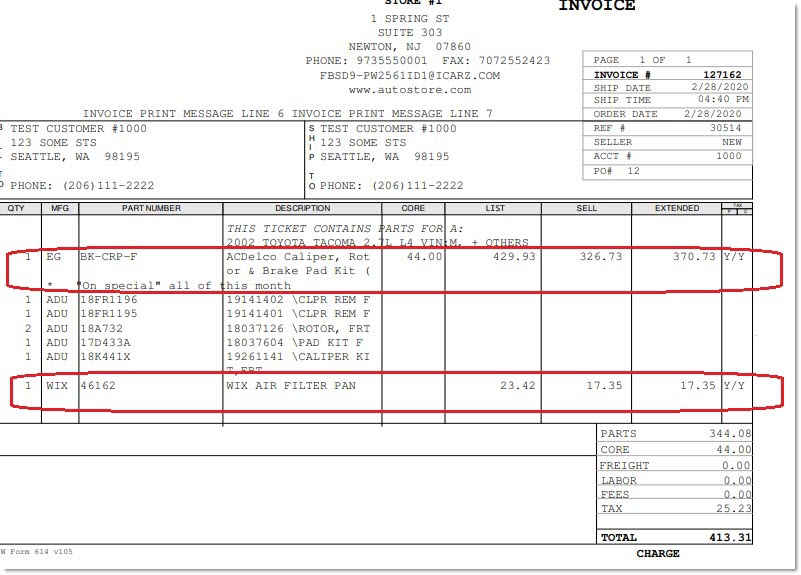
- Note that the invoice displays all of the components, which indicates that the 'Print Components on Invoice' option was selected.
- Note that all of the core and pricing information for the KIT part displays but no pricing information for any of the components.
- Note that the invoice displays a QTY number for the KIT part and all components. Note: The QTY for each component is the 'Qty in Kit' multiplied by 'Kit Sell Qty'.
- Note that for components, the invoice also displays the line, part number, and part description.
- Note that there is a 'Kit Note' printed, which indicates that the 'Print Notes on Invoice' option was selected.
Printing Pick Tickets
For KITs, the application only prints KIT component parts, following existing sorting rules. Print a pick quantity calculated by multiplying the 'Kit Sell Qty' by 'Qty In Kit'.
For BOMs, the application only prints the BOM part, following normal sort rules.
Invoice Finalization (KITs and BOMs)
LISA
For any kit, when a user finalizes an invoice, the application records quantities sold and extended sell prices in LISA for both the kit part and all of the kit's component parts. This is for reprinting invoices, reviewing sales and processing returns.
Note: Any extracts performed directly from LISA "on the back-end" using native SQL should avoid including both the kit part and the kit's component parts in the output to avoid "double-counting" units sold and extended sell prices. The extract should either include kit parts or kit components but not both.
Part Histories
For BOMs, when an invoice is finalized:
-
The system records the BOM part quantities sold and the BOM component part quantities sold.
-
In addition to "history" buckets, the system records in 'CURRENT' and 'QTY YTD' buckets.
-
The system records the BOM component part quantities returned and does not record the BOM part quantities returned.
-
The system records the 'Last Sold Date' for BOM parts and all BOM part components.
-
The system records the 'Last Returned Date' for BOM component parts only.
-
The system updates 'RETURN CORE', 'RETURN DEF', and 'RETURN NEW' accordingly for BOM component parts only.
-
If 'TRACK CANCELED ITEMS AS LOST SALES' is set to 'ALWAYS', when either the BOM part or any BOM component part on the open sales order is voided, The system records a lost sale quantity for the BOM part and all BOM components.
For KITs, when an invoice is finalized:
-
The system records the KIT part quantities sold and the KIT component part quantities sold.
-
In addition to "history" buckets, the system records in 'CURRENT' and 'QTY YTD' buckets.
-
The system records the KIT component part quantities returned and does not record the KIT part quantities returned.
-
The system records the 'Last Sold Date' for KIT parts and all KIT part components.
-
The system records the 'Last Returned Date' for KIT component parts only.
-
The system updates 'RETURN CORE', 'RETURN DEF', and 'RETURN NEW' accordingly for KIT component parts only.
-
If 'TRACK CANCELLED ITEMS AS LOST SALES' is set to 'ALWAYS', when either the KIT part or any KIT component part on the open sales order is voided, the system records a lost sale quantity for the KIT part and all KIT components.
-
Note: There is only one history bucket per part per period. Therefore, parts sales for any period will be a mix of sales for that part combining the part sold as a component within a kit and the part sold separately outside of any KIT or BOM.
Dayfill
For BOMs, the system tracks dayfill bucket values for the BOM parts and all BOM component parts.
For Kits, the system tracks dayfill bucket values for the KIT parts and all of the KIT component parts.
Note: The system does not update the dayfill bucket when packaging BOMs.
Returns
When a return is being performed, the application displays a 'K' in the 'INFO' column for a BOM or KIT component part.
For KITs and BOMs:
Only allow the ability to return a KIT or BOM component parts using existing return rules. The application only displays KIT or BOM component parts in the return validation list of parts on the INVOICE screen.
If an attempt is made to return a KIT or BOM part, a prompt displays with the text: "A kit part can't be returned. You must return each component." and an 'OK' button. When the 'OK' button is clicked, the application returns to the Invoice Point of Sale screen.
When a return for a KIT or BOM component is attempted, the Invoice Point of Sale screen displays the component part 'EACH' and extended sell price, even though this component part 'EACH' and extended sell price were not displayed during the original sale.
The application allows a core return for a KIT or BOM component part on the same or a separate sales order from the original sale of the KIT or BOM part.
The application allows using a defective exchange modifier for KIT and BOM component parts.
The application allows using a core exchange modifier when selling a kit, but only processes the "sell" portion of the transaction. It adds the kit to the sales order with any core charges for the kit part, but does not add the return credit for the core. Note: It is necessary to add the core return credit to the sales order using a separate core return modifier.
On the BULK CORE RETURNS screen, KIT and BOM component parts display.
When a new re-sellable KIT or BOM component part is returned, the following rules for restocking fees are applied:
-
If the kit's 'Use Kit Restocking Fee' option is unchecked, use existing store restocking fee rules.
-
If the kit's 'Use Kit Restocking Fee' option is checked, the application calculates the kit's restocking fee (in addition to any store restocking fees) and adds to the sales order that contains the returned component part. Note: The kit restocking fee may be used to recover some of the discount applied to a returned component since the discount should only be applied when all components are purchased as a kit.
-
To calculate the kit restocking fees, use the 'Return Component Restocking Fee %' and the 'Minimum Return Restocking Fee' found on the 'Kit Fees' tab on the KIT SETUP screen. The application calculates the kit restocking fees, uses the 'Return Component Restocking Fee %' and the 'Minimum Return Restocking Fee' found on the 'Kit Fees' tab on the KIT SETUP screen.
-
To calculate the store restocking fees, per existing functionality, use the 'RESTOCKING FEE %', 'MIN RESTOCKING $ AMT', 'APPLY TO SOURCED ITEMS ONLY', and 'RESTOCKING OVERRIDES' found on the 'FEES / MARGINS' tab on the STORE INVOICE OPTIONS screen.
-
If a new re-sellable kit component is returned that was sourced, and the 'Use Kit Restocking Fee' option and the 'APPLY TO SOURCED ITEMS ONLY' are both checked, the application applies both the kit and store restocking fees to the sales order.
-
If a new re-sellable kit component is returned that was not sourced, and the 'Use Kit Restocking Fee' option is checked, and the 'APPLY TO SOURCED ITEMS ONLY' option is unchecked, the application applies both the kit and store restocking fees to the sales order.
-
When a KIT or BOM component part is returned, any assembly fee included at the time of sale is refunded.
Deferred Core Billing
When a kit is sold to a DCB customer, and one or more components has a core charge, and the 'Print Components On Invoice' option is checked, the application displays the "CORE DEFERRED" note below the component that has the core charge (and not below the kit part).
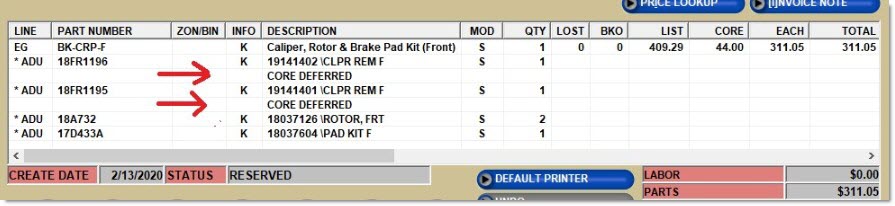
When a kit is sold to a DCB customer, and the 'Print Components On Invoice' option is unchecked, the application does not display any core information (e.g., "CORE DEFERRED" or "CORE TRANSACTION ON INVOICE #nnnnn") on the sales order.
When the sales order is finalized, regardless of the value of the 'Print Components On Invoice' option, the application only splits the kit component parts that have a core charge on to the "deferred core" invoice.
THe application only displays the kit component parts that have a core charge on the Core Activity Report.
Scan Validation
For Kits:
-
When the KIT part and all components are added to the sales order (from the 'Kit' pop-up), the application displays the KIT part in black color (because there is no physical part expected to be scanned), and displays all component parts in orange color (because they all still need to be scanned).
-
Note: Once on the sales order, it is possible to scan all component parts per existing Scan Validation rules.
-
Note: Do not scan any component parts before they exist on the sales order to avoid adding them to the sales order as a regular part sale instead of as a component of a KIT sale.
For BOMs:
-
-
When the BOM part and all components are added to the sales order (from the 'Kit' pop-up), the application displays the BOM part in orange color (because the physical BOM part still needs to be scanned), and displays all components in black color (because they are all expected to be inside a BOM "package" and cannot be scanned).
-
Note: Once on the sales order, scan the BOM part per existing Scan Validation rules.
-
Scan the BOM part before existing on a sales order, and before the 'Kit' pop-up opens. When the 'Sell' button is clicked (on the 'Kit' pop-up), and the 'Kit Sell Qty' is one, when the BOM is added to the sales order, display the BOM part and all components in black.
-
When a BOM part has been scanned (before the 'Kit' pop-up opens) and increases the 'Kit Sell Qty' to a value greater than one, when the 'Sell' button is clicked, and the BOM is added to the sales order, the application displays the BOM part in orange color (with a partial validation quantity), and displays all components in black color.
Note: The system prevents manual validation because KIT and BOM parts and components cannot be brought to the sell line".
Consignments
No kit part can be added to a consignment.
Change Customer
The application does not re-price any kits on an open sales order if the customer is changed.
If an attempt is made to change a customer on an open sales order, per existing functionality, the application displays the "Repricing the invoice" banner and changes the price for all regular parts, but ignores the change for all kit parts.
Price Rounding and Velocity Pricing
The application supports price rounding and velocity pricing when the kit's 'Pricing Rule' is 'Kit Plan Price'. Otherwise, ignore price rounding and velocity pricing rules when the kit's pricing rule is 'Kit Fixed Price', 'Sum Plan Price', 'Sum Cost', or 'Sum Sales Class Margins'.
Contract Pricing
When calculating the sell price of any regular parts (sold outside of a user-defined kit), the system ignores any discount entries set up on the PRICE PLAN SETUP screen that has the 'KIT' column checked.
When calculating the sell price of any KIT or BOM part, the system includes in the calculation any discounts set up on the PRICE PLAN SETUP screen (in the 'LINE', 'PNCODE', and/or 'GROUP' columns) that has the 'KIT' column checked, in addition to any discounts specific to the kit 'LINE' and 'PART NUM' set up.
-
When the 'KIT' column is checked, and the 'SETUP TYPE' is 'MFG', 'SALE DATE', or 'QUANTITY BREAK' (on the PRICE PLAN SETUP screen), the system only applies these discounts to a kit when the kit's 'Pricing Rule' is 'Kit Plan Price'.
-
When the 'KIT' column is checked, and the 'SETUP TYPE' is 'CONTRACT PRICE' for a user-defined 'LINE' and 'PART NUM' on the PRICE PLAN SETUP screen, the system automatically uses a kit 'Pricing Rule' of 'Kit Plan Price' so the contract price is used, regardless of any 'Pricing Rule' set up on the KITS SETUP screen.
-
When calculating the sell price of any KIT or BOM part, and a contract price is used:
-
The system does not allow a price edit override on the 'Kit' pop-up.
-
The system does not allow components to be added, deleted, or upgraded. Note: Components can be changed but the kit sell price will not be changed from its contract price.
-
The system does not apply any assembly fees to ensure retaining the contracted price.
-
-
When the 'KIT' column is checked, and the 'SETUP TYPE' is 'CONTRACT PRICE' for a user-defined 'LINE', 'PNCODE', and/or 'GROUP' column on the PRICE PLAN SETUP screen, the system automatically uses a kit 'Pricing Rule' of 'Kit Plan Price' so the contract price is used, regardless of any 'Pricing Rule' set up on the KITS SETUP screen.
Promotions
The application ignores all kit parts and components on an open sales order for promotional consideration at Point-of-Sale, even though the application does not prevent adding kit parts and components to a promotion.
The application ignores kits on an open sales order as input for any tender coupon threshold and does not apply any tender coupon to any kit.
Mode 2
It is not possible to sell a BOM or KIT part while the terminal is in Mode 2.
eCommerce (B2B)
Note: The following functionality is available on both the Nexpart and MyPlace4Parts B2B websites but all examples below use Nexpart webpages only. Also, when the NCC embedded browser catalog is used in the application's CATALOG screen, the same functionality described below is supported.
Note: For all user-created kits displayed on eCommerce websites, all kit components are either 'Part', 'Part List', or 'Part Choice' component types and are not 'Part Type' components.
When any part returned within a catalog or interchange result set is a component within a user-defined kit, the application displays the user-defined kit as an alternate directly below the part, and optionally displays pricing and availability information for the user-defined kit.
Note: The user-defined kit is not really an "alternate" for a part, but this capability is being used so that user-defined kits can be viewed on eCommerce websites.
If any user-defined kit is set up as an alternate for one or more parts, and the kit is activated for sale, and any of those parts are returned within a catalog or interchange result set on an eCommerce webpage, the user-defined kit displays as an alternate directly below the part, and pricing and availability information can also optionally display for the user-defined kit.
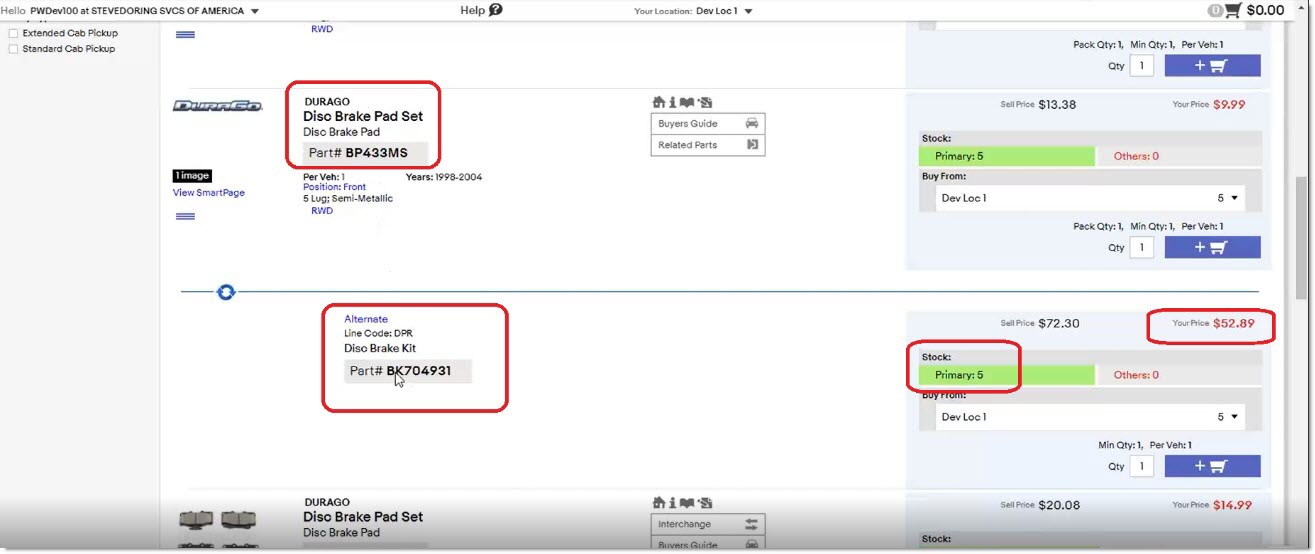
If any user-defined kit is set up with a kit part number that "exactly matches" a manufacturer's branded kit part number, and the user-defined kit is activated for sale, and the manufacturer's kit part number is returned in a catalog or interchange result set on an eCommerce webpage, application pricing and availability information will optionally display for the manufacturer's part "as a user-defined kit" instead of "as a part".
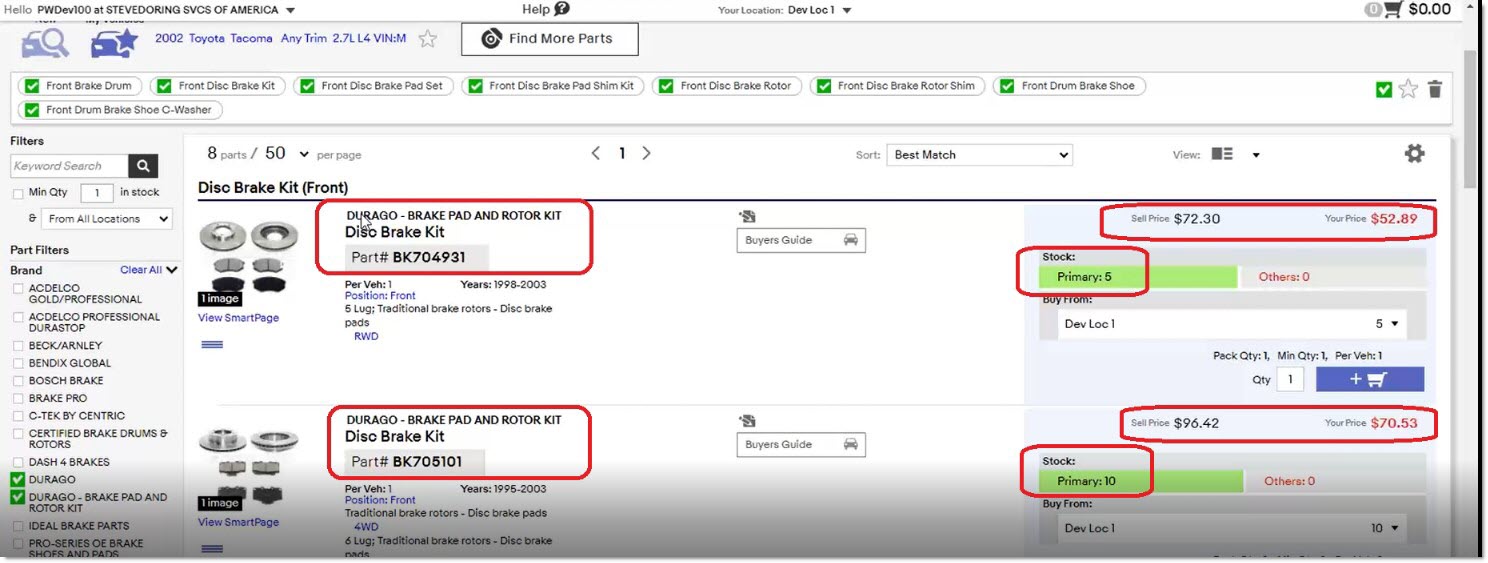
If an eCommerce buyer attempts to stock check any user-defined BOM or KIT part number from an eCommerce website, the part is returned "as a kit" instead of "as a part" with kit pricing and availability information.
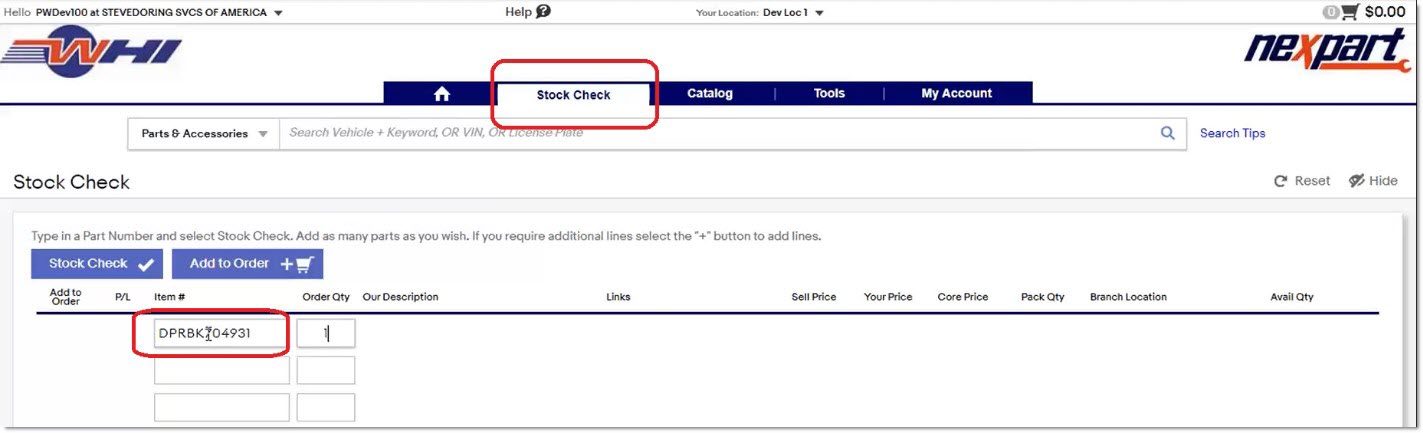
If the 'Add to Order' button is clicked, that kit part and its components are added to an open sales order in the application.
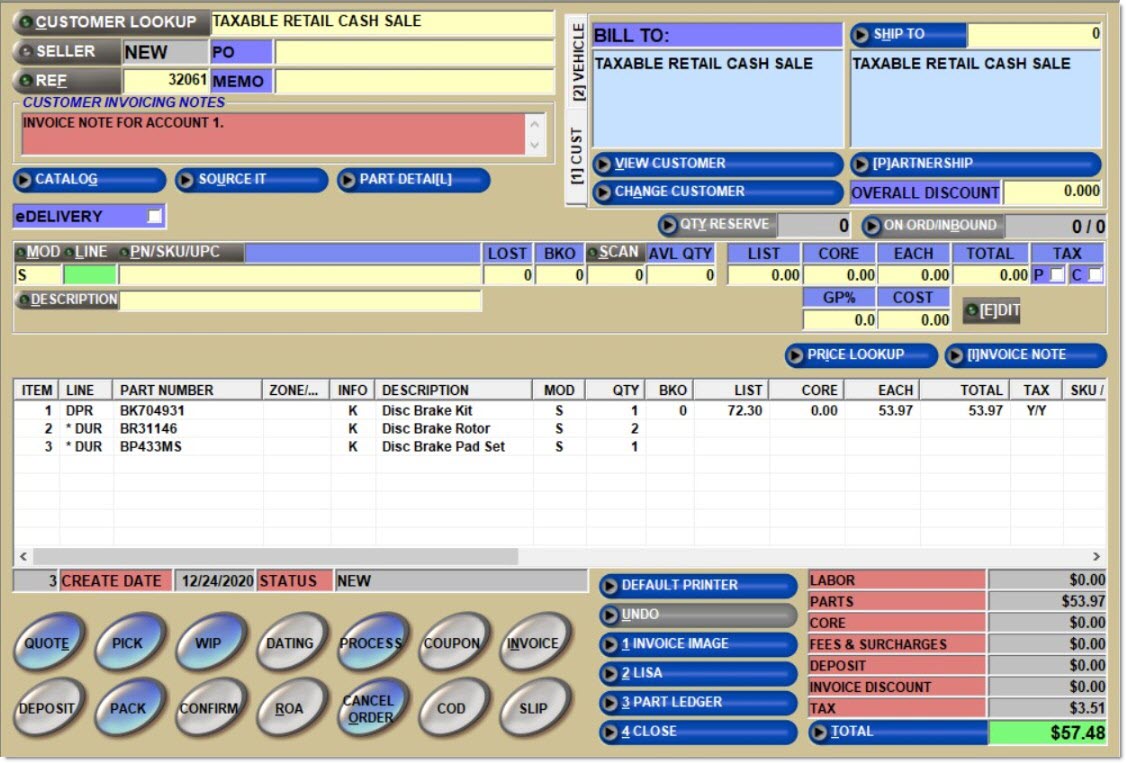
Only BOM and KIT parts are displayed on the Nexpart Order History screen.
Note: BOM and KIT component parts will not appear on any catalog result set on any eCommerce website.